You want WordPress running at your domain (or just at your server's IP), with HTTPS, behind a proper reverse proxy, on Docker so it doesn't tangle with anything else. Server Manager's Install WordPress recipe does all of that in ~2–3 minutes. You answer one question (which domain), then approve each command as the chat runs it.
What you'll end up with
- A WordPress 6 site running in a Docker container, talking to a MariaDB 11 container on a private network.
- Caddy (already running on the host) reverse-proxying your domain → the container, with auto-issued Let's Encrypt HTTPS.
- The site's secrets (database password, the 8 WordPress salts) auto-generated and stored in
/opt/wordpress/.env, mode600, root-owned. Nothing in plaintext anywhere else. - A workload card on your home screen with the WordPress logo. Click
manage →to get the per-recipe tabs: WP-Admin · Plugins · Themes · Maintenance · Status · Logs · Controls · Backup.
Prerequisite — a domain (optional but recommended)
WordPress works fine at a raw IP for testing, but for a real site you want a domain with HTTPS. If you haven't already, run Connect a domain first — point mysite.com at this server's IP and confirm DNS has propagated. The install wizard works with either, but DNS-then-install is the smoother path: Caddy can issue a TLS certificate immediately when the domain is already pointing here.
If you only have an IP for now, that's OK — you can attach a domain later without reinstalling: top bar → → Point a domain here. (Or use the Connect a domain button that shows up in the bottom action bar when you click a card that doesn't yet have a domain — same wizard, just pre-targeted to that workload.)
The walk-through
Press / anywhere in chat to open the palette, OR click Browse all actions below the chat, OR click Actions in the top bar and choose WordPress.
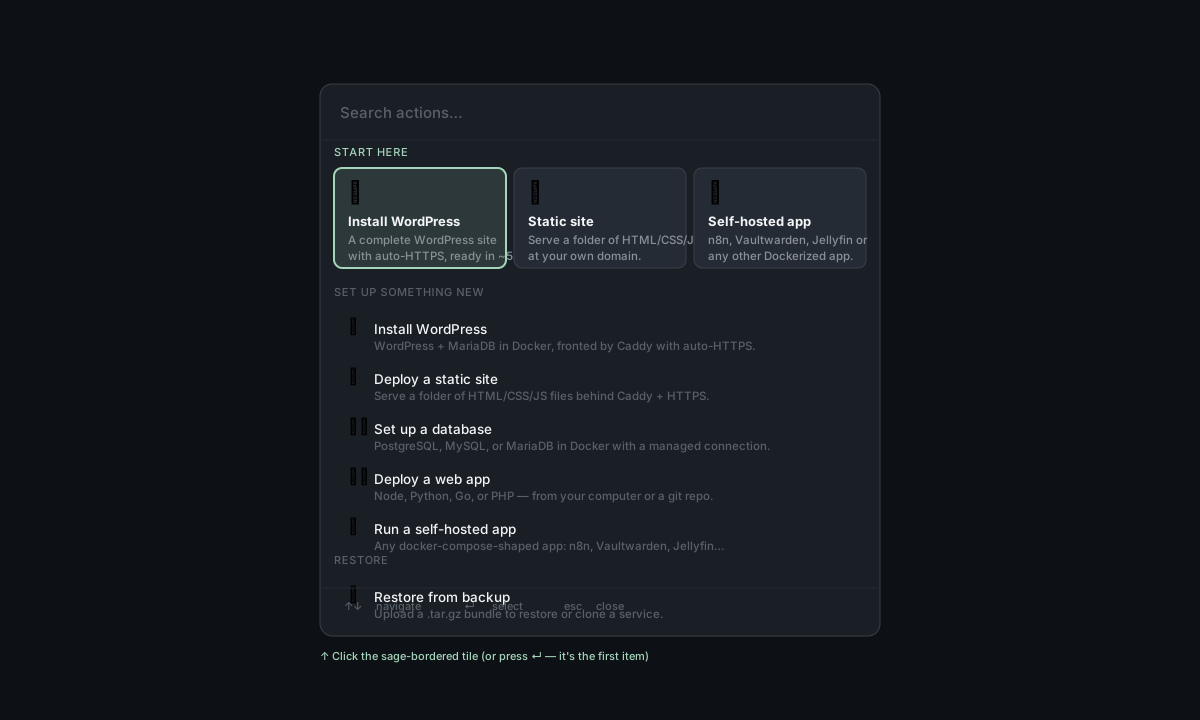
The palette has WordPress as a curated Start here tile at the top, and also under the Web apps category lower down. Either entry triggers the same install flow.
Note for non-Caddy servers. If your server already runs nginx, Apache, or Traefik instead of Caddy, the WordPress recipe is "gated" — the tile shows a 💬 via chat badge. Clicking it still works; Faro will set up WordPress natively for your engine instead of bringing in Caddy. See Why Caddy? and Migrate to Caddy for context.
After you click the tile, the chat takes over. Faro's first message is a quick check ("any existing wordpress here?", "ports 80/443 free?", etc.) plus one short question:
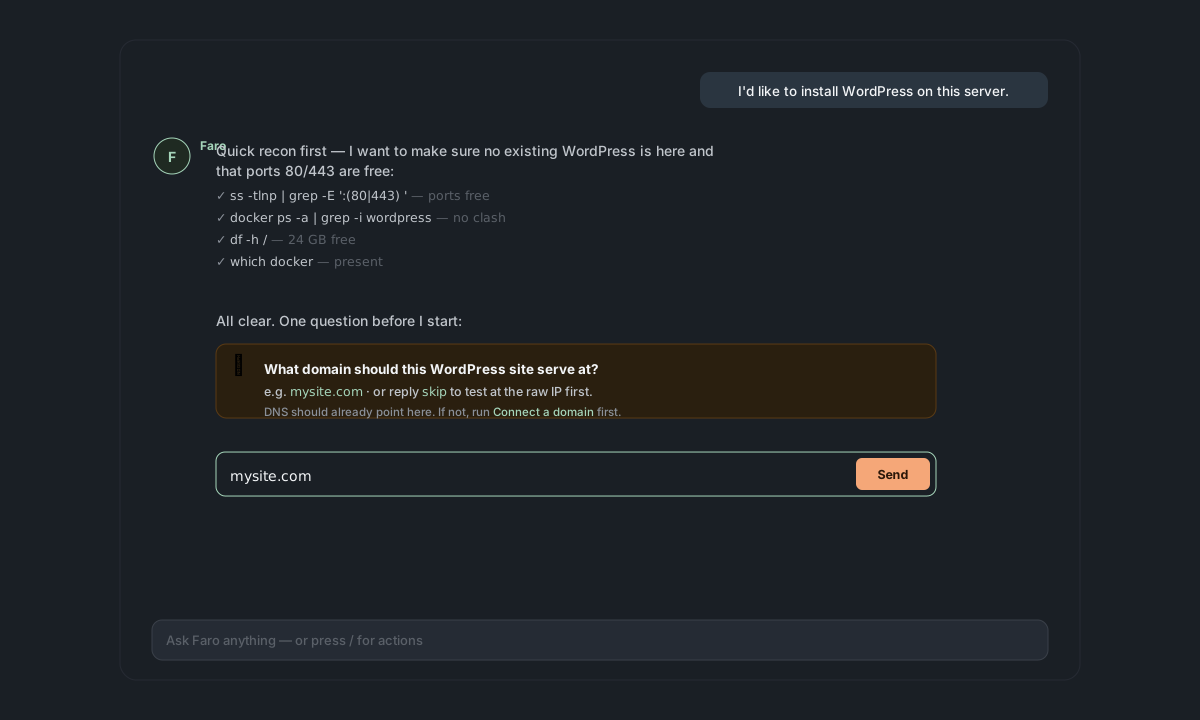
Type the domain (e.g. mysite.com) — or skip if you want to test at the raw IP first. Then Send.
Faro pauses for your approval on every command that changes state. The first batch is usually:
- (only if missing)
apt install docker.io docker-compose-plugin— install Docker. mkdir -p /opt/wordpress— install dir.openssl rand -base64 32(DB password) andopenssl rand -base64 48× 8 (the WordPress salts).- Write
/opt/wordpress/docker-compose.yml(pinnedwordpress:6+mariadb:11, named volumes, internal network, port published to127.0.0.1:<random>— never0.0.0.0). - Write
/opt/wordpress/.envwith all the secrets,chmod 600. docker compose up -d— start the containers.- Caddyfile block for your domain →
https://mysite.com { reverse_proxy 127.0.0.1:<port> }→caddy reload.
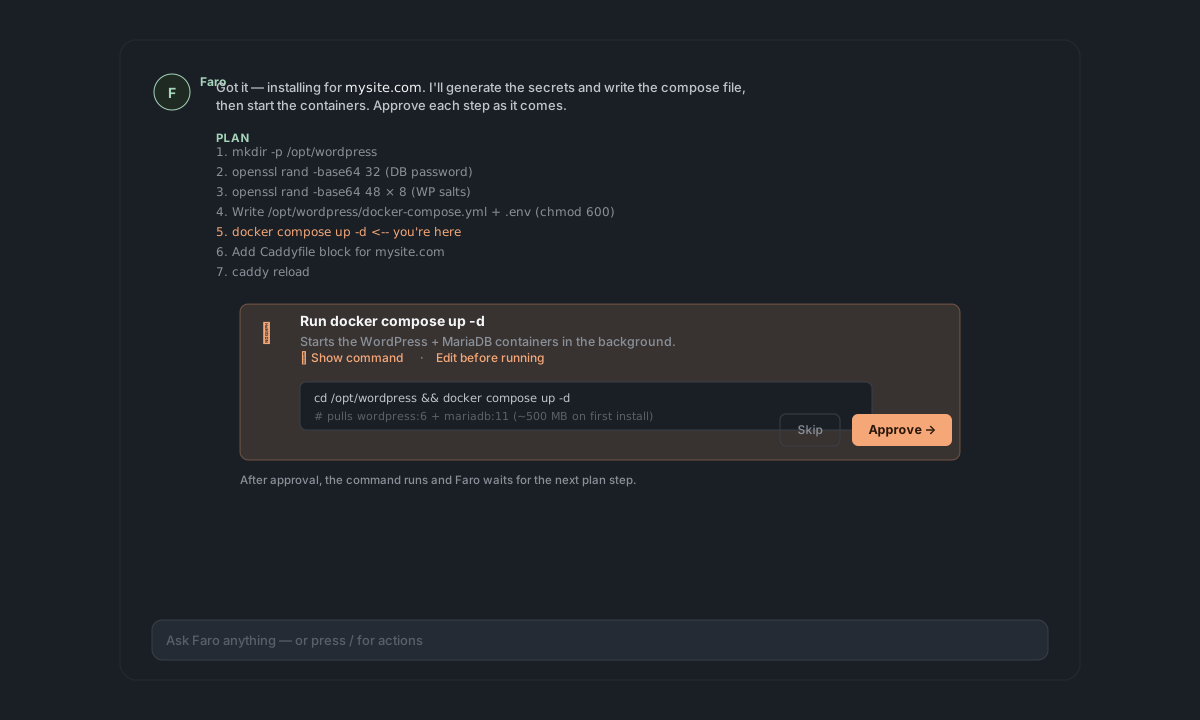
Each command's exact text is visible before you approve. You can Approve, Skip (rare — usually breaks the install), or Cancel (leaves nothing running but also nothing on disk that we can't clean up).
Why so many approvals? Server Manager doesn't run anything destructive without your explicit OK. Even for a routine install. It's a deliberate friction. After the first install you'll know what to expect; later installs feel quicker because the approval rhythm is familiar.
Total install time including approvals: usually 2–3 minutes. Most of that is the Docker pull (~500 MB of WordPress + MariaDB images on first install).
When the containers are up and Caddy is reloaded, Faro gives you the URL:
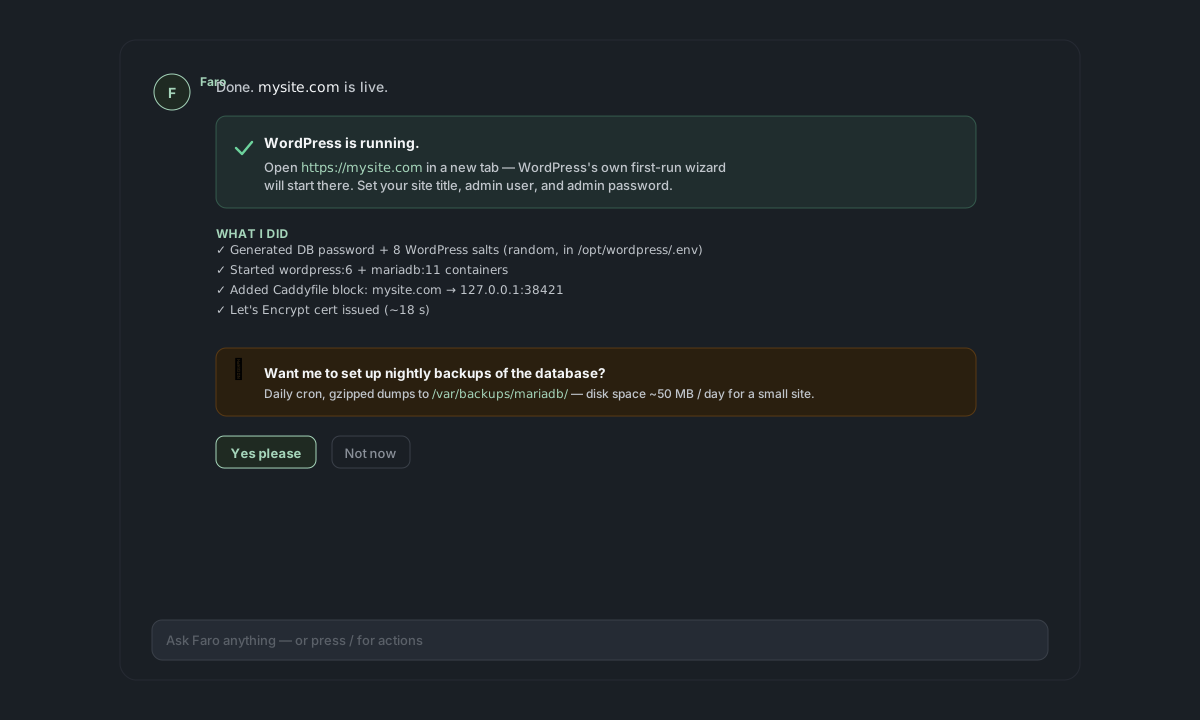
It also asks a proactive follow-up: "Want me to set up nightly backups of the database?" Pick yes or no — you can always set them up later (see Backups).
Click the URL. WordPress's own install wizard opens — Server Manager's setup is done; from here you're talking to WordPress directly.
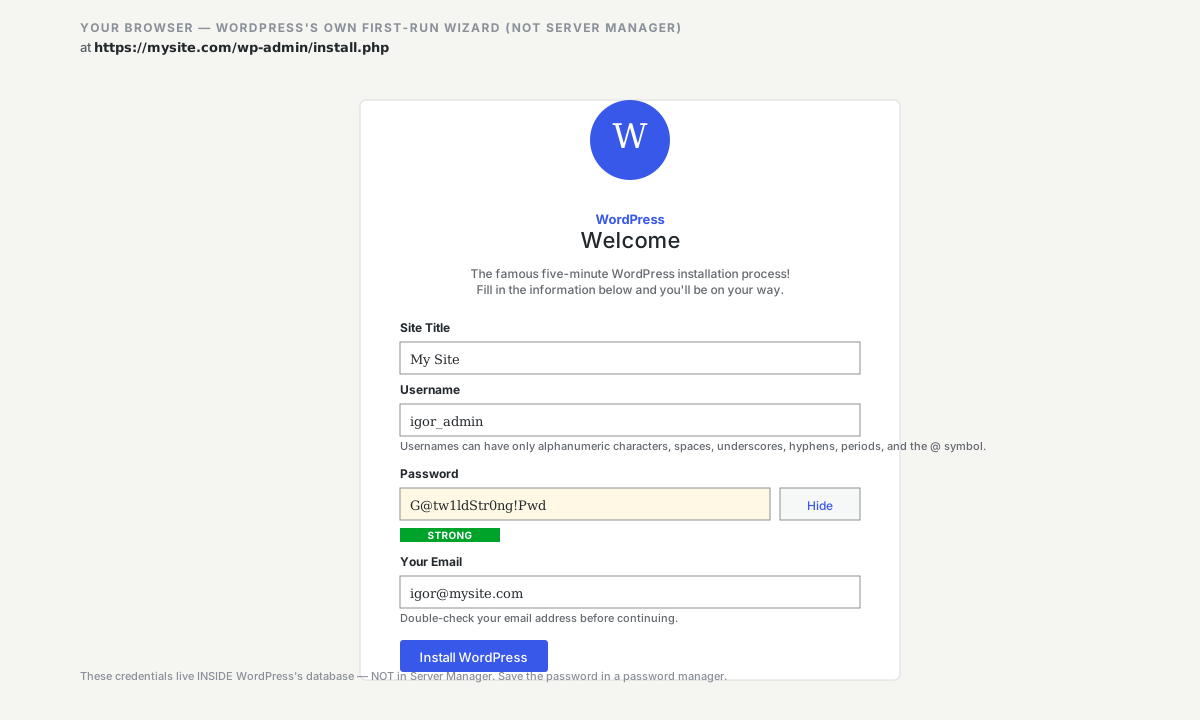
Set the site title, choose an admin username (not "admin" — pick something less guessable), set a strong admin password (or let WP generate one and save it in your password manager), enter the admin email. Click Install WordPress.
WordPress's admin credentials are NOT the same as your Server Manager login. They live inside WordPress's database, separate from Server Manager. Pick a strong password and save it in a password manager — there's no way to recover a forgotten WP admin password from Server Manager's side without database surgery (the chat can do it; see "Common questions" below).
You're done. Log into /wp-admin/, write your first post, install a theme, install plugins — same as any WordPress site.
A workload card now shows on your home screen with the WordPress glyph + your site's title:
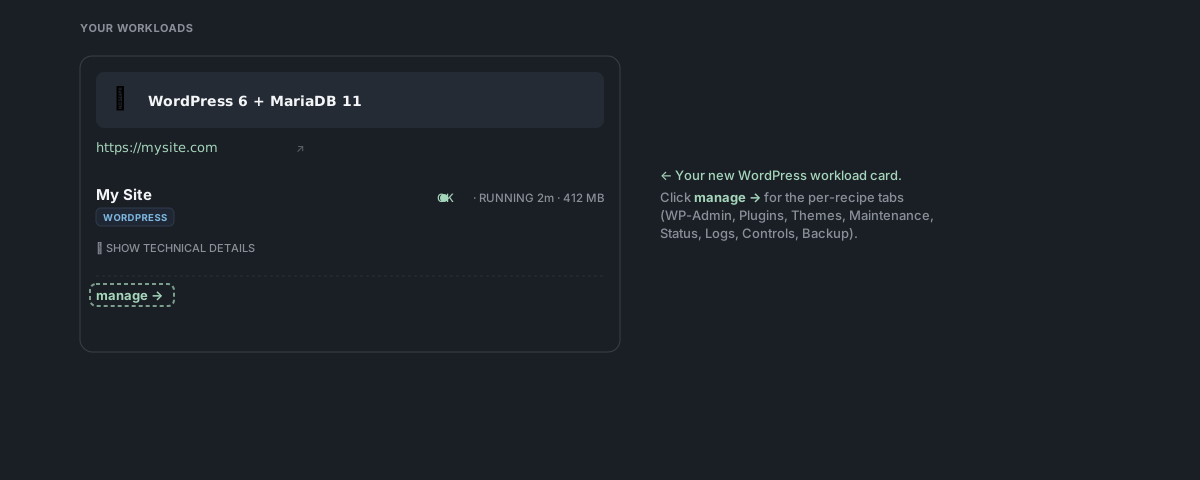
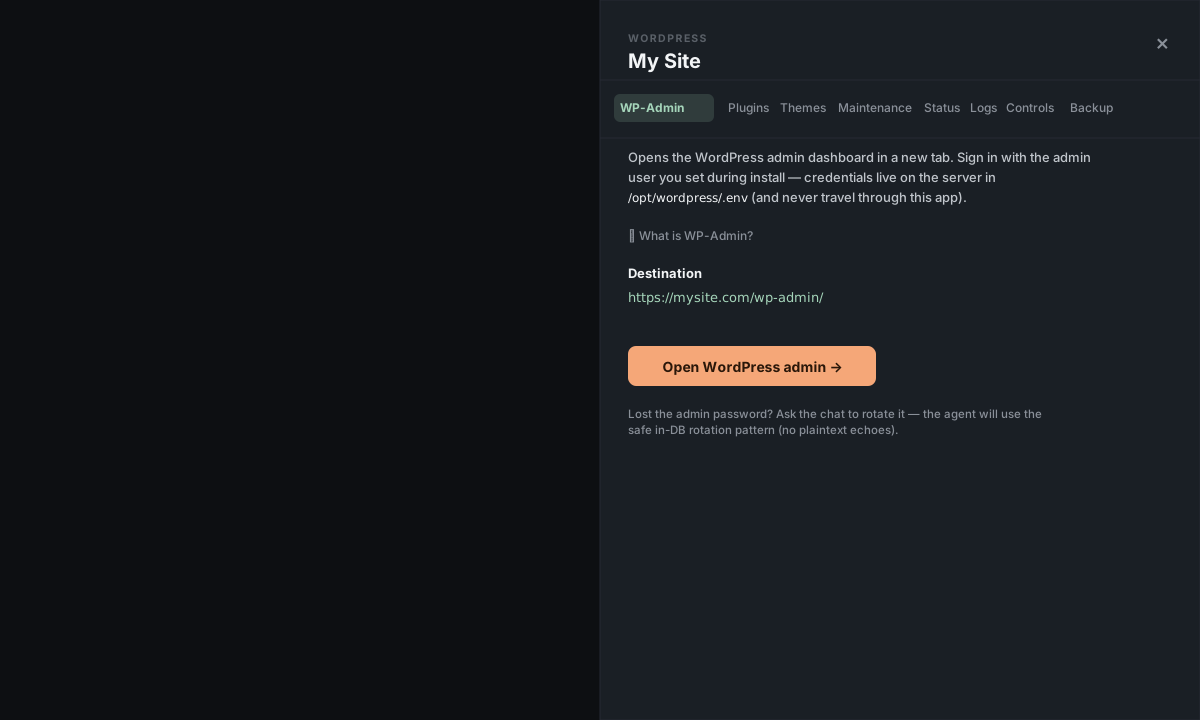
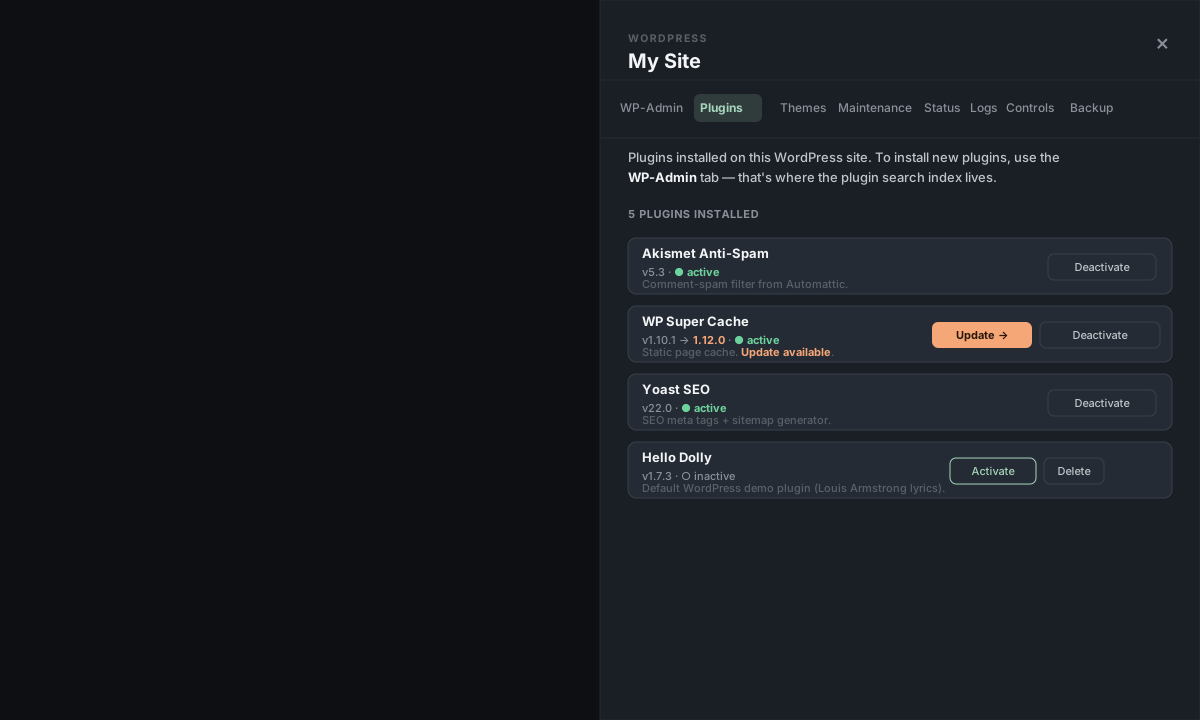
Click manage → to open the with the per-recipe tabs:
- WP-Admin — a one-click link to
https://your-domain/wp-admin/. - Plugins — list of installed plugins with one-click Activate / Deactivate / Update / Delete. (Adding new plugins still happens through WP-Admin — that's where the plugin search index lives.)
- Themes — same as Plugins but for themes.
- Maintenance — three things in one tab: Flush WordPress cache (force-rebuild on the next visit), Search & replace the database (typically for changing the site's URL — wp-cli-correct so serialized PHP data doesn't get corrupted; defaults to a safe dry-run preview), and Update WordPress core (with a Backup / Clone reminder before changing anything).
- Status / Logs / Controls / Backup — the universal tabs (every workload kind has these).
What got installed, exactly
For reference (you don't need to touch any of this — the service panel handles everything):
| Where | What |
|---|---|
/opt/wordpress/docker-compose.yml | Container definitions (WordPress 6 + MariaDB 11) |
/opt/wordpress/.env | Secrets (DB password + 8 WP salts) — chmod 600, root-owned |
Docker named volume wp_data | WordPress wp-content (uploads, plugins, themes) |
Docker named volume db_data | MariaDB data files |
Docker network wordpress_default | Internal network for the two containers to talk |
/etc/caddy/Caddyfile | The reverse-proxy block for your domain (a caddy reload away from active) |
| Caddy data dir | Auto-issued Let's Encrypt cert for your domain |
The WordPress container publishes its port on 127.0.0.1:<random in 38000–39999> — only to localhost. Caddy reaches it via that local port; the public internet only ever sees Caddy on 80/443. So even if WordPress had a vulnerability, the container itself isn't directly exposed.
Common questions
Where do I get plugins? Through WordPress's WP-Admin → Plugins → Add New search, like any normal WP site. Once installed, the Plugins tab in Server Manager's service panel shows them with one-click activate/deactivate/update/delete.
**Can I edit wp-config.php?** It's inside the container, regenerated on docker compose up. Custom changes go in /opt/wordpress/.env (the secrets + things WordPress reads via env vars) or in /opt/wordpress/docker-compose.yml (the container definition itself). Adding a custom env var: ask Faro — "add WP_DEBUG=true to the wordpress container" — and approve the change.
I lost the admin password. Don't use WordPress's "Lost your password?" link unless you've set up Send email from your domain (otherwise the email goes nowhere). Instead ask Faro: "reset the WordPress admin password." It runs a safe in-DB rotation pattern (no plaintext password ever printed) and tells you the new password once.
I lost the admin username too. Ask Faro: "who's the WordPress admin?" — it lists the admin-role accounts from the database.
Can I run multiple WordPress sites on the same server? Yes. Just run the Install WordPress recipe again with a different domain — Faro will detect the existing /opt/wordpress/ install (its pre-check greps docker ps for wordpress) and propose a non-colliding install dir (typically /opt/wordpress-<short-name>/) so the new containers, volumes, and Caddy block don't clash with the original. Caddy multiplexes by domain. See Multiple sites on the same server for the long version.
WordPress is slow / running out of memory. Each install needs ~256–512 MB RAM at idle (WordPress + MariaDB combined). On a 1 GB server you can run one comfortably; on 2 GB, two; etc. The home screen's workload card shows the current RAM use — if you see it climbing toward the server's total, it's time to scale up the server or move heavy sites to bigger instances. If WP-Admin specifically reports "Allowed memory size exhausted" mid-action, ask Faro in chat to bump PHP's memory_limit — it'll edit the right config file inside the container and restart.
Can I migrate an existing WordPress site here? Yes — that's the Migrate an existing site here wizard. It copies your site's files + DB off your old host and installs it here via the same recipe.
Can I get HTTPS without a domain? Not from Let's Encrypt (they require a real domain). The site will serve over plain HTTP at http://<your-ip> until you point a domain at the server, then HTTPS auto-issues within ~30 seconds.
What's NOT in scope here
- WordPress multisite (network) — the recipe installs a single-site WP. Multisite is enabled inside WordPress itself, after install, via
wp-config.phpchanges. Ask Faro to enable it; the change is in the env file and a flag in WP's database. - Custom WordPress themes/plugins shipped with your code — the recipe installs a stock WP. If you have a custom theme + plugins as code, deploy via Migrate an existing site here (from your dev environment) or as a backup bundle via Restore from a backup.
- Hardening / WordPress security configuration — the recipe gives you reasonable defaults (random secrets, port not exposed publicly, env-var secrets). Things like 2FA, Wordfence, malware scans — install those as plugins inside WordPress.
- Sending mail FROM WordPress — the WP-Mail or contact-form plugins need an SMTP/API endpoint. Run Send email from your domain (Resend) and plug those credentials into a WP SMTP plugin.
Reference
Default install paths:
- Install dir:
/opt/wordpress/(or/opt/wordpress-<suffix>/if multiple) - Compose file:
/opt/wordpress/docker-compose.yml - Env / secrets:
/opt/wordpress/.env - Caddy block:
/etc/caddy/Caddyfile— search for your domain'sreverse_proxyline
Container names follow Compose's default <project>-<service>-<n> pattern — typically wordpress-wordpress-1 (web) and wordpress-db-1 (database) on modern Compose v2; older v1 uses _ separators (wordpress_wordpress_1). Run docker ps to confirm exactly what's running on your server.
Internal port range: 38000–39999 — the recipe picks a free one randomly and publishes to 127.0.0.1. Only Caddy on the host reaches it; the public internet doesn't.
WordPress + MariaDB versions: pinned to wordpress:6 and mariadb:11 major tags. Bug-fix updates pull on docker compose pull. Major-version upgrades (WP 6 → 7, MariaDB 11 → 12) are a separate ask in chat — they sometimes need DB migrations.
To uninstall: the home-screen card's manage → panel has a Delete action under Controls. It stops the containers, optionally wipes the named volumes (so you lose your data) or keeps them (so you can re-install later), and removes the Caddy block. There's also a one-click in the bottom action bar (click the card → Delete).