Coming to Server Manager from a different host? The Import from another host wizard logs into your old server, scans it for WordPress sites, static sites, and databases, then copies one of them over as a .tar.gz bundle. The bundle then flows into the Restore wizard which actually installs the service at this server, with your approval on each step.
The source is read-only. Nothing on your old host gets modified. The wizard scans, copies what it needs to, and disconnects. You can re-run it later to migrate another site.
What can I migrate?
The wizard recognizes three shapes of "thing to move":
| Kind | What it finds | What ends up here |
|---|---|---|
| WordPress site | A wp-config.php + database it can reach (auto-fills credentials when readable) | Full containerized WordPress install with a fresh database, your media + plugins + themes restored |
| Static site | A document root with index.html (under /var/www/, /home/<user>/public_html/, common cPanel layouts…) | The file tree under /var/www/<your-new-domain>/, served by Caddy |
| Database | A MySQL / MariaDB instance reachable from the source's SSH login | A new database container with a mysqldump-restored copy |
It does not migrate: arbitrary web apps (Node/Python/PHP frameworks beyond WordPress — those need Deploy from a git repo instead), email/mailboxes, DNS records, or anything outside the standard webroot/database conventions.
How to reach your old host — SSH or cPanel
The wizard supports two ways to connect:
| Source type | When to pick it |
|---|---|
| SSH login | You have shell access (the same login you'd use with the ssh command). Most VPS providers give you this by default. |
| cPanel API | You only have cPanel and no SSH (common on shared hosting). Uses cPanel's own API token instead of a Linux login. |
If you're not sure, try SSH first — it's the lower-friction path. Switch tabs if the connection fails or your host only offers cPanel.
The walk-through
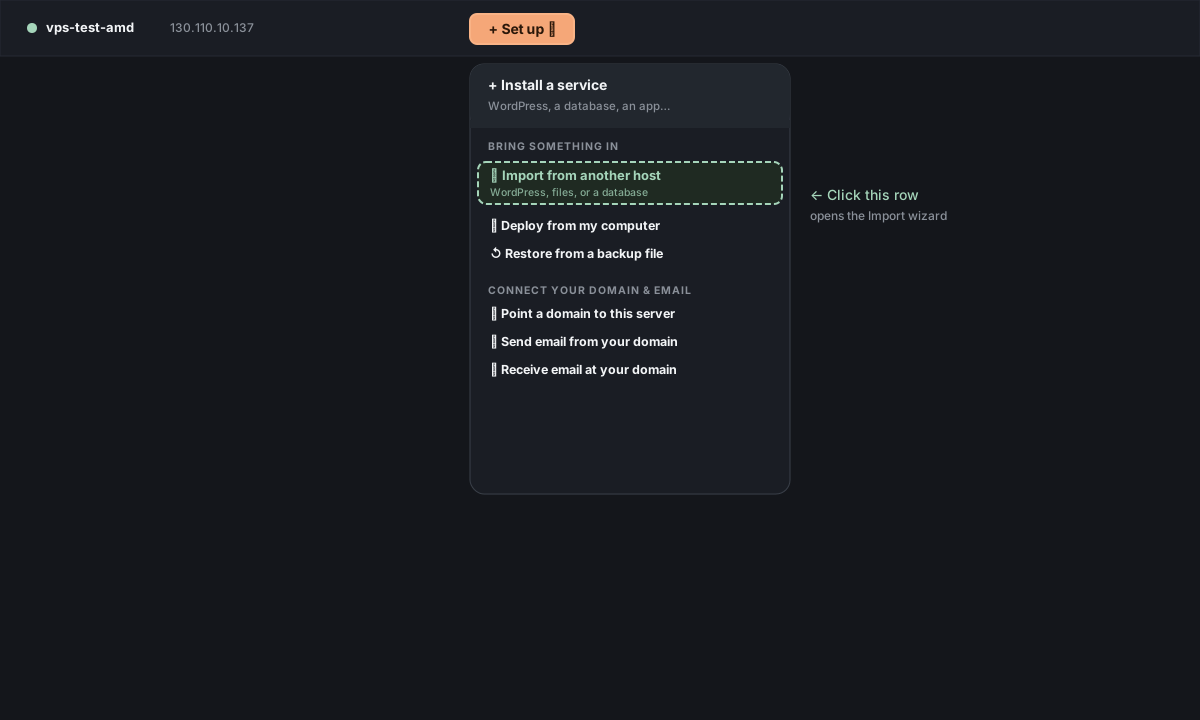
Top bar → menu → Import from another host.
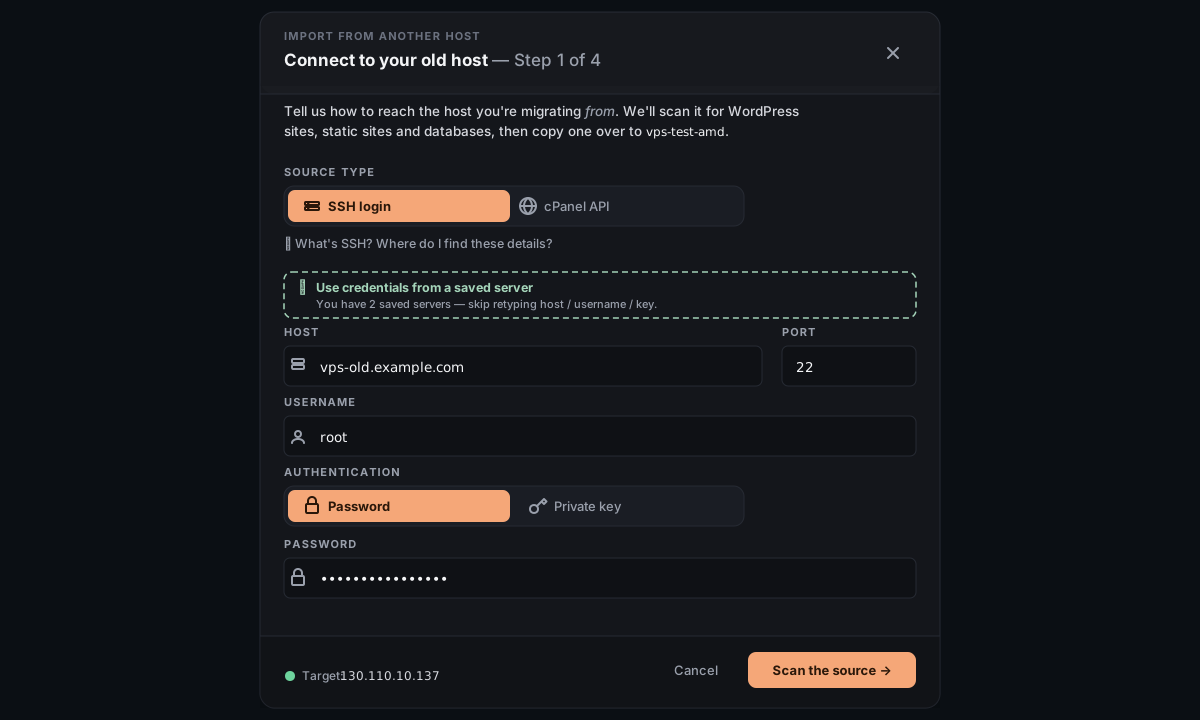
Pick the source type, fill in the credentials, click Scan the source.
SSH login mode wants: host (IP or domain of the old server), port (usually 22), username (root, ubuntu, your cPanel user, etc.), and either a password or an OpenSSH private key. Got the same credentials saved as a Server Manager server already? Click Use credentials from a saved server to pre-fill from there.
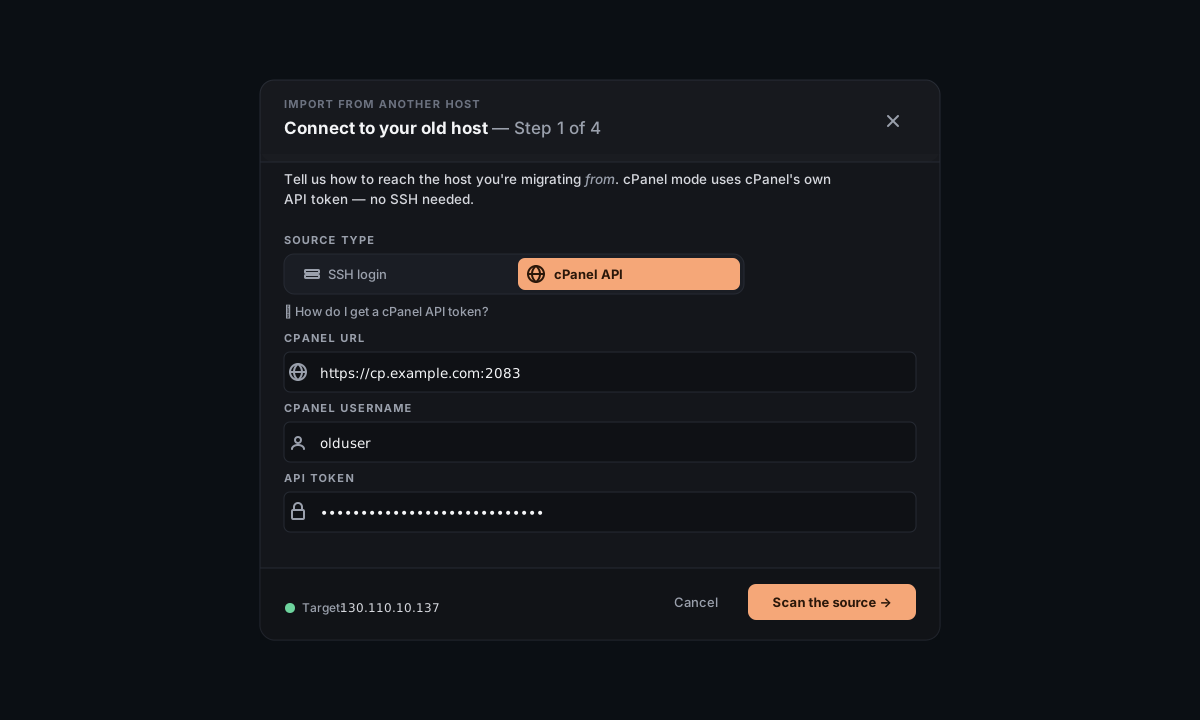
cPanel API mode wants: the full cPanel URL (including port — usually https://your-domain:2083), your cPanel username, and an API token. Get the token from cPanel → search "Manage API Tokens" → Create — cPanel only shows it once, so copy + paste right away.
What the wizard does with credentials. They stay in this browser session only and are sent over HTTPS direct to the source. We don't write them to disk on this server or store them between wizard runs.
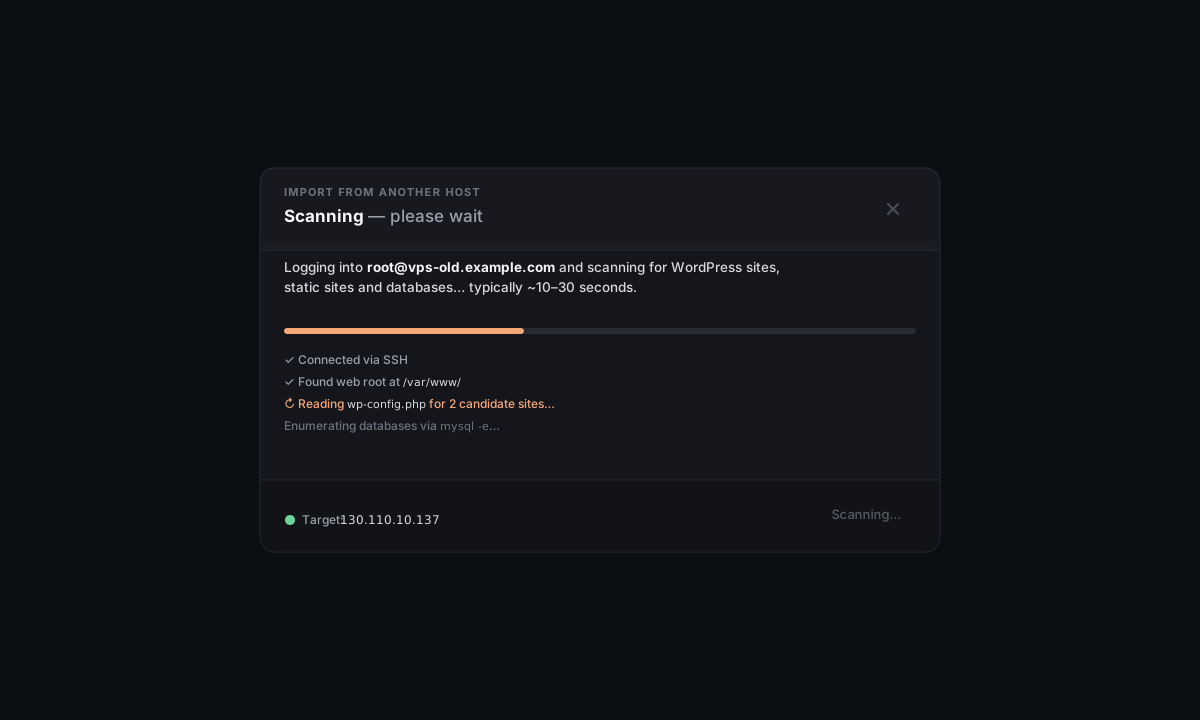
The wizard logs into the source and walks its common web/database paths for ~10–30 seconds, grouping anything it recognizes by kind.
Pick one item to migrate this run (multi-select isn't a thing yet — re-open the wizard for the next one). The selected card gets a peach outline.
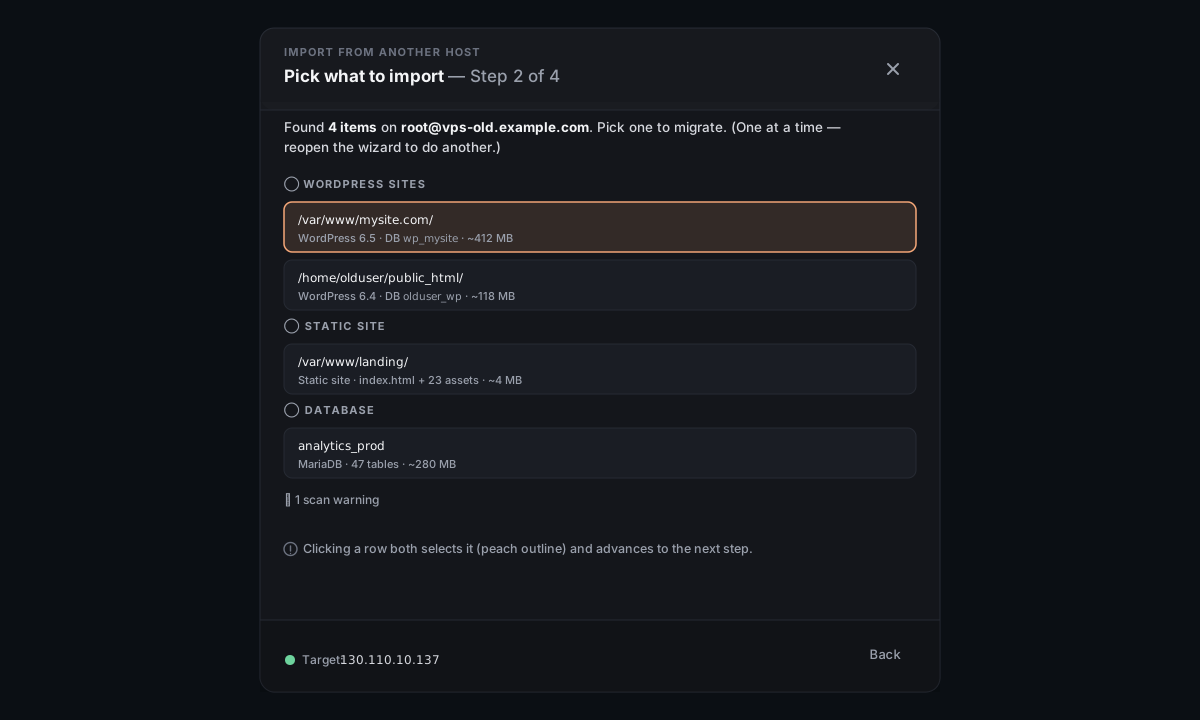
If the scan returns nothing, the wizard tells you which roots it checked + any warnings (permission errors, unreadable wp-config, etc.). Adjust the source credentials or path layout if the missing item is on a non-standard root.
This step varies by kind:
- WordPress → pick the domain to host the migrated site at (can be the same as before — you switch DNS after — or a brand-new one), and confirm the DB credentials (pre-filled from
wp-config.phpif readable). - Static site → optionally pick a domain. Leave blank to serve at your server's IP for now; you can attach a domain later from the service panel.
- Database → pick a title for the new database on this server, and (rarely) override
mysqldumpcredentials.
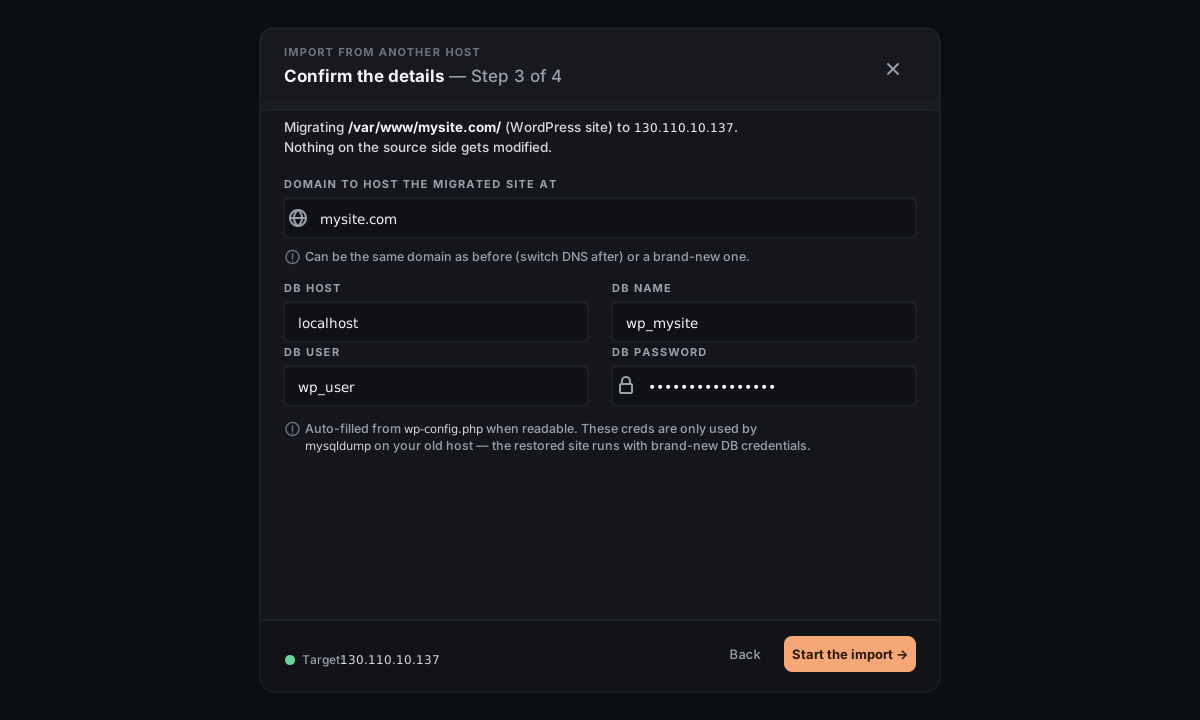
Click Start the import.
Server Manager pulls the data from the source and assembles a Server-Manager-format bundle on this server. Progress lines update in real time (creating archive, transferring, hashing, etc.). The source side is just reads — no writes, no temp files left behind.
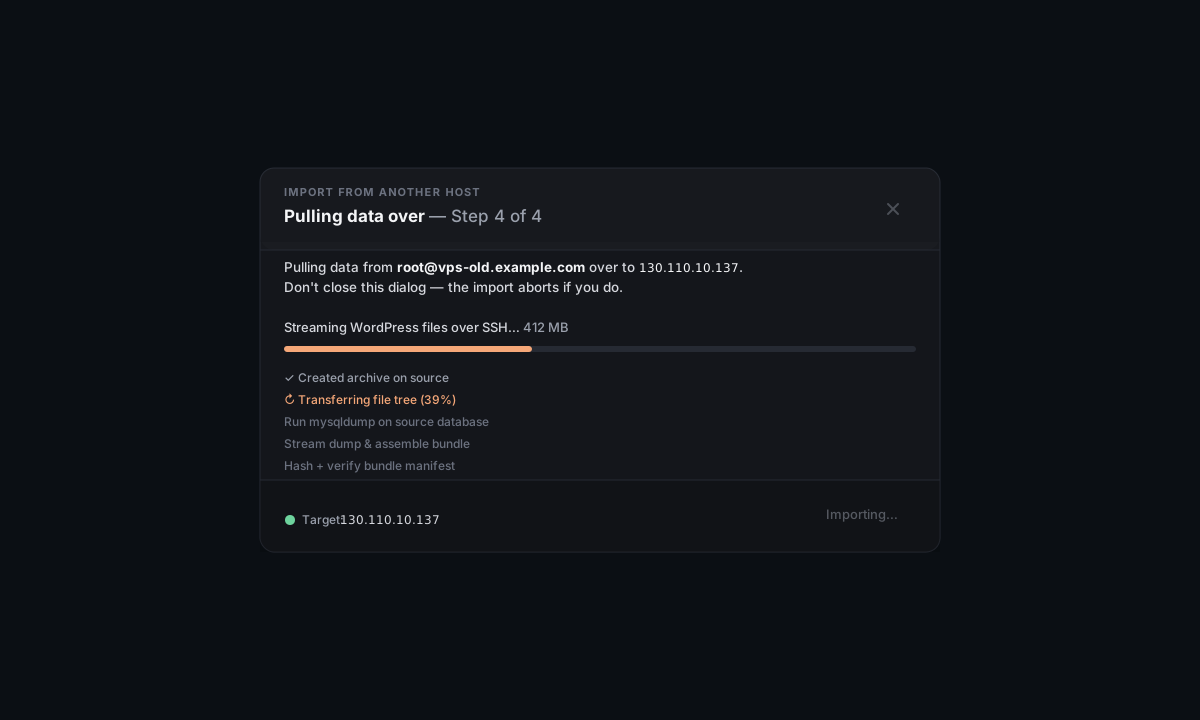
Don't close the dialog mid-import. If you do, the in-flight transfer is aborted and you'll need to restart. Cleanup happens automatically — partial files at /tmp/helm-restore/ on this server get cleaned up within 24 hours, or you can clean them immediately from the error screen if something fails.Once the bundle is assembled, the Migrate modal closes and the Restore wizard opens with the just-arrived bundle preselected. It's the same modal the Move to another server flow uses on arrival, with the same one-click Restore this bundle button.
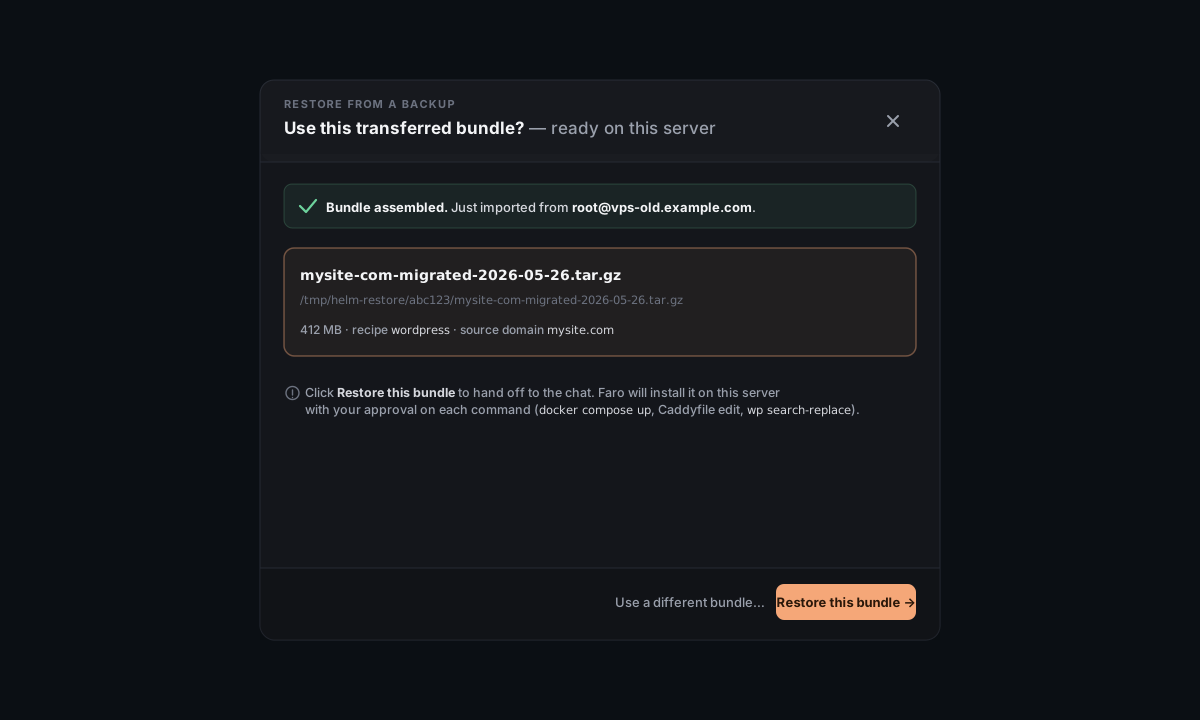
Click Restore this bundle and the chat takes over: Faro reads the manifest, kicks off the install at this server, and pauses for your approval on each command — docker compose up, the Caddyfile edit, the wp search-replace if the domain changed, etc.
When it finishes, the migrated site shows up as a workload card on your home screen — same as anything else you'd deployed natively here.
If you used a new domain for the destination, you're done — Caddy issues a TLS cert for it within ~30s and the site is live.
If you used the same domain as the old host, the migration ran against your old server's IP. To move traffic over, update the A record at your DNS provider to point at this server. Within DNS propagation time (usually 1–10 min), traffic shifts to the migrated copy and Caddy renews the cert under the new IP automatically. The old install on the source keeps serving the same domain until DNS catches up; you can shut it down on the source side once you're satisfied with the migration.
DNS heads-up on the done screen. The wizard surfaces a callout if the destination domain isn't yet pointing here — Caddy can't get an HTTPS cert until DNS catches up. The Restore step also halts and tells you if DNS isn't in place yet.
Common questions
Will my site be down during the migration? No — the source serves traffic the whole time. The migration only copies. You only have downtime at the moment you flip DNS (or never, if you're using a new domain on the new server).
What about plugins / themes / custom code on WordPress? Bundled. The migration captures the WordPress files (themes, plugins, uploads) AND the database in a consistent snapshot. After restore, the site behaves identically — same content, same URLs (or rewritten URLs if you picked a different domain).
My database is bigger than the source's disk has free. Won't work as-is — mysqldump needs scratch space on the source equal to the dump size, briefly. Free some space on the source first, or migrate via SQL dumps manually (download the dump → upload here via Restore from a backup).
Can I migrate from anything other than SSH/cPanel? Today, no — the scan/probe logic only knows those two shells. For other panels (Plesk, DirectAdmin, etc.), the path is: SSH into the source manually, tar your webroot, mysqldump your database, package into a .tar.gz matching the backup-bundle layout, and import via Restore from a backup. If you need the exact bundle format spec to hand-craft one, ask via Contact and we'll share it.
What if the migration fails halfway through? The error screen offers a one-click Clean now button that removes any partially-written staging dirs under /tmp/helm-restore/. Source-side, nothing was modified. Re-running the wizard from the start is safe.
Will it overwrite an existing site at this destination? Only if you explicitly accept that in the Restore step. The default in the chat handoff is to install side-by-side — you'd pick "clone to new domain" (or, for databases, "clone alongside" with a suffix) if there's already a workload at the target domain.
Is anything left on the source after migration? No artifacts that we add. The wizard makes only read calls; the only thing that writes on the source is mysqldump (for WordPress + database migrations), which produces a file the wizard then immediately downloads and deletes. After the wizard disconnects, the source is in the same state as before.
Secrets — are they re-used or rotated? The DB password from wp-config.php is used to run mysqldump on the source, then thrown away. The restored site comes up with fresh database credentials generated by the chat handoff — no source-side credentials leak into the new install.
What's NOT in scope here
- Bundle-to-bundle restore (you already have a
.tar.gzexported from somewhere else) → see Restore from a backup directly. - Server-to-server move within Server Manager (both source + destination are Helm-managed) → see Backups → Move to another server. That path is more efficient: no probe step, no manifest reconstruction.
- Engine swap (you're on nginx/Apache and want Caddy here) → see Migrate to Caddy. Different problem; that one rewrites configs in place, doesn't pull a bundle.
- Email + DNS → not in scope. Set those up separately via Connect a domain and Set up email for your domain.
Reference
Source paths the SSH scan checks:
/var/www/*/— common Nginx / Apache vhost root/srv/www/*/— Debian-style alternative/home/*/public_html/— cPanel-style document root/home/*/domains/*/public_html/— DirectAdmin-style document root- WordPress: any of the above that contains a
wp-config.php - Databases: enumerated via
mysql -e "SHOW DATABASES"using the SSH user's~/.my.cnfif present
cPanel scan endpoints used:
WebVhosts(list vhost document roots)MysqlFE/listdbs(list databases)- Per-vhost file-tree probe for
wp-config.php
On-disk staging during migration:
- Source side: temporary mysqldump under
/tmp/then immediately deleted - This server:
/tmp/helm-restore/<id>/<bundle>.tar.gz— same path the Restore wizard uses
Bundle format: Server Manager's own, and interchangeable with what the Backup tab produces — so a migrate-then-restore is byte-identical to a backup-then-restore (the difference is just where the bundle came from).