You have a .tar.gz bundle you saved earlier (or one a teammate sent you, or one that just streamed in from another server). This walks through how to bring it back as a running service — either in place (overwriting the original if it's still there) or as a clone at a new domain.
Looking for the making-backups side? That's a separate article: Backups — which one do I want and how to use it. This one starts from "I already have a bundle on my computer."
Where to start the restore — three entry points
Same flow, three doors. Pick whichever matches where you're starting from. (Two of the doors use the top-bar — click that term to see where it lives.)
| Where you are | Door |
|---|---|
| You know which workload it is, and there's an existing service panel for it | Open the service panel → Backup tab → Restore from a bundle |
| You don't have a matching workload yet (e.g. fresh server, or the original was deleted) | Top bar → Actions → Restore from a backup |
| You just used Move to another server and the bundle landed here | The Restore modal opens automatically with the just-transferred bundle preselected |
The three doors all open the same Restore from a backup modal. The only difference is what context Server Manager has at the moment you open it:
- From a service panel, the modal knows which recipe + workload you expected — if the uploaded bundle is a different shape (e.g. you opened the WordPress panel but uploaded a Postgres bundle), it shows a warning so you can pick a different file before anything runs.
- From the Actions menu, no expectation is set — whatever the bundle says it is, that's what gets restored.
- From an incoming transfer, the bundle is already on the server; the modal offers a one-click Restore this bundle button.
The walk-through
Pick whichever entry point fits your situation (see the table above). The modal looks the same in all three cases:
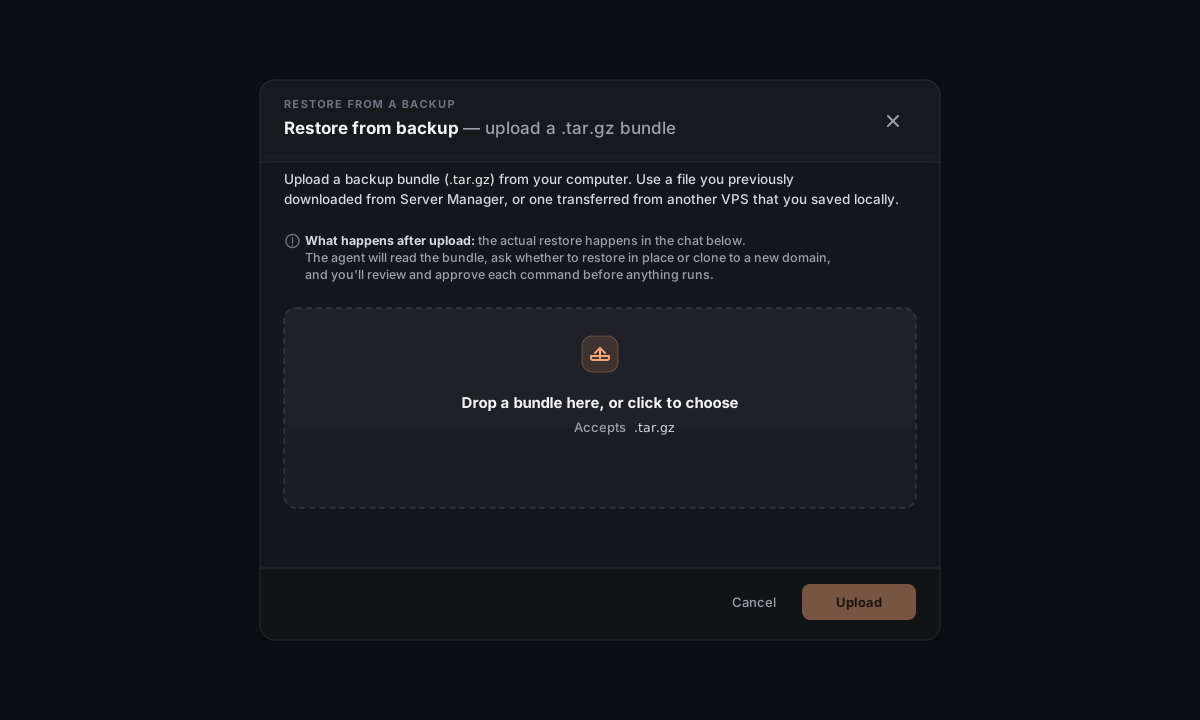
Drag the .tar.gz file onto the drop zone, or click anywhere in the zone to open a file picker. The modal accepts files ending in .tar.gz or .tgz.
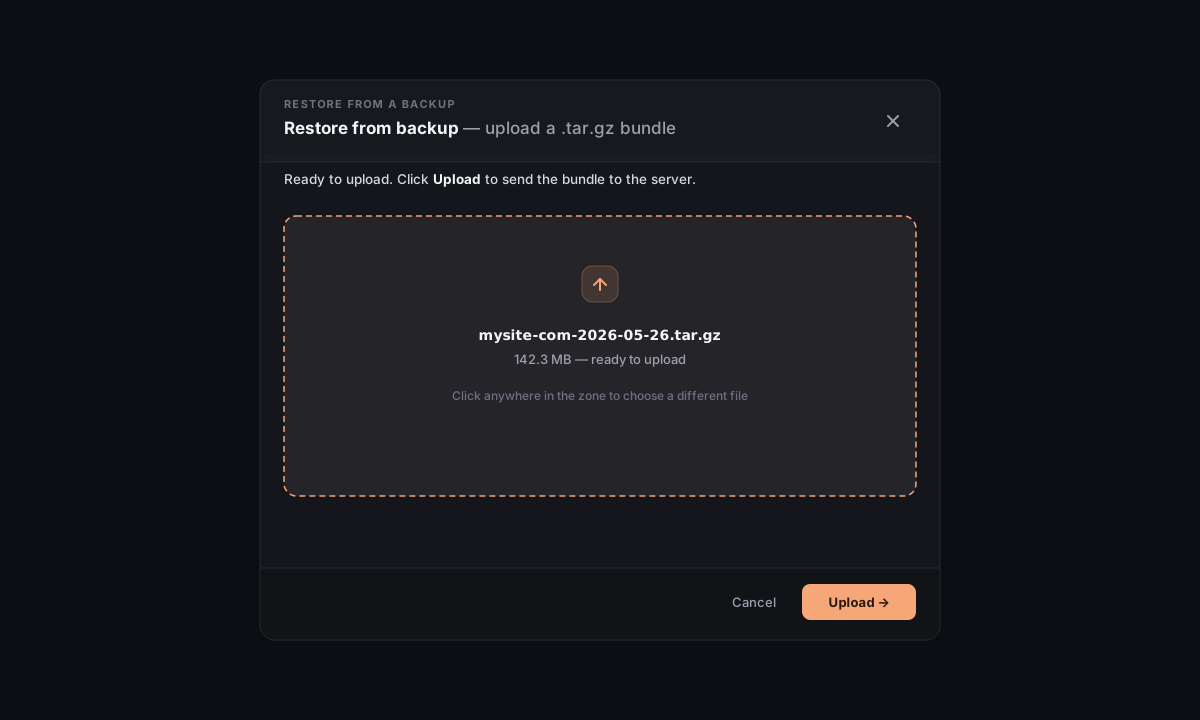
Click Upload. A progress bar replaces the drop zone while the bundle streams to the server (chunked upload — even multi-GB bundles survive flaky connections).
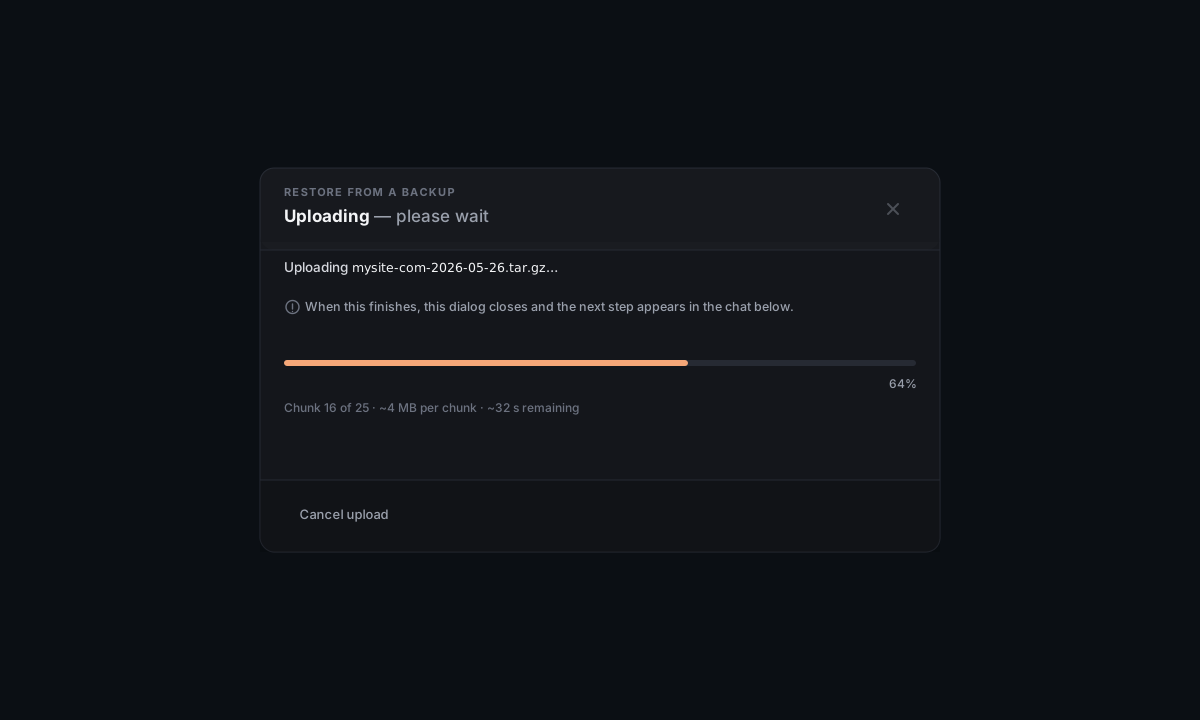
What's being uploaded? Your computer sends the.tar.gzbytes to the server over an SFTP-style stream — encrypted by the SSH session you're connected over. The file lands at/tmp/helm-restore/<id>/<bundle>.tar.gzand stays there until the restore finishes (then it's cleaned up).
When the upload finishes, the modal closes and Faro greets you in the chat with the manifest summary it read out of the bundle: the source title, the source domain, the recipe, and the timestamp of the backup. Then it asks you one short question:
Do you want to restore in place (overwriting the existing <name> if it's still present) or clone to a new domain (keeping the original untouched, creating a separate copy)?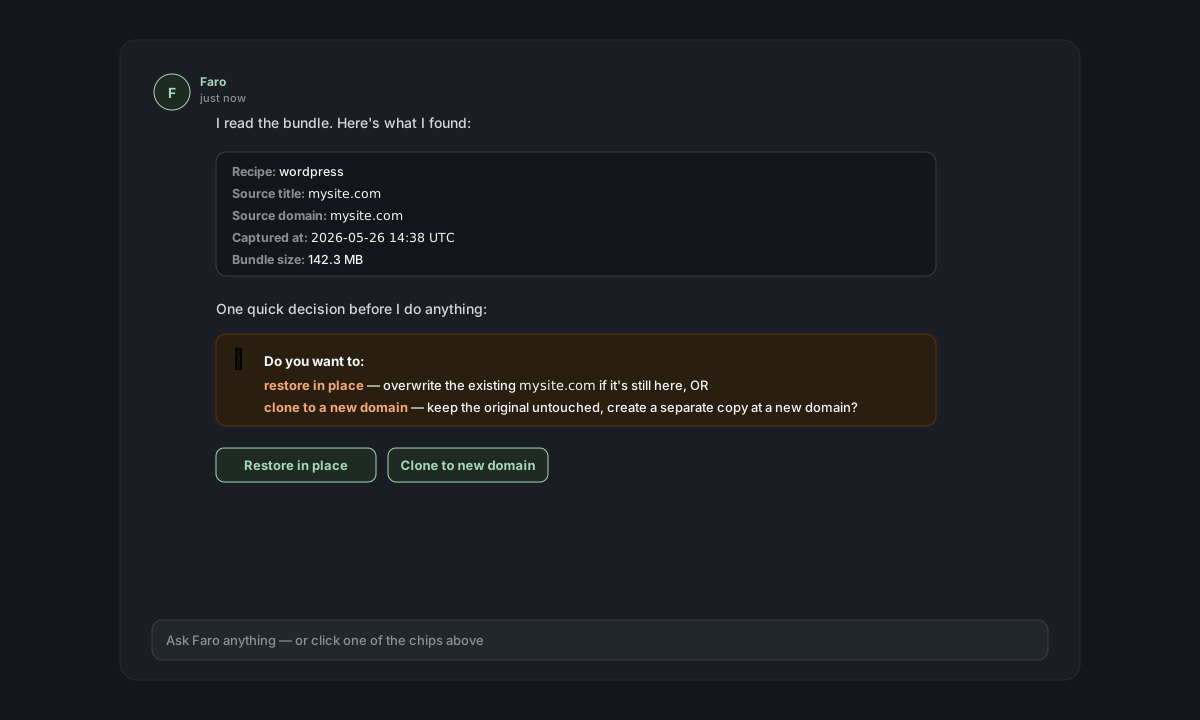
This is the only decision point. From here, your answer determines the rest of the steps.
4a. Restore in place
Pick this when:
- The original workload is gone (deleted, or you're on a fresh server) and you want to bring it back at the same domain with the same names.
- The original is broken / misconfigured and you want to wipe it and re-create from the bundle.
What Faro does:
- Reads
docker-compose.ymland.envout of the bundle and re-creates them under the original install path. - Restores every named Docker volume (database data, uploaded files, etc.) from the volumes in the bundle.
- For static sites, copies the file tree back under
/var/www/<domain>/. - Re-applies the Caddyfile block so the original domain serves again.
- Starts the service and runs a health check.
Every command pauses for your approval before it runs — the chat shows the exact docker compose up, tar xzf, caddy reload lines you're about to execute.
4b. Clone to a new domain
Pick this when:
- You want the original to keep running while a copy goes up at a different domain (staging, dev, demo, second business…).
- You're restoring onto a server that has a different domain pointed at it than the bundle's source.
Faro asks one extra question: what's the new domain? (e.g. staging.example.com).
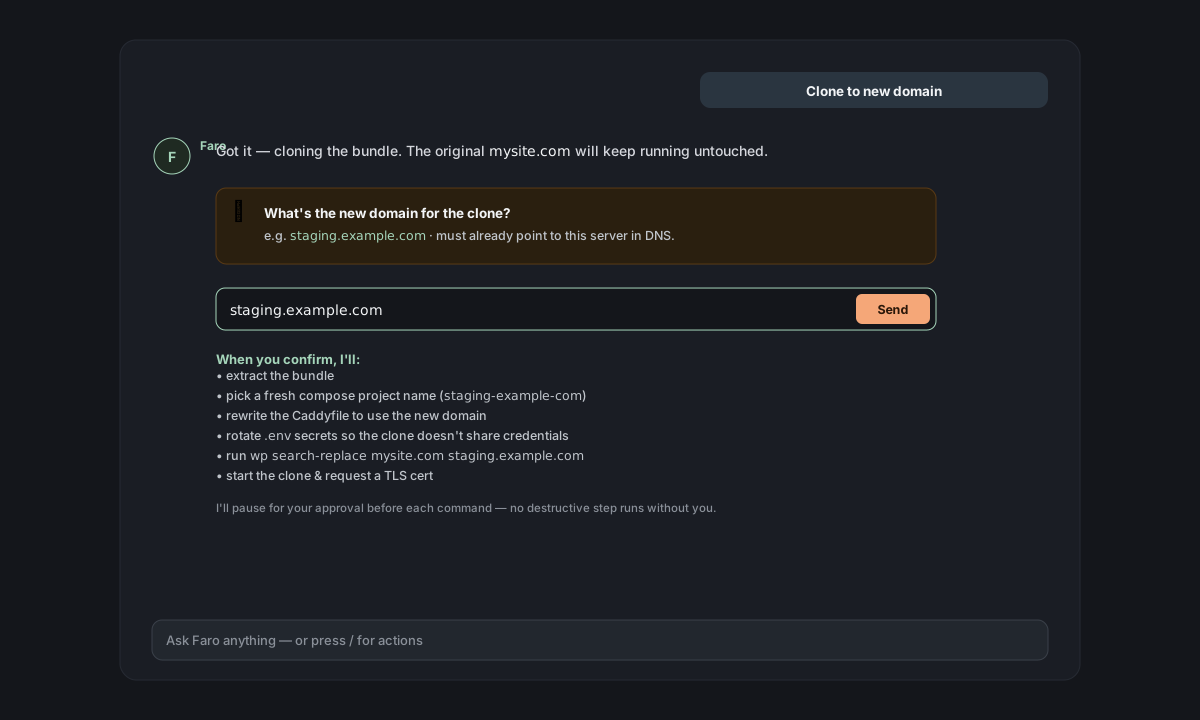
What Faro does on top of the in-place steps:
- Picks a fresh compose project name (so the clone's containers don't collide with the original's), e.g.
mysite-com→staging-example-com. - Rewrites the Caddyfile entry to use the new domain.
- Rotates secrets in
.env(new DB password, new app keys) — the clone doesn't share credentials with the original. - For WordPress, runs
wp search-replace <old-domain> <new-domain>inside the cloned container so links inside posts/media metadata point at the new domain. - For web apps, updates any
*_URL/*_HOSTenv vars pointing at the old domain. - Requests a new TLS certificate for the new domain (Let's Encrypt via Caddy, automatic).
The original keeps running untouched.
Cloning a database? Databases don't have a domain. Faro asks for a short suffix instead (likestagingorqa) and uses it to derive a unique compose project name, container name, and listening port so both DBs run side-by-side without colliding.
When the steps finish, Faro shows the final URL (clone) or the now-restored domain (in place). Open it in your browser; if it doesn't load straight away, give Let's Encrypt 30–60 seconds to issue the cert and try again.
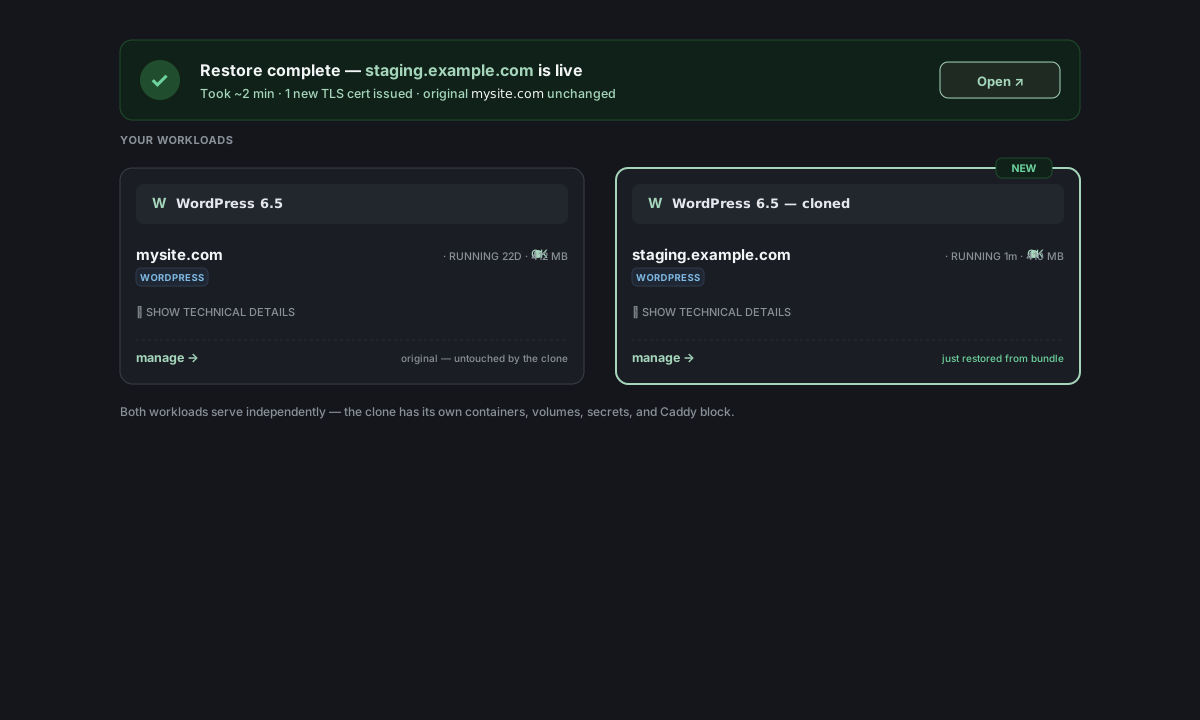
The original bundle is removed from /tmp/helm-restore/ automatically once the restore finishes successfully.
Recipe-shape mismatch
If you opened the Restore modal from a service panel (e.g. the WordPress panel for mysite.com) and uploaded a bundle of a different recipe (e.g. a Postgres bundle), the modal won't just go ahead — it warns you:
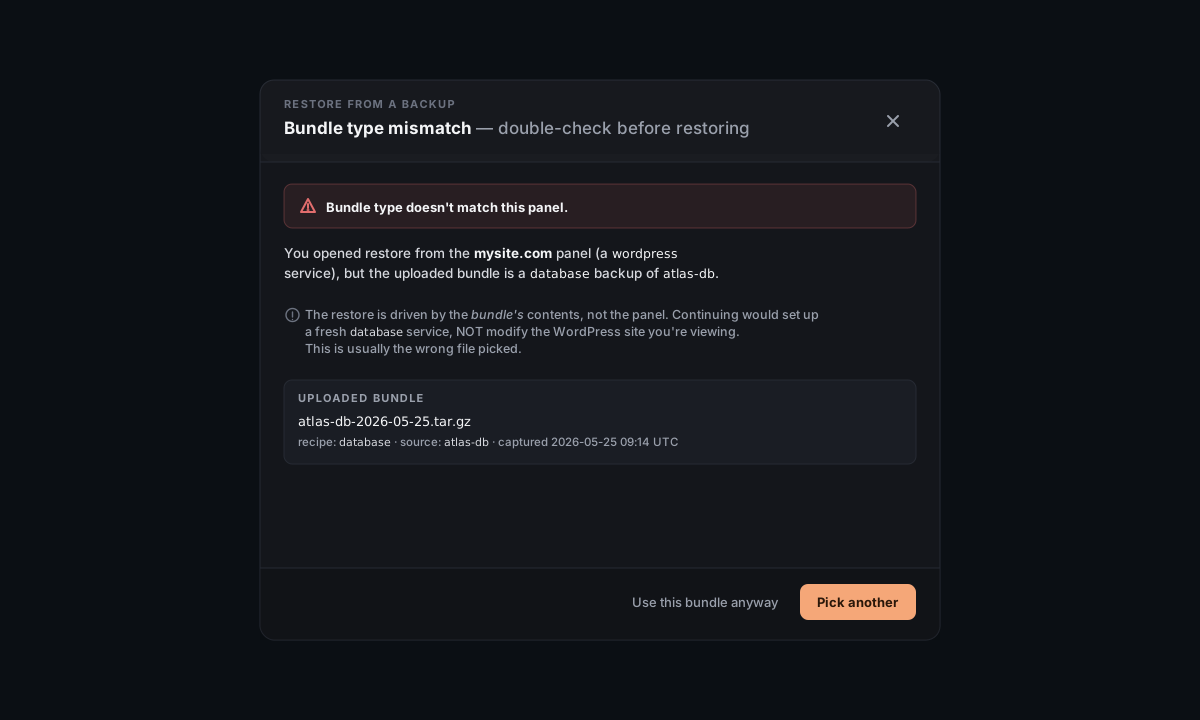
You have two choices:
- Pick a different file — almost always what you want (you grabbed the wrong bundle).
- Use this bundle anyway — the bundle drives the restore, so this will set up a fresh service of whatever the bundle's recipe is, NOT modify the one whose panel you opened. Pick this only if you understand that and want it.
The mismatch check only triggers when the modal was opened from a service panel with an expected recipe. The Actions → Restore path skips it entirely (no expectation to check against).
Auto-restore after a server-to-server move
If you used Backup tab → Move to another server on another server and it transferred a bundle here, the Restore modal opens automatically with that bundle highlighted at the top:
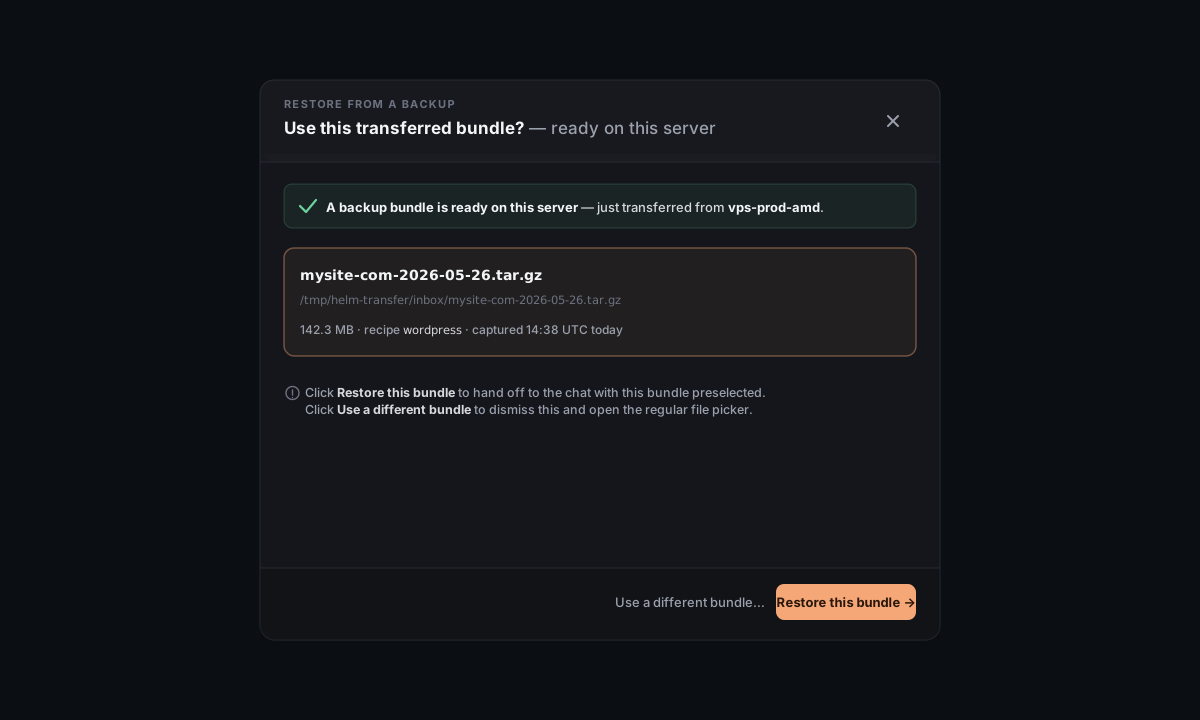
Click Restore this bundle and the rest of the flow is identical to a fresh restore from there on (Faro asks restore-in-place vs. clone, you approve commands, etc.). The bundle is already on the server, so there's no upload step.
You can also click Use a different bundle… to dismiss the preload and open the regular file picker — useful if you transferred the wrong bundle and want to start over.
Common questions
Where does the original live during a clone? Untouched. The clone uses different container names, different volumes, different ports (for databases), and different secrets. You can delete the clone later without affecting the original.
Can I restore a bundle onto a different Linux distro? Yes. The bundle is just Docker compose + named volumes + (for static sites) a file tree. Server Manager handles the per-distro Docker install on the target if it's missing. The exception is native (non-container) web-app bundles — those depend on the source distro's package manager and systemd, and the restore article will tell you if it can't translate the install.
The bundle is huge — will the upload time out? No. The upload is chunked (~4 MB per chunk) and the server pieces them together. Multi-GB bundles work; if your connection drops mid-upload, the modal lets you cancel and start over rather than restarting from zero on every chunk.
What if I cancel mid-restore? Cancel during upload deletes the partial file and you're back to the drop zone. Cancel during the chat steps (between approvals) leaves whatever Faro had already done in place — some containers may exist, some volumes may exist. You can re-run the restore from the same bundle, or have Faro clean up the partial state first; if anything looks weird, ask in chat and Faro will diagnose.
Can I restore the same bundle multiple times to different clones? Yes. Re-open the modal, upload the same bundle, pick clone each time with a different new domain. The bundle stays valid forever (it's just a tarball).
Where do failed restores leave files? /tmp/helm-restore/<id>/ on the target server. The home screen's surface shows orphan helm-restore directories in the cleanup view if any are left around. Safe to delete.
What's NOT in scope here
- **
.helm-backup/files** (per-file undo in the Files tab) → see the Backups article's "Recover a single file" section. - **
.sql.gzraw DB dumps** (loadable into any Postgres/MySQL) → see the Backups article's "Back up just the database" section. - Restoring across recipe boundaries (e.g. a WordPress bundle as a static site) — bundles are recipe-specific. Pick a bundle that matches what you want to bring up.
Reference
What restore needs on the target server:
- The SSH-reachable Linux server you're connected to in Server Manager.
- Disk space for the bundle extract (roughly 2× the bundle size, briefly, during extraction).
- Docker installed (Server Manager installs it automatically if missing on a fresh target).
Disk paths during restore:
- Uploaded bundle (transient) →
/tmp/helm-restore/<id>/<name>.tar.gz - Extracted source →
/tmp/helm-restore/<id>/extracted/ - Final install — same path the original used (e.g.
/opt/wordpress-mysite-com/,/var/www/mysite.example.com/, …)
The decision tree at a glance:
| Situation | Pick |
|---|---|
| Original gone, want it back as-is | Restore in place |
| Original broken, want a clean reinstall from the bundle | Restore in place |
| Want a copy at a different domain | Clone to a new domain |
| Want a copy of a database alongside the original | Clone alongside (database-only — uses a suffix instead of a domain) |
| Just received a bundle from a Move-to-another-server transfer | Click Restore this bundle in the preload banner |