Server Manager has four different backup-related surfaces, each for a different goal. They overlap conceptually ("save my data so I don't lose it") but pick the wrong one and you'll either do too much work or get a file that doesn't do what you wanted. This article maps each user goal to the right tool, then walks through every flow.
Quick guide — which one do I want?
| What you're trying to do | Where to go |
|---|---|
| Recover a single file I deleted or overwrote | Files tab → 🗑 Backups |
| Save a portable copy of my whole site/app for safekeeping | Backup tab → Make a backup |
| Restore a site/app from a bundle I saved earlier | Backup tab → Restore from a bundle |
| Clone a site/app to a new domain | Backup tab → Restore from a bundle (same flow, different target) |
| Move a site/app to a different one of my servers | Backup tab → Move to another server |
| Move everything on this server to a new server | Repeat the move flow for each workload — see the note at the bottom of this article |
Get raw database content (.sql.gz you can psql/mysql into anything) | SQL Dumps tab (database workloads only) |
| Preserve a folder across a redeploy (not really a backup) | The .helm-keep marker — see Multiple sites on the same server |
Recover a single file (Files tab → 🗑 Backups)
Use this when: you deleted or overwrote a file through the Files tab and want it back.
Server Manager auto-saves every file the Files tab is about to overwrite or delete. The previous version goes into a .helm-backup/ folder next to where it lived. The last 3 versions of each name are kept; older ones rotate out.
Important — it's per-directory. If you deleted /var/www/site/blog/post.md, the backup is at /var/www/site/blog/.helm-backup/, not under /var/www/site/. To find it, you need to navigate to the directory the file lived in first.
Steps:
- Open the site/app's service panel → Files tab.
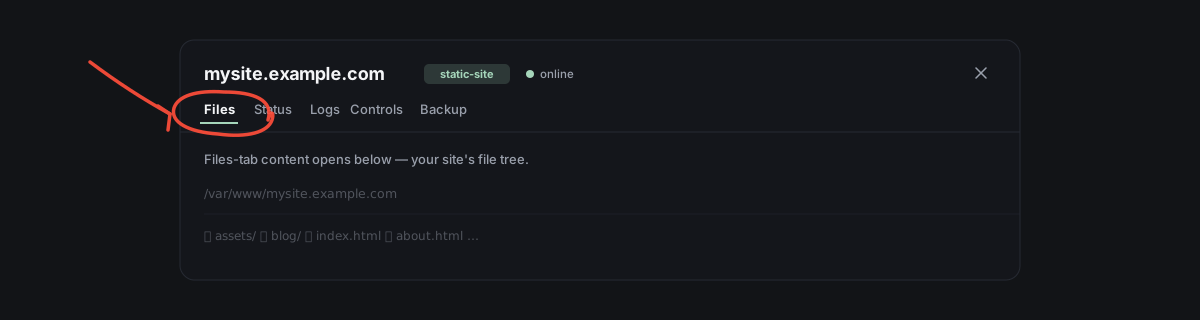
- Navigate to the folder where the file used to live — for example,
/var/www/mysite.example.com/blog/if you deleted a file inblog/.
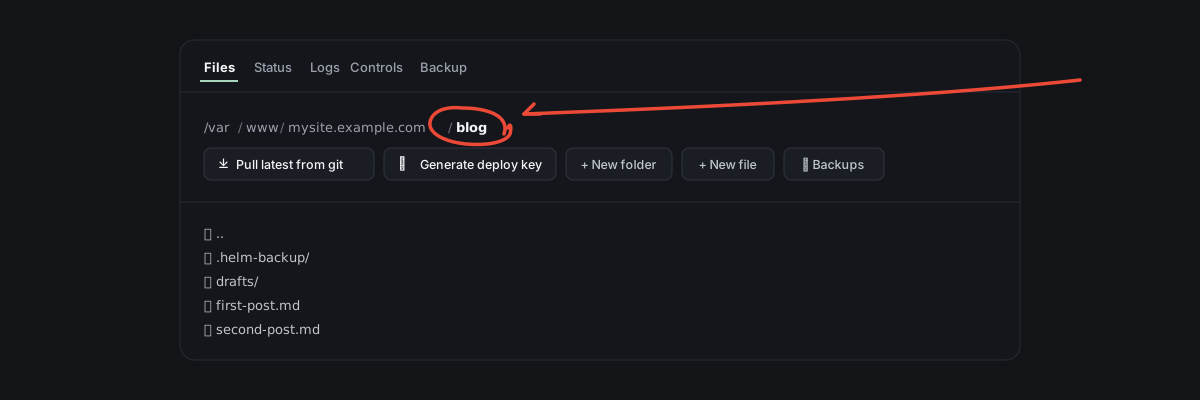
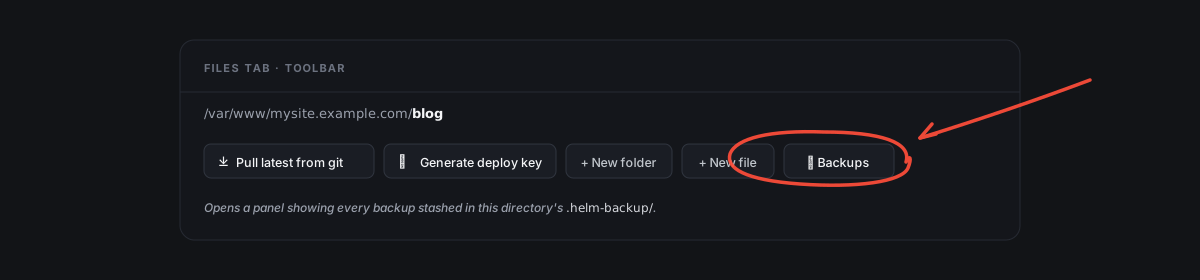
- Click 🗑 Backups in the toolbar.
- Find the entry by name + timestamp. Click Restore to put it back, Download to save a copy to your computer, or Delete to remove the backup permanently from the server.
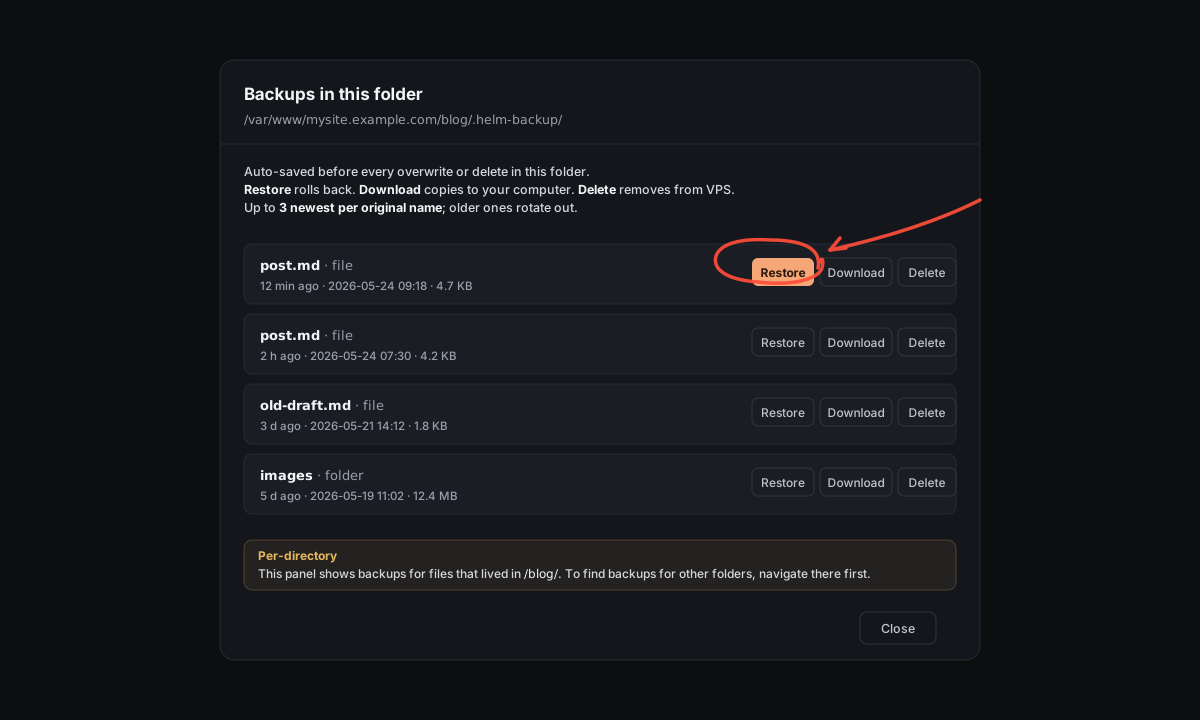
Restore is itself reversible — the current state at the target path is snapshotted into .helm-backup/ before the restore happens, so you can roll back the restore the same way.
What this DOESN'T cover: files modified via SFTP/FileZilla, SSH, the running app itself, or a redeploy. Only Files-tab actions trigger the auto-backup. For a redeploy where you want to keep a folder, use .helm-keep.
Back up a whole site or app (Backup tab)
Use this when: you want a portable archive of an entire site or app — config, secrets, files, and (for containerized things) the data volumes — that you can keep on your computer for safekeeping or transport.
The Backup tab has three actions, all using the same bundle format. They're the lifecycle of a bundle: create → restore later → or transfer to another server.
What you'll see at the top of the tab. If there are any bundles for this workload still sitting on the server — typically because you created a backup and didn't download it, or an upload was abandoned mid-restore — they show as a list at the top with size, timestamp, and a Delete button per row. This is your cleanup surface: bundles aren't auto-rotated, so old ones quietly eat disk until you remove them. If bundles belong to other workloads, you'll see a small hint counting them; open each workload's own Backup tab to clean those.
Make a backup
- Open the service panel → Backup tab.
- For WordPress, web apps, and databases: tick Pause the service during backup if this is a busy site (active commerce, membership, mid-migration). Default is no-downtime — fast, fine for most cases, but anything written during the ~30s capture can be half-captured (typically an orphan file: present in the backup, no DB row). With pause, the service stops briefly (~30–60s downtime) for a perfectly consistent capture. Static sites don't show this toggle — there's no managed process to pause ( serves the files directly).
- Click Make a backup. The chat takes over — Faro stages the tar command, you approve, the bundle gets built on the server.
- When ready, a Download button appears in chat. Click it; the file streams over SFTP to your computer.
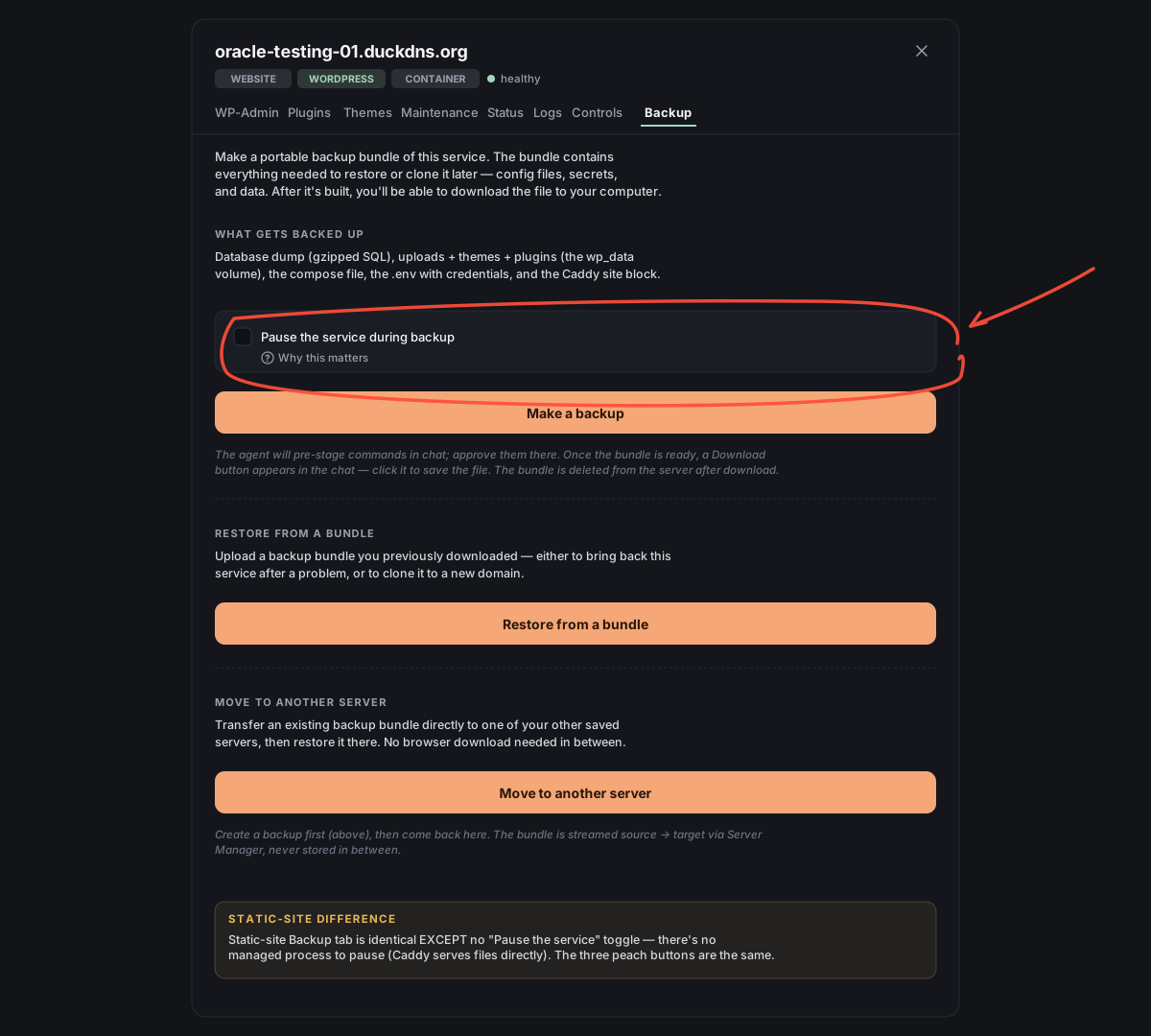
What's in the bundle: the docker-compose.yml (or the equivalent service manifest), every secret in .env, all named volumes (database data, uploaded files, etc.), and a small manifest.json describing the workload. Static-site bundles include the file tree under /var/www/<domain>/. The format is self-describing — Restore later reads the manifest and reconstructs everything in the right place.
Restore from a bundle
Use this when: you have a bundle you previously downloaded (or one a teammate sent you) and want to bring back the service — either on this server, or as a clone with a new domain.
- Open the service panel → Backup tab.
- Click Restore from a bundle. An upload window opens (drag-drop or click to choose).
- Pick the
.tar.gzbundle. Click Upload. - After upload, the actual restore happens in the chat. Faro reads the bundle's manifest and either restores in place or — if the bundle's recipe shape doesn't match the current workload, or you point to a different domain — asks whether to clone it to a new domain instead. You review and approve each command before anything runs.
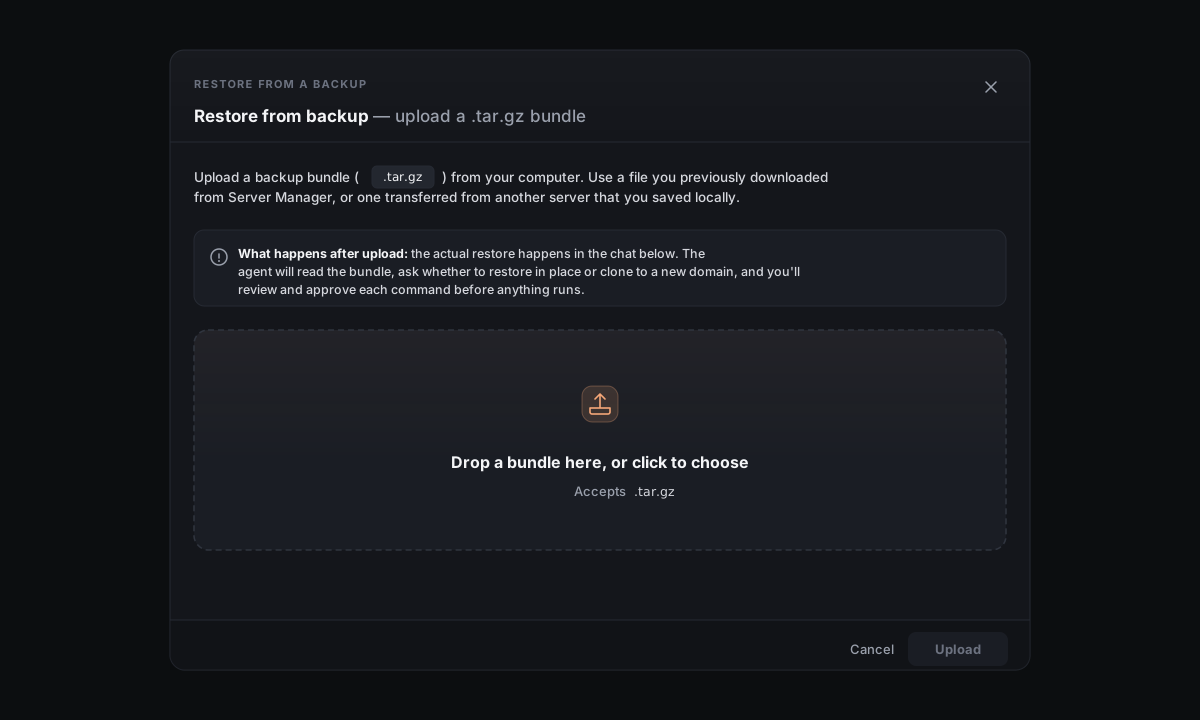
For cloning: the bundle contains the original domain in its manifest. Faro asks for the new domain and rewrites the Caddyfile + wp-config.php-equivalent references so the clone serves at the new address. The original server keeps running untouched.
Move to another server
Use this when: you have a workload on one of your saved servers and want to move (or copy) it to another — without manually downloading the bundle to your computer and re-uploading it on the other side.
This button only appears if you have at least two saved servers in Server Manager — the target picker has to have somewhere to point.
Prerequisite: make a backup on the source first (the Make a backup step above).
- On the source server's workload, open the service panel → Backup tab.
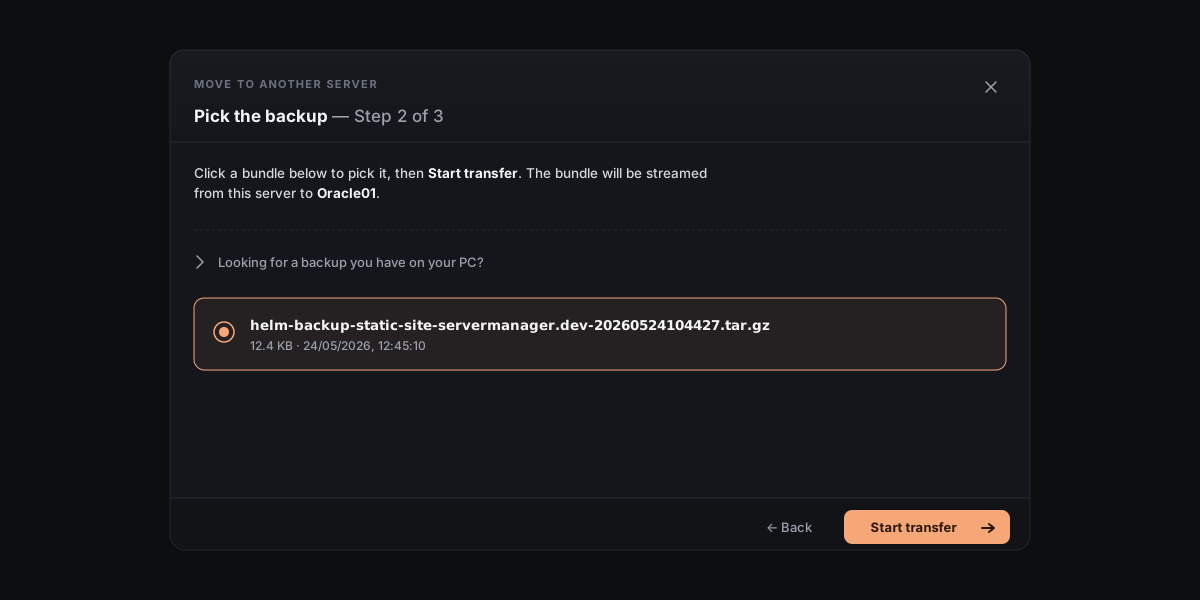
- Click Move to another server. A three-step wizard opens: - Step 1: Pick the target. Pick a target server from your saved-servers list and enter the target's encryption passphrase. - Step 2: Pick the backup. Choose which bundle to transfer (lists every bundle on the source). Click Start transfer. - Step 3: Transfer. The bundle streams source → target through Server Manager — no copy on your computer, no public S3 in between.
- When the bundle lands on the target, Server Manager switches you to the target server and offers to restore the just-arrived bundle (one click).
Back up just the database (SQL Dumps tab)
Use this when: you only want the database content, not the whole stack. Common cases: handing the data to a developer for testing, importing into a different engine (well, attempting to), or saving a quick safety net before a destructive migration.
This tab only exists for database workloads (Postgres, MySQL, MariaDB).
- Open the database's service panel → SQL Dumps tab.
- Click Make a dump. Faro runs
pg_dump/mysqldump(engine-appropriate) and saves the output as.sql.gzat/var/backups/<engine>/. - The new dump appears in the list. Download sends it to your computer; Delete removes it from the server.
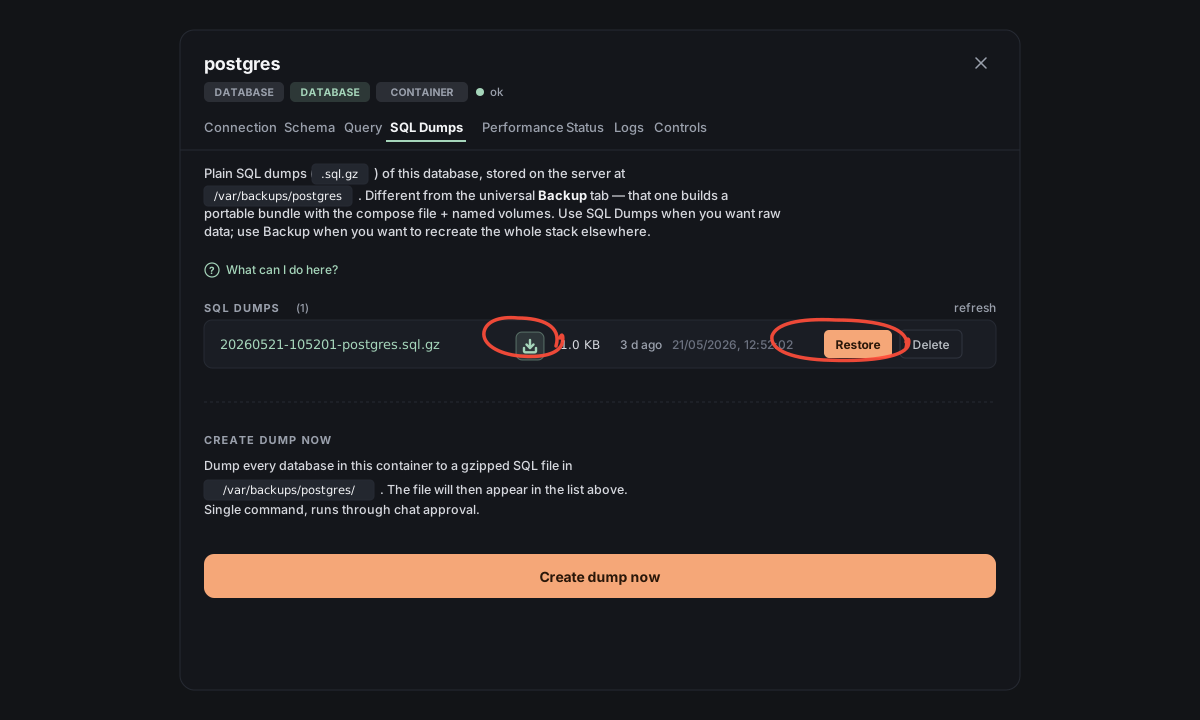
SQL Dumps vs Backup tab — same workload, different artifacts:
- The SQL Dumps
.sql.gzis raw SQL —psql my-app < dump.sqlrestores it into any Postgres of the right major version, including a Postgres running on your laptop. - The Backup tab bundle is a full-stack
.tar.gz— the database, the compose file, the secrets, the named volumes. Restore recreates the whole container stack.
If you only need to inspect or transplant data: SQL Dumps. If you want to clone the whole database service somewhere: Backup tab.
Other things often confused with backups
**.helm-keep markers* — preserve a folder across a redeploy* (not a backup, doesn't help with accidental delete). Use when you have a runtime folder like uploads/ you don't want wiped when you push new code. Covered in Multiple sites on the same server.
Moving an entire server. There's no single "move everything" button — Server Manager moves one workload at a time. To migrate a server with multiple sites/apps, repeat the Make a backup → Move to another server → Restore on the target flow for each workload (the Move to another server action lives in each workload's Backup tab).
Reference
Where backups live on disk:
- Files tab backups →
<original-dir>/.helm-backup/<name>.<timestamp>(one folder per directory) - Backup-tab bundles →
/tmp/helm-backups/<id>/<bundle>.tar.gzon the source server (until you download or delete them) - Restore-tab uploads →
/tmp/helm-restore/<id>/<bundle>.tar.gz(until the restore finishes or you delete them) - SQL Dumps →
/var/backups/<engine>/<dbname>-<timestamp>.sql.gz
Retention:
- Files tab: last 3 versions per original name, oldest rotates out.
- Backup tab + SQL Dumps: no auto-rotation — bundles persist on the server until you delete them from the panel.
Keeping an eye on disk. Every workload card on the home screen shows a · N GB pill next to its name once it has data. For a deeper breakdown, the Server card's Server details → opens Server Info with a Storage tab that lists per-workload disk usage (biggest first, with one-click open-panel links), SQL dumps across all engines, and a bulk-cleanup view of every staged bundle on the server. The home screen also surfaces an amber/red alert card when disk crosses 80% / 90%.
Secrets in bundles: the .env files inside a Backup-tab bundle contain plaintext secrets (database passwords, API keys, etc.). Treat downloaded bundles as you would treat the original .env files — don't email them around, don't commit them, don't leave them on shared drives. Bundles are deleted from the source server after download (the file streamed to you was a copy).