Have your code on a git repo? → Deploy a website from a git repo
Have a web app (Node, Python, Go) instead? → Deploy a web app from your computer
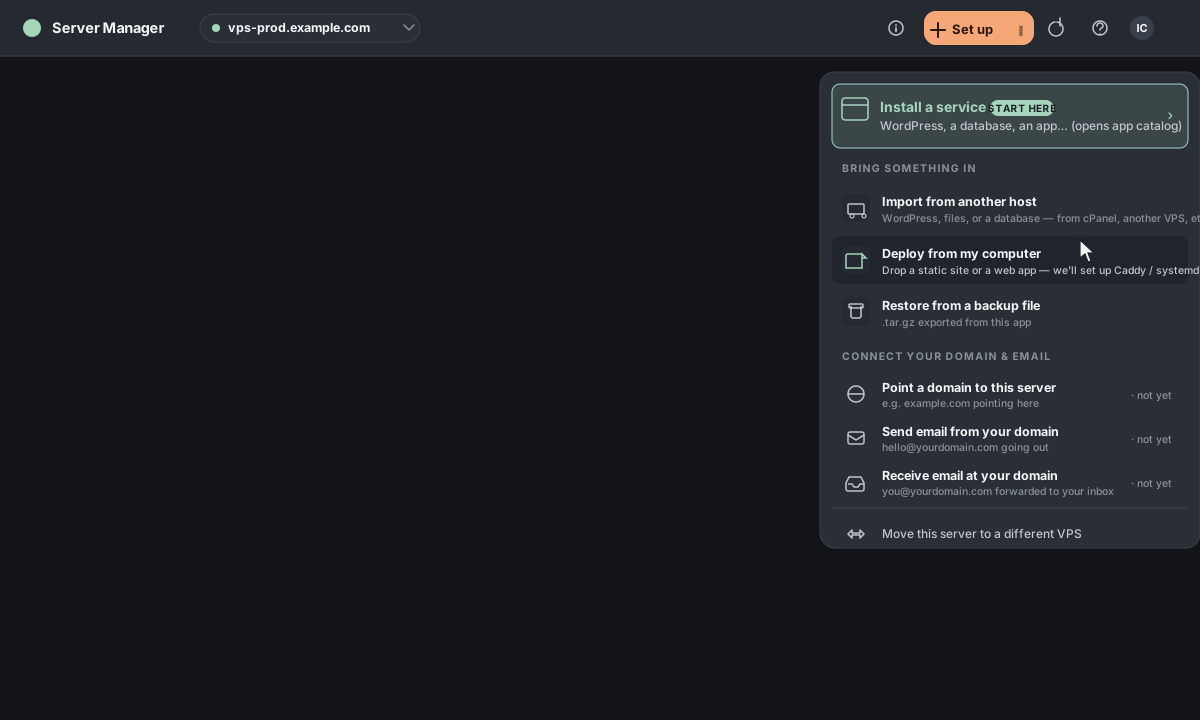
1. Open the Actions menu
In the top bar, click Actions. In the palette that opens, choose Deploy from my computer (under "Bring something in") — or just type "deploy" in the search box.
2. Pick "Static site"
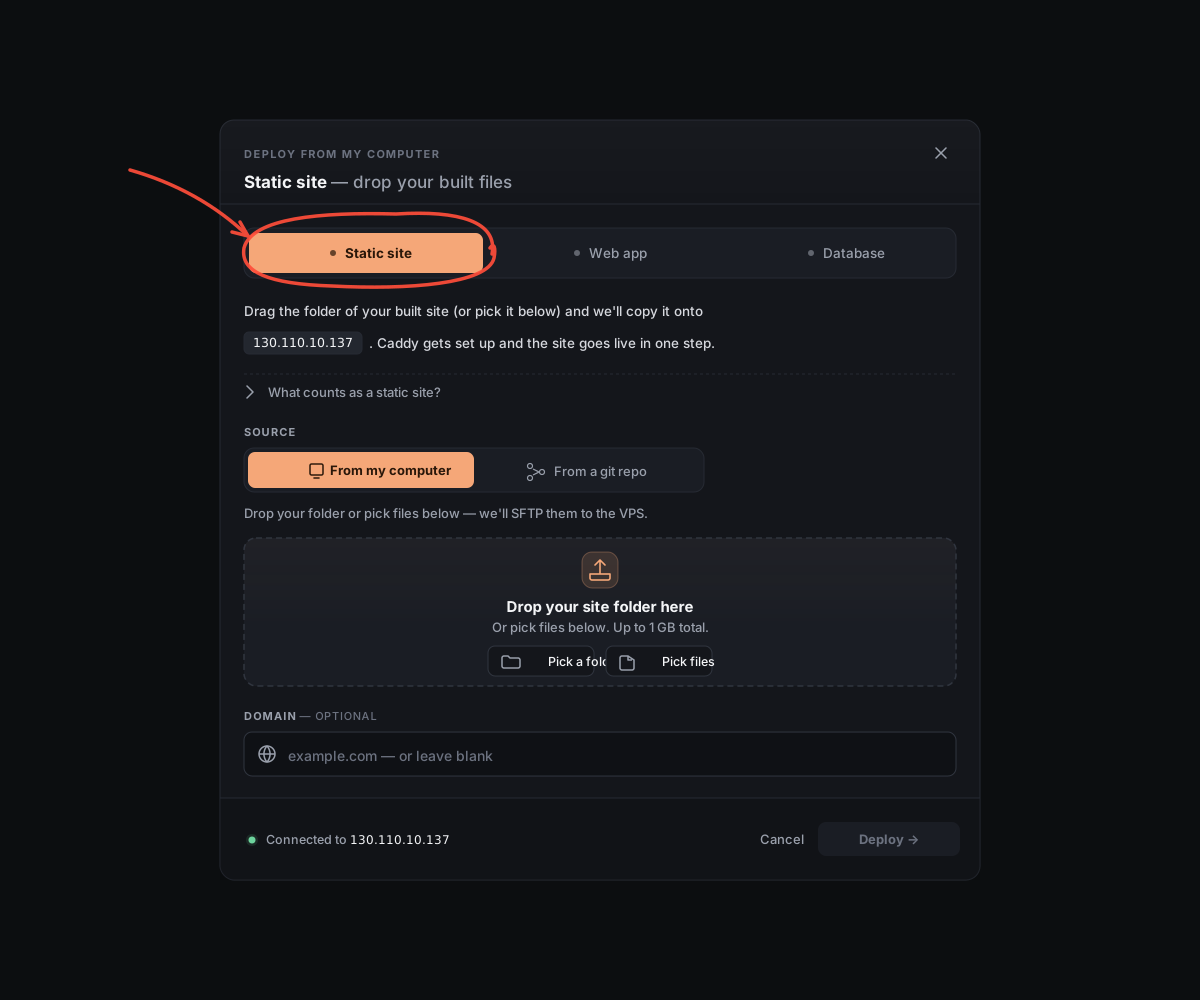
A new window opens. Static site is selected by default — leave it.
3. Drop your folder
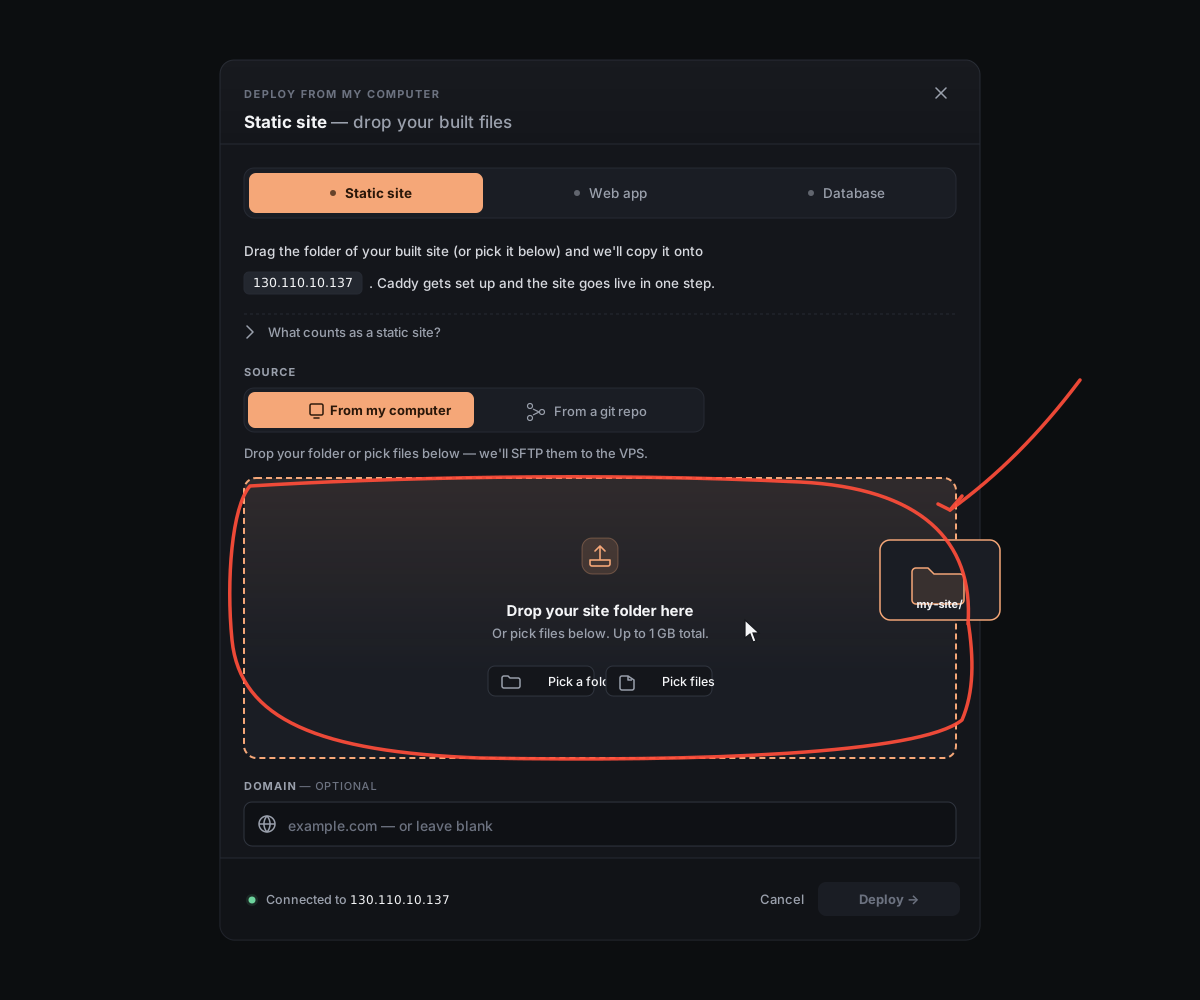
Drag the folder that contains your website into the dashed box. Or click Pick a folder and choose it.
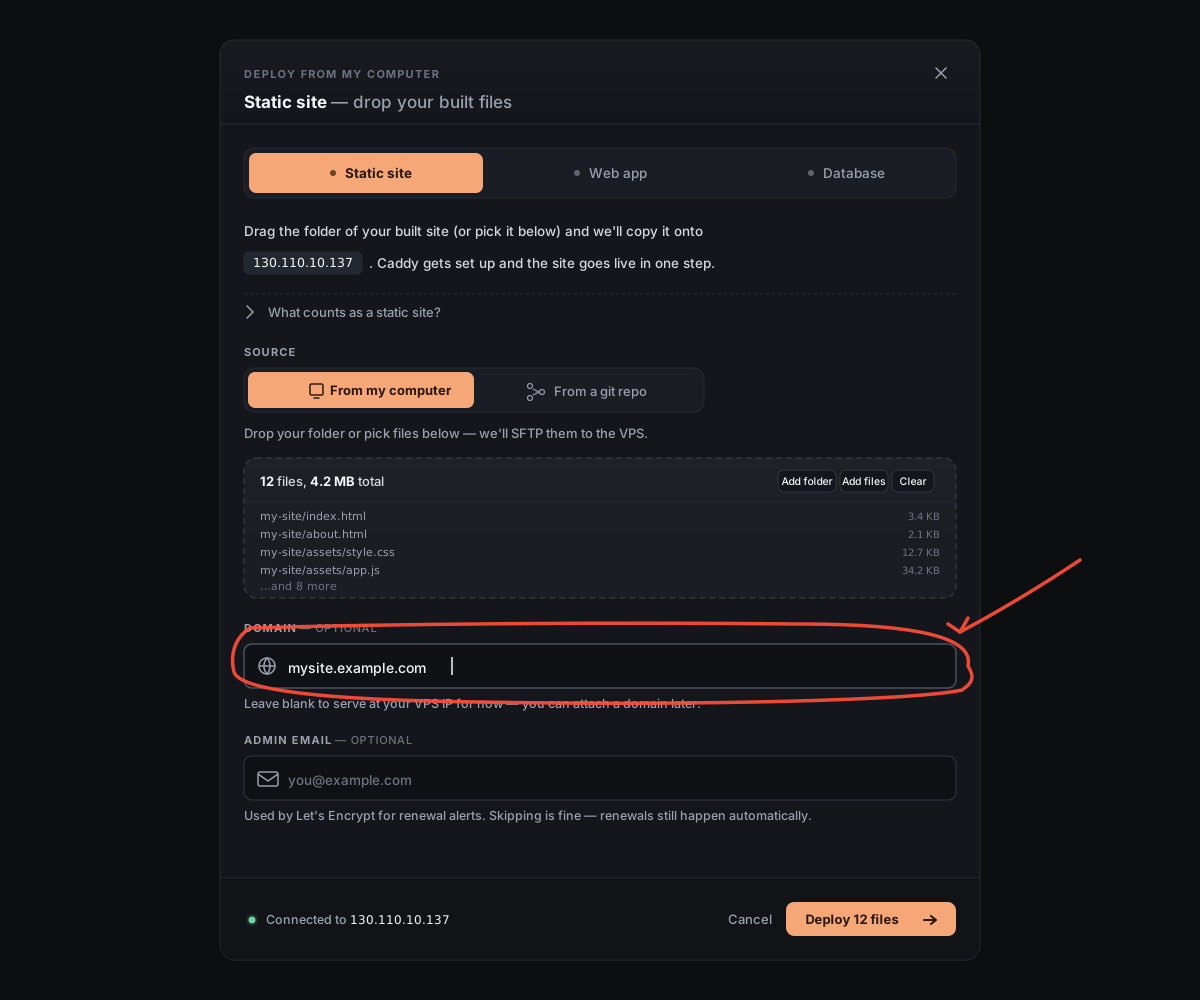
4. Type your domain
Type the address you want the site to live at — for example, mysite.example.com. You can leave it blank for now and add a domain later.
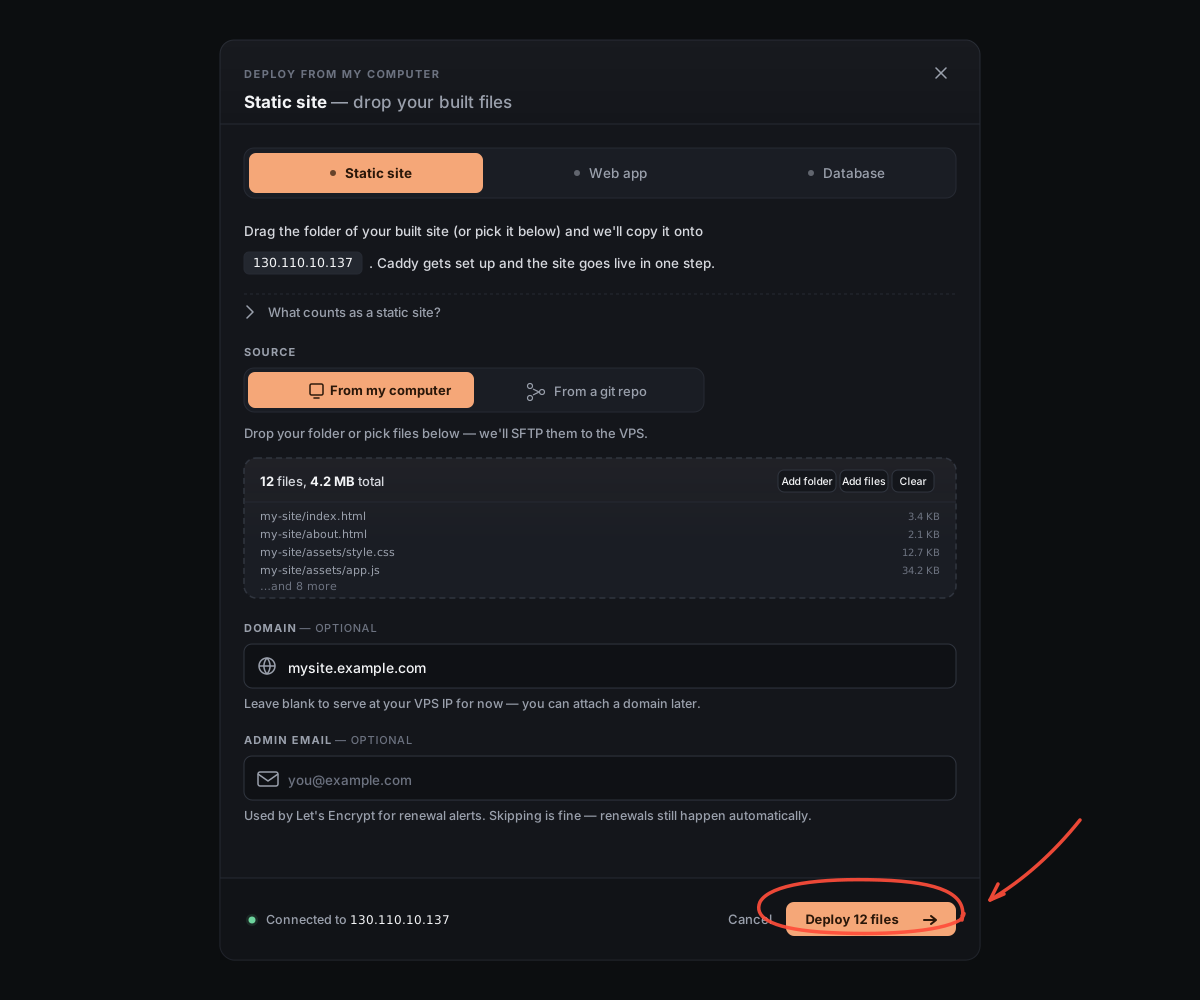
5. Click Deploy
The button at the bottom shows how many files will be uploaded. Click it.
6. Done
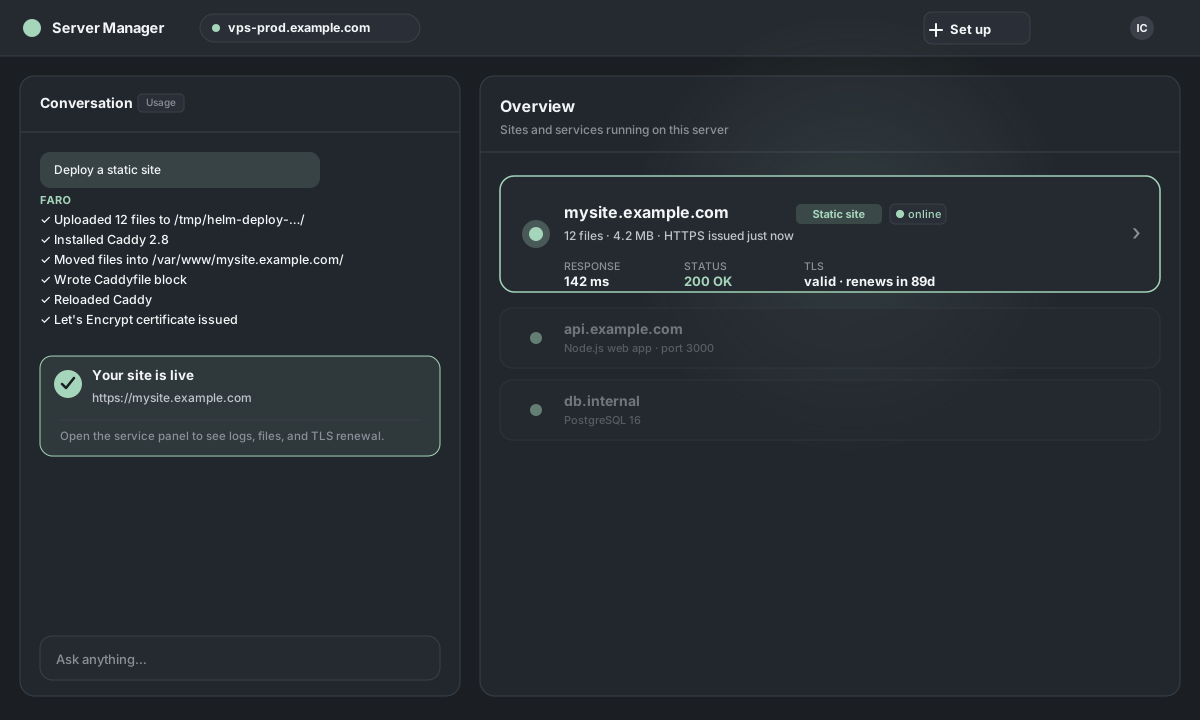
The window closes and the chat takes over — you'll see each step as it happens. When it finishes, your site appears on the home screen with a green dot.