Don't have a git repo? → Deploy a website from your computer
If your website lives in a public git repo (GitHub, GitLab, Bitbucket, Codeberg, Gitea — any HTTPS git host), Server Manager can clone it directly onto your server. Updates later are a one-click Pull latest from git — no re-upload needed.
1. Open the Actions menu
In the top bar, click Actions. In the palette that opens, choose Deploy from my computer (under "Bring something in") — or just type "deploy" in the search box.
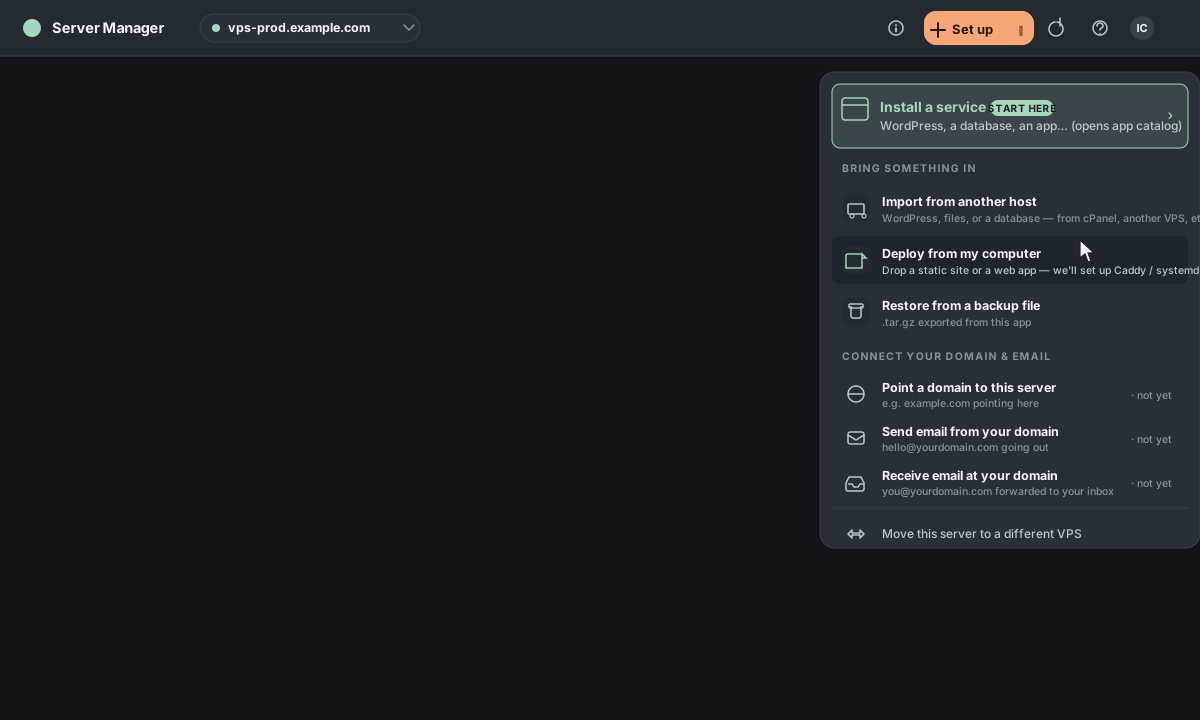
2. Switch the Source to "From a git repo"
A new window opens. Under Source, click From a git repo. The drop zone disappears and a URL field appears in its place.
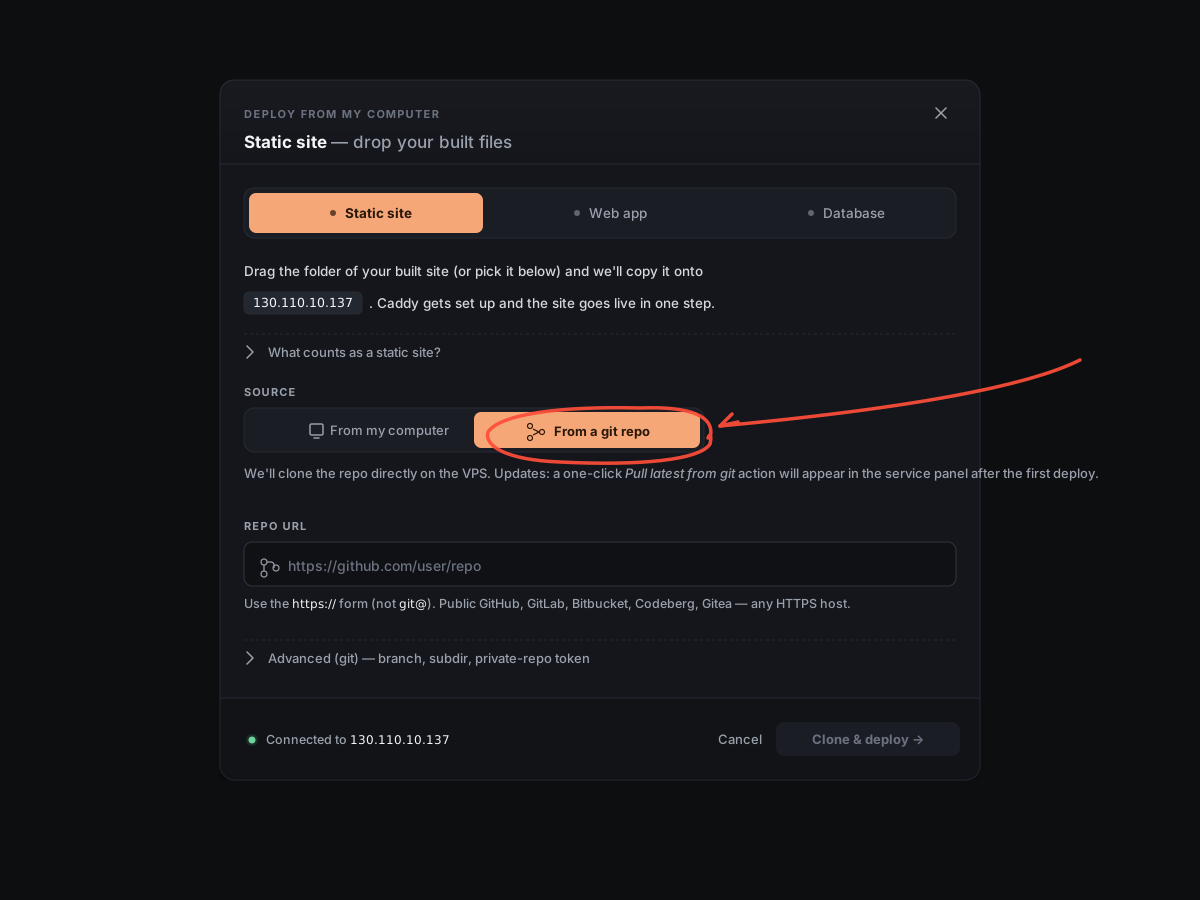
3. Paste your repo URL
Paste the https:// URL of your repo — for example, https://github.com/yourname/mysite. Use the HTTPS form, not the git@ SSH form.
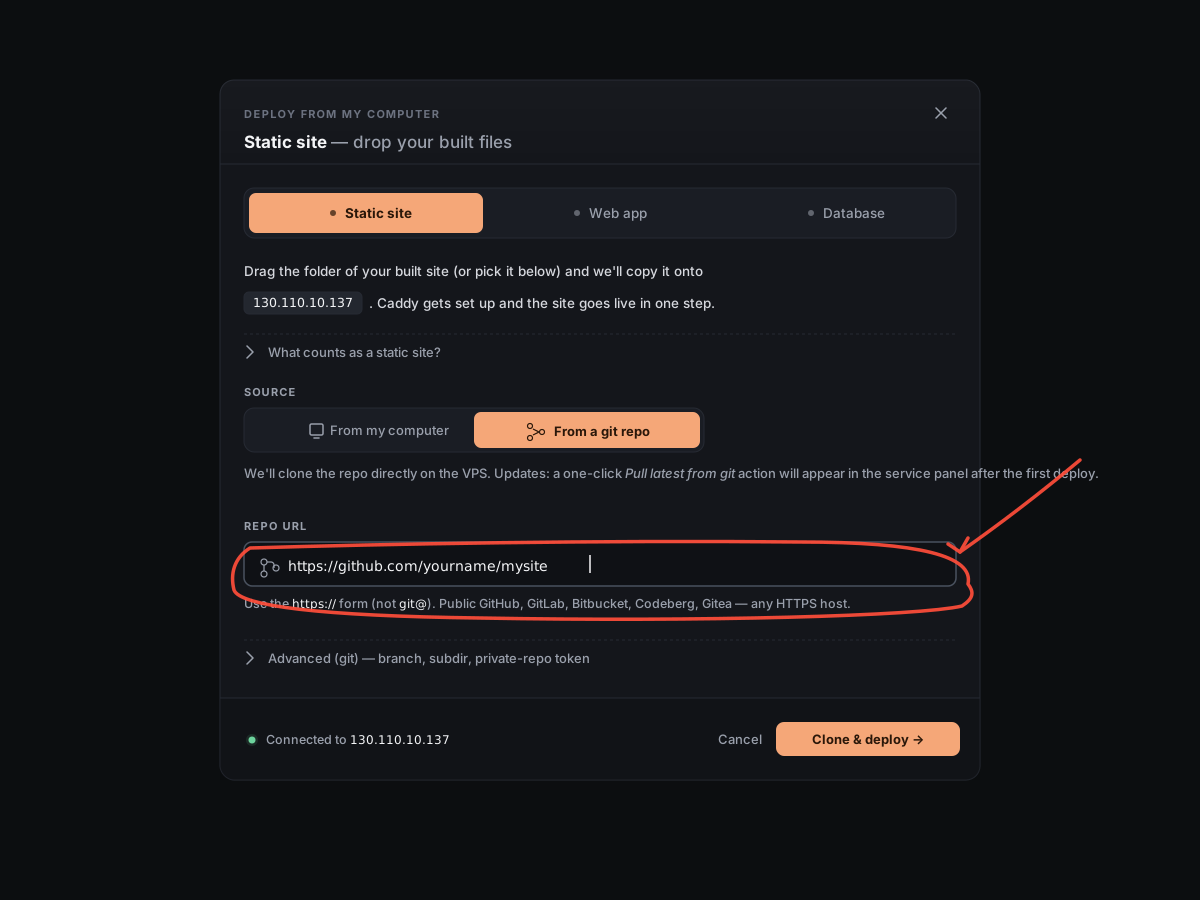
4. Type your domain
Type the address you want the site to live at — for example, mysite.example.com. You can leave it blank to publish at your server's IP for now.
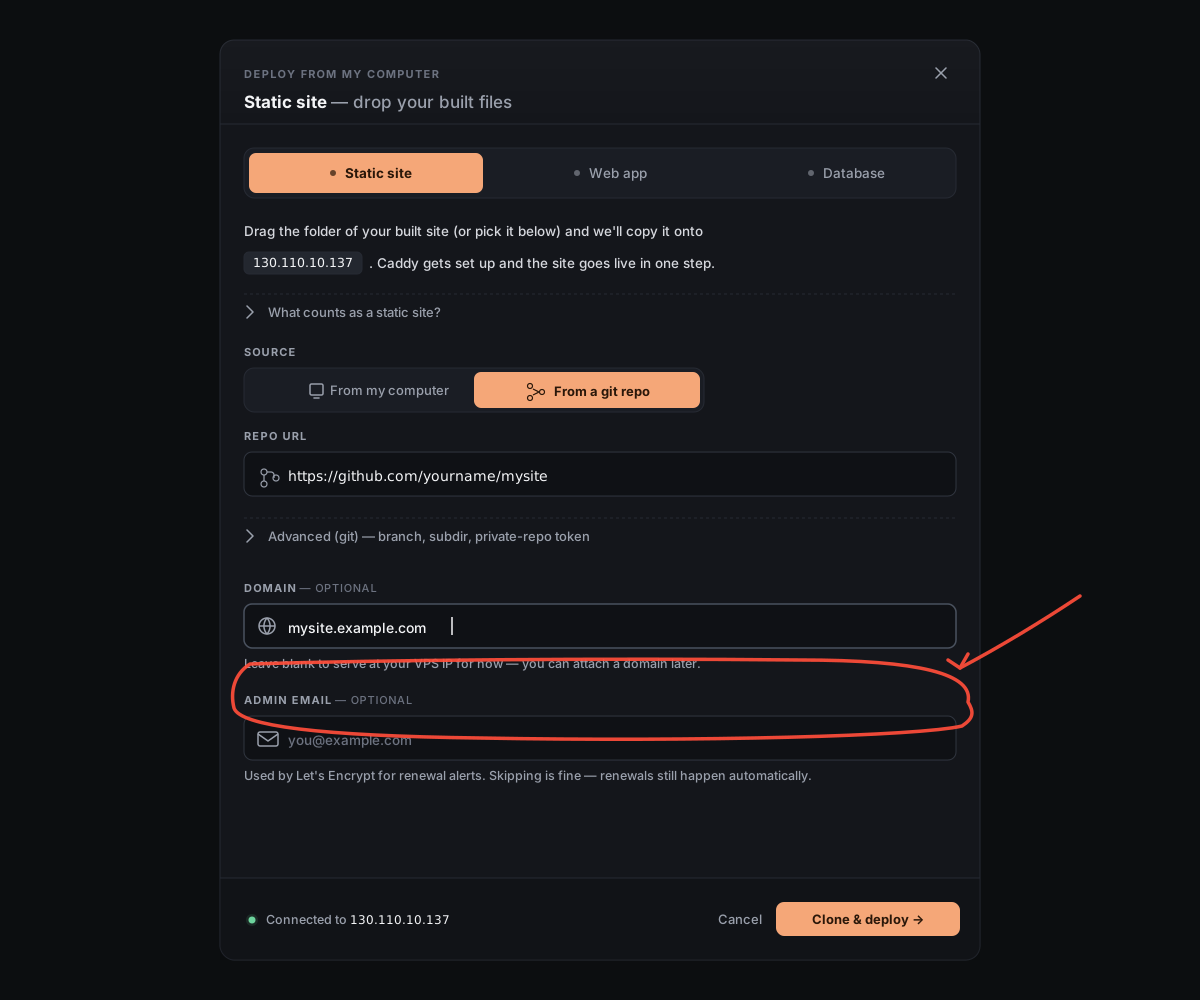
5. Click "Clone & deploy"
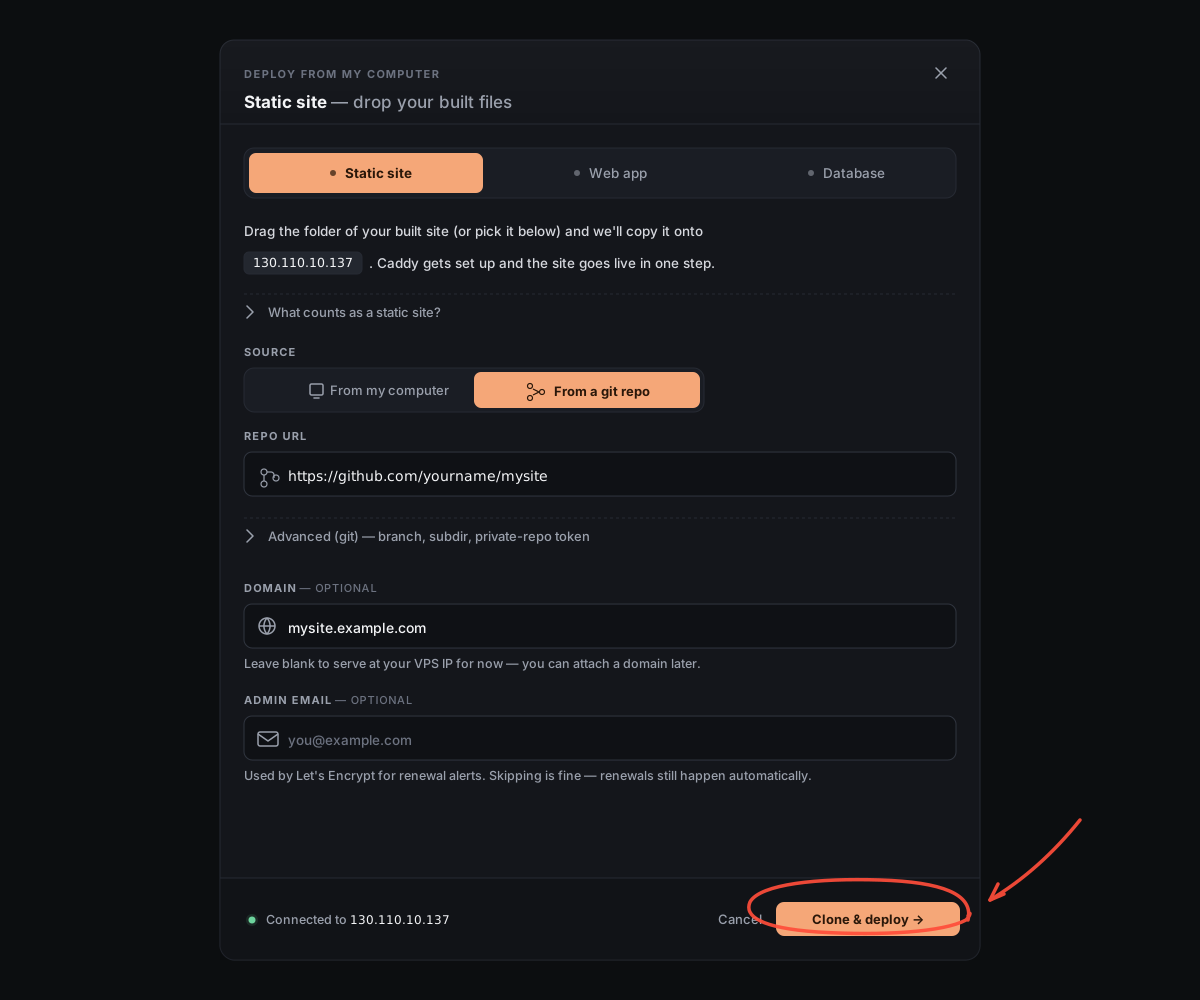
6. Done
The window closes and the chat takes over. We clone your repo onto the server, set up , request a certificate, and reload the proxy. When it finishes, your site appears on the home screen with a green dot — and a **Pull latest from git** button appears in its service panel.
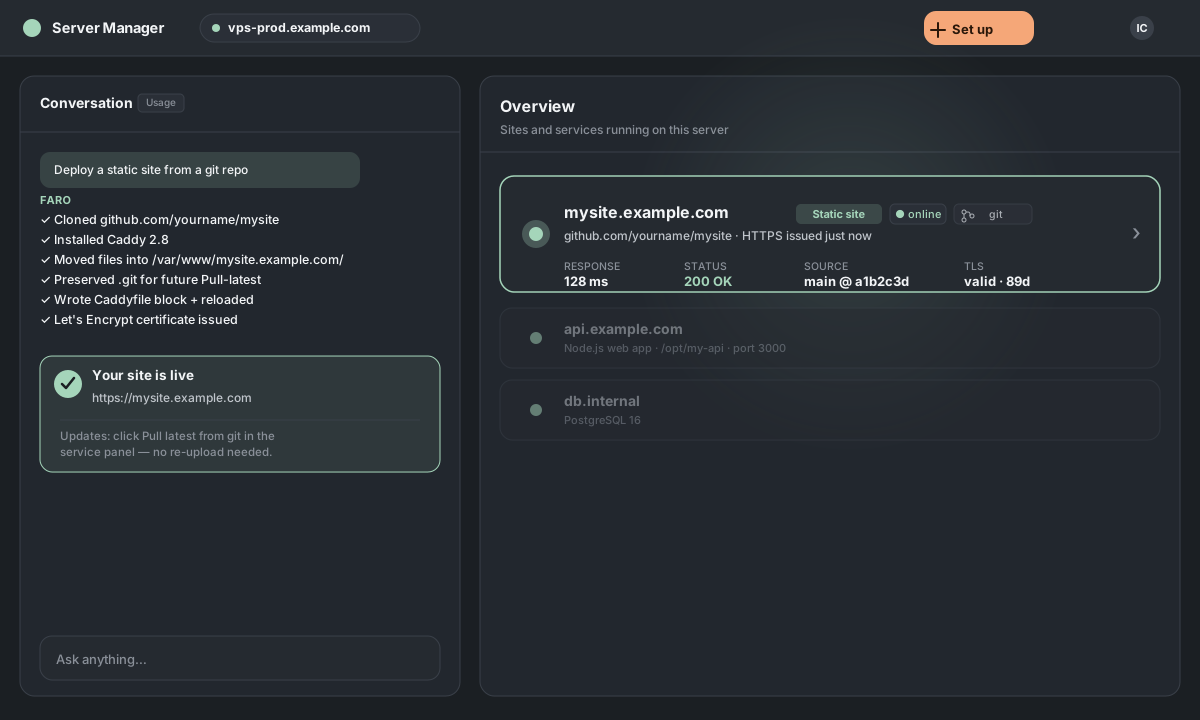
Updating later
Click **Pull latest from git** in the site's service panel — we'll git pull your latest commits without re-cloning. For private repos, generate a deploy key from the same panel; pulls won't ask for credentials again. The full breakdown (conflict handling, deploy keys, monorepo subdir behavior) lives in the Pull latest article.
Want to fine-tune things first?
Before clicking Clone & deploy, expand the Advanced (git) section.
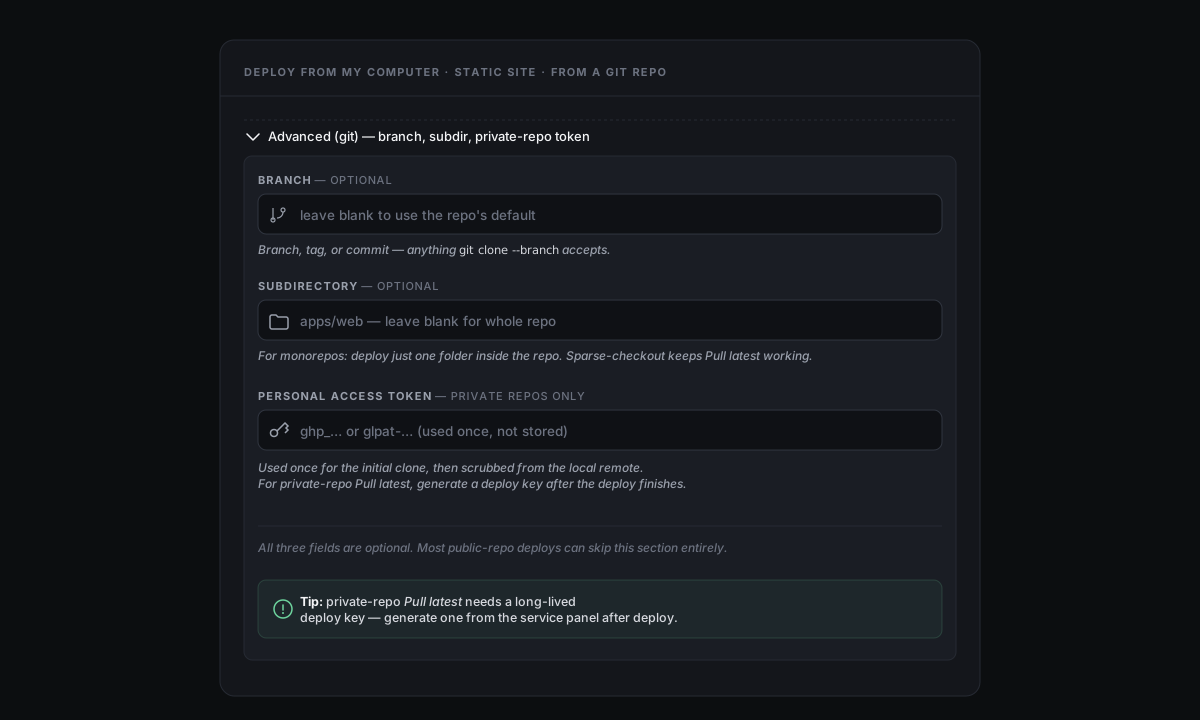
Branch. Override the default branch — anything git clone --branch accepts, including tags and commit SHAs.
Subdirectory. For monorepos: deploy just one folder inside the repo (e.g., apps/web). We use sparse-checkout so Pull latest keeps working — only your subdirectory gets materialized but the full .git history is there for future pulls.
Personal access token. For private repos. We use the token once for the initial clone, then scrub it from the local remote URL immediately after. After the deploy finishes, generate a **deploy key** from the service panel for long-lived SSH-based pulls.