Haven't deployed yet? → Deploy a website from a git repo or Deploy a web app from a git repo
After a site or app is deployed from a git repo, pushing new commits to your repo doesn't automatically update the server. Click Pull latest from git to bring the server up to date — it takes one click, runs git pull --ff-only behind the scenes, and (for web apps) installs any new dependencies and restarts your app under .
When the server is behind your repo, the workload's card on the home screen shows a small **· ⤓ N behind** pill next to its status — at-a-glance you know there's something to pull. Hover for the exact command.
1. Open the service panel
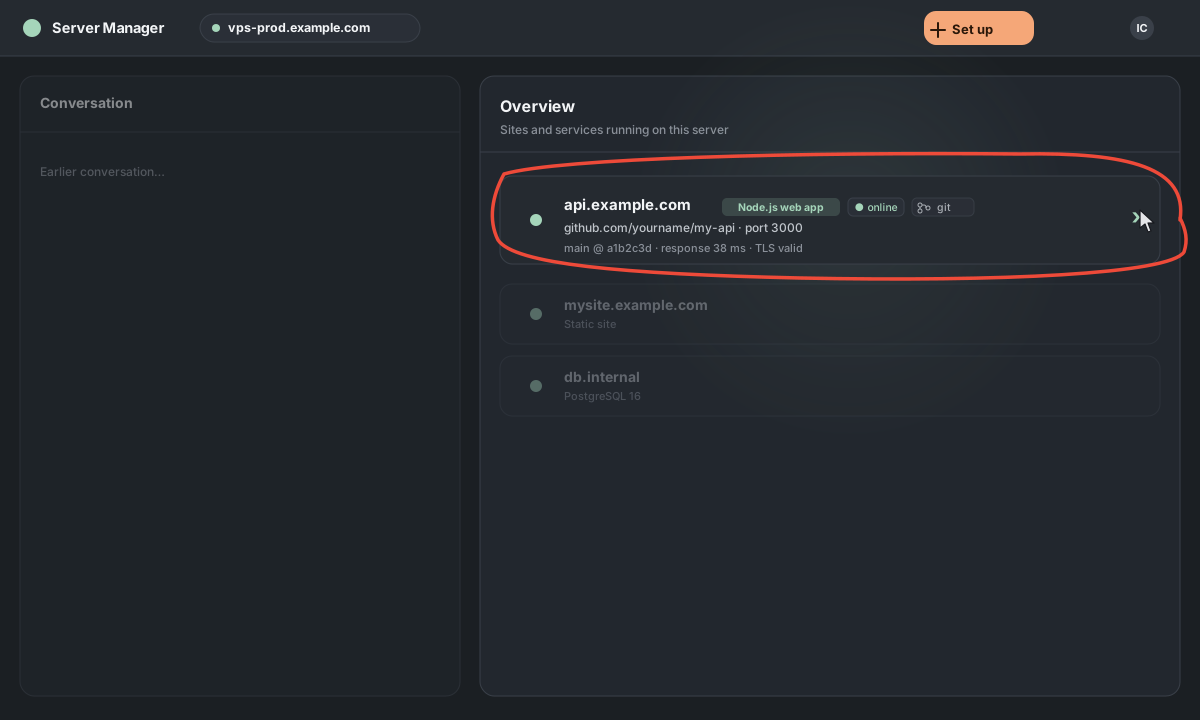
On the home screen, click the card for the site or app you want to update. The service panel opens.
2. Open the Controls tab and click "Pull latest from git"
For both static sites and web apps, Pull latest from git lives in the Controls tab, alongside Restart / Stop / Start / Generate deploy key.
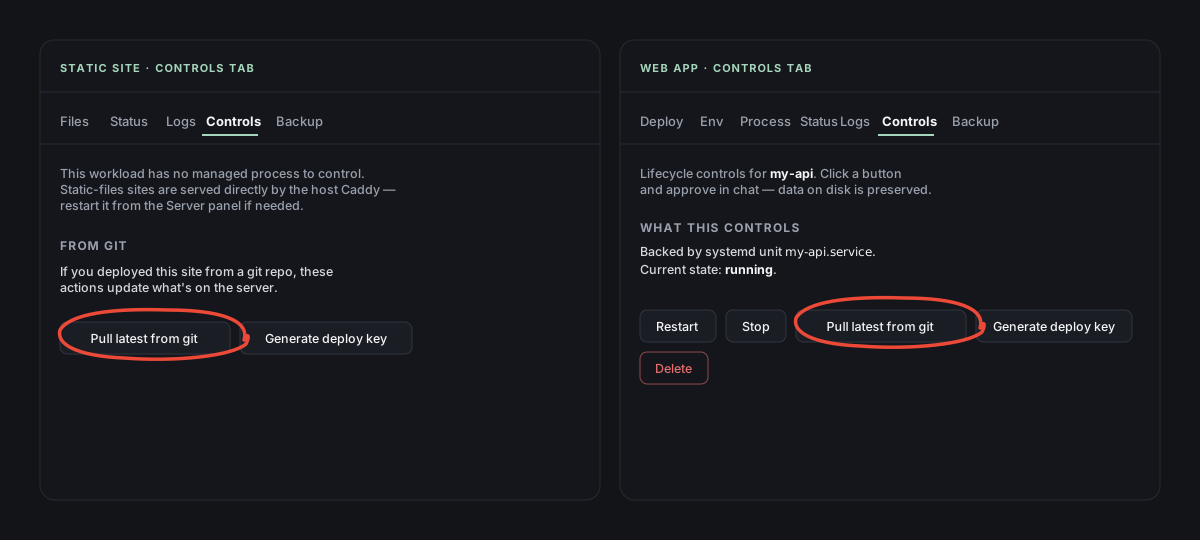
There are two more places the button appears, for convenience:
- Static site — also in the Files tab toolbar (⤓ Pull latest from git), since that's where static-site users spend time.
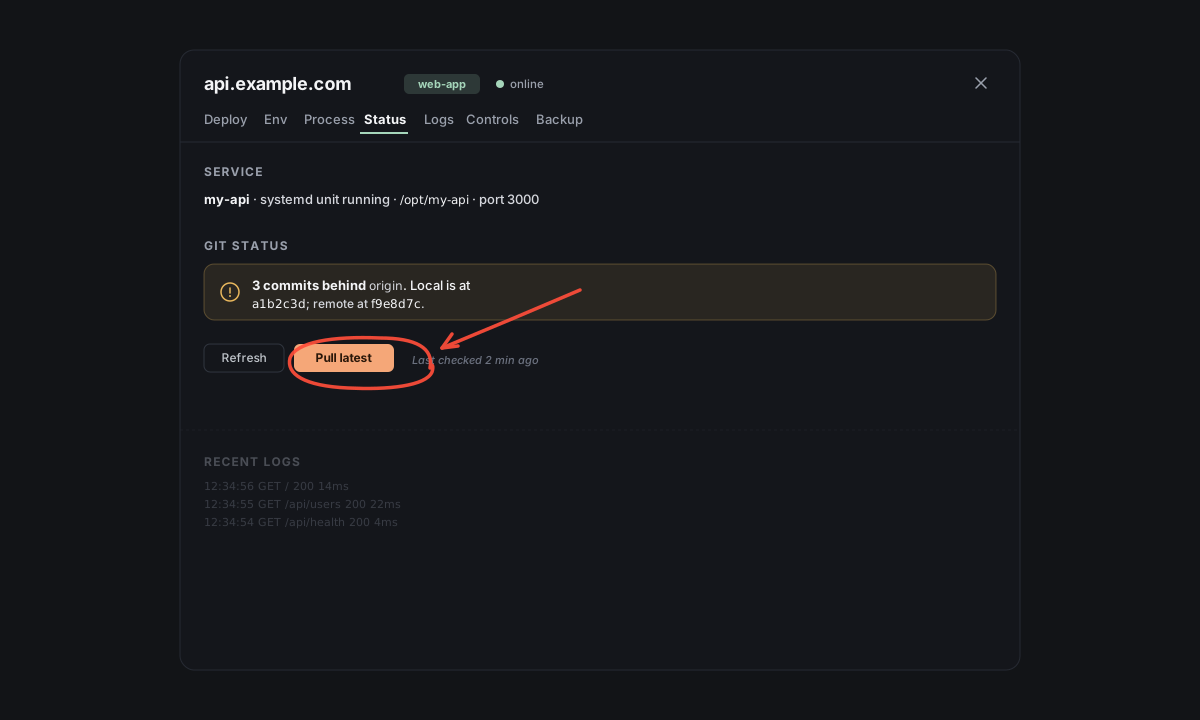
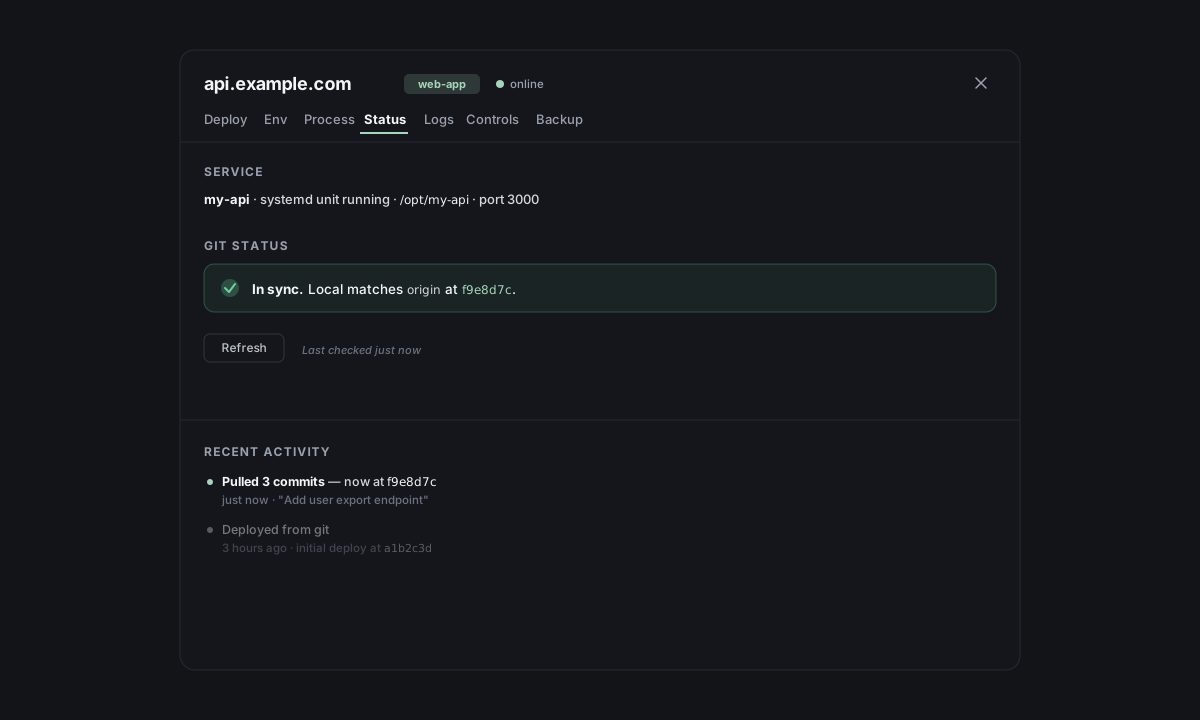
- Either kind — on the Status tab, when there are new commits to pull. A "N commits behind origin" banner shows up with a Pull latest button next to it. Use this view when you want to see exactly what's pending (commit count, current vs remote SHA) before pulling.
3. Faro does the pull
The chat takes over. For a static site, we run git pull --ff-only and keeps serving — no restart needed. For a web app, we also install any new dependencies (npm ci / pip install) and restart your app.
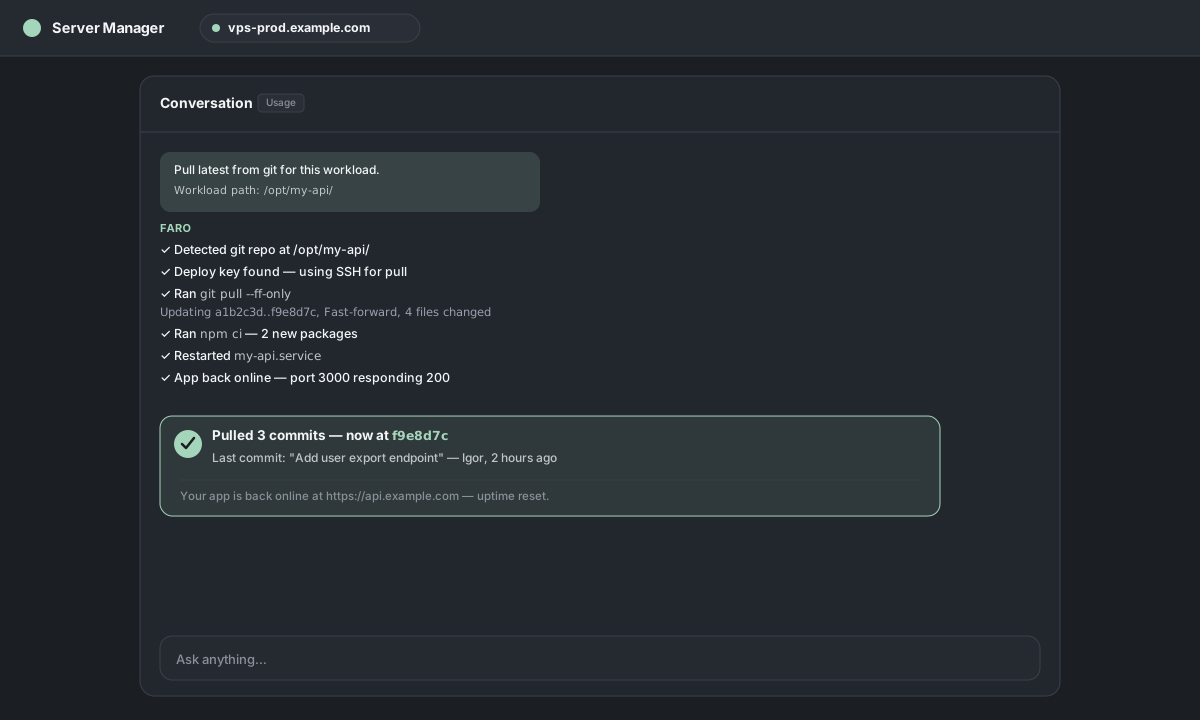
4. Done
The Git status section updates to "In sync" at the new commit.
If the site wasn't deployed from a git repo
Faro checks first and tells you in chat: "This site wasn't deployed from a git repo, so there's nothing to pull." To replace the files, re-deploy with Deploy a website from your computer (or the web app equivalent) — drop a fresh folder onto the same site and we'll replace what's there.
If pull fails with "would be overwritten"
We use git pull --ff-only, which refuses non-fast-forward merges. If anything modified a tracked file on the server — the Files tab, an SFTP client like FileZilla, an SSH session, even the running app itself — the pull can fail with "Your local changes would be overwritten by merge".
The Git status section on the Status tab shows you what's changed:
M= a tracked file was edited on the server. Conflicts with pull. Use the repo file (discards your local change): runsudo git checkout -- <file>from the workload's path, then pull again.?= an untracked file (e.g., user-uploaded data inuploads/, runtime files your app creates). Doesn't conflict — git pull leaves untracked files alone. No action needed.
For private repos: generate a deploy key first
The first time you Pull latest on a private repo, the cached HTTPS credential won't work for unattended pulls. The fix is a one-time deploy key.
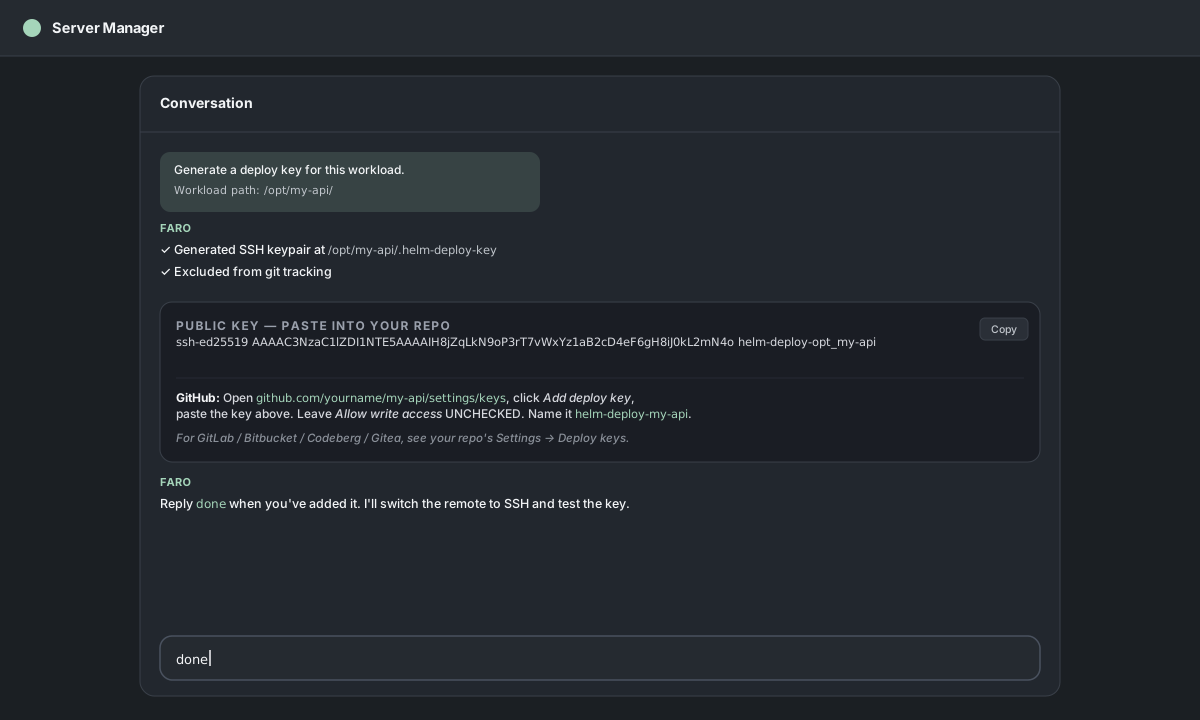
- In the service panel, click Generate deploy key (next to Pull latest).
- Faro generates an SSH keypair on the server and shows you the public key in chat.
- Paste it into your repo's settings → Deploy keys (GitHub) or SSH keys (GitLab, Bitbucket, Codeberg, Gitea). Leave write-access UNCHECKED — read-only is all we need.
- Reply
donein chat — Faro switches the git remote from HTTPS to SSH and tests it.
After that, Pull latest works without asking for credentials again.
Monorepo / subdir deploys
If you deployed from a subdirectory of a monorepo (e.g., apps/web), Pull latest still works — sparse-checkout handles it behind the scenes. We pull into the long-lived clone at /var/www/.helm-repos/<domain>/ (or /opt/.helm-repos/<app>/ for a native web app) and your deploy directory is a symlink that automatically reflects the new files.
Switching branches
Pull latest pulls from whatever branch you cloned during the initial deploy. To switch to a different branch, re-deploy from the modal — pick the new branch in Advanced (git).