A server that's been running for months collects clutter: package downloads it doesn't need anymore, old kernel images in /boot, stopped Docker containers, build caches, rotated log files, security updates waiting to be applied, and services that have slowly been leaking memory. None of this is wrong individually, but it stacks up until the disk fills, an update fails, or a site gets slower than it should be.
Clean up this server is one button that sweeps all of it in a single pass — and a chat conversation that confirms anything risky before it runs.
What it actually does
Three categories, each runnable independently — tick what you want and leave the rest:
- Free up disk space — clear the package download cache, remove dependencies of removed packages, prune stopped Docker containers + dangling images, trim Docker build cache older than a week, vacuum systemd logs to the last 30 days, delete rotated log files (
.gz/.1/.old) older than 30 days, and optionally remove old kernel images / disabled snap revisions. - Install security updates — refresh the package list and install the newest version of every installed package (
apt update+apt upgrade). If the update includes a new kernel, that becomes a "restart when convenient" follow-up rather than something that just happens to you. - Restart leaky services — optional. Restarts your websites + databases + workers one by one (~10–30s downtime each) so the memory they've slowly accumulated over weeks gets reset. We sample response time before and after and only claim "faster" if there's actual evidence.
On top of those, a handful of read-only checks always run: disk hotspot report (which directories are eating your disk), failed services (anything systemd flagged), recent SSH logins (so you spot the unfamiliar ones), Fail2ban status, and a check for /var/run/reboot-required (the file the kernel update drops to signal "you need to restart").
How to start it
Four entry points, same modal:
| Where you are | How |
|---|---|
| You want to start fresh | Type /cleanup in the chat composer and press Enter |
| You're browsing recipes | Open the , find Clean up this server, click |
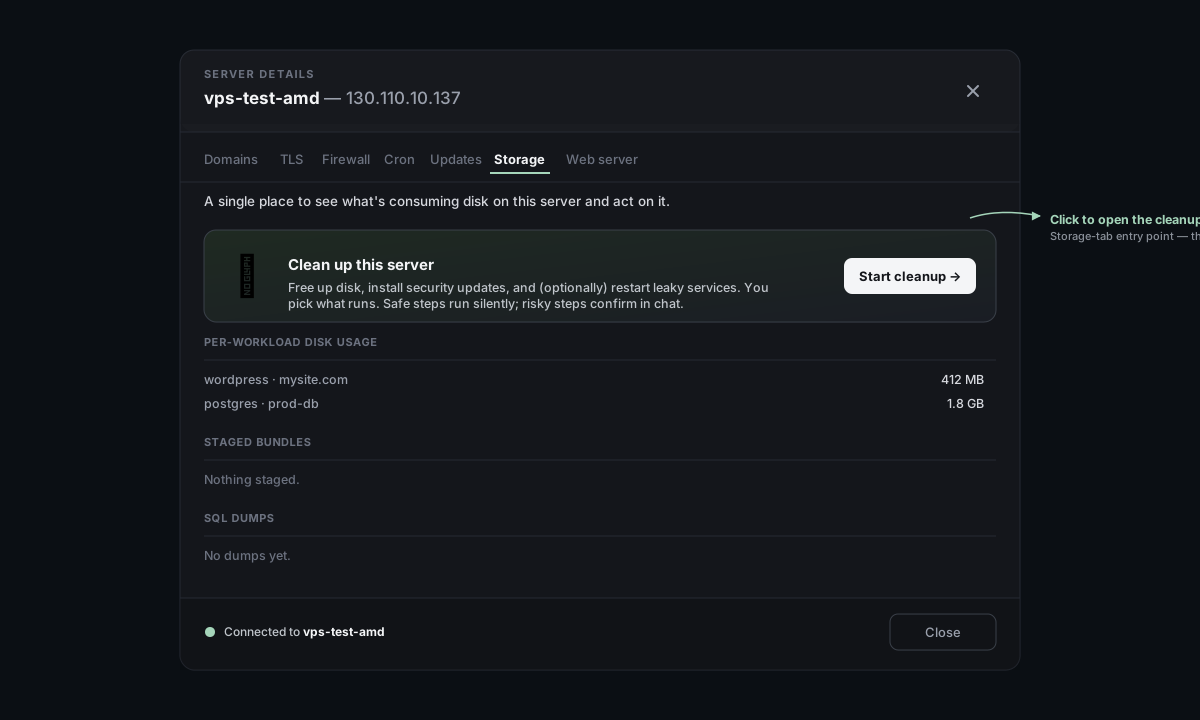
| The disk is starting to worry you | Open Server details → Storage tab → the Clean up this server CTA card at the top |
| You see "N updates available" on the Updates tab | Server details → Updates tab → the Install these in a full cleanup CTA card |
The Storage CTA is the most common path — you noticed the disk filling, you went to look at storage, and the cleanup button is sitting right there.
The pre-flight modal
Clicking any entry point opens the same checklist. The modal is doing two jobs at once: showing you exactly what's about to happen, and authorizing the safe steps so the chat doesn't waste your time asking again for things you already ticked.
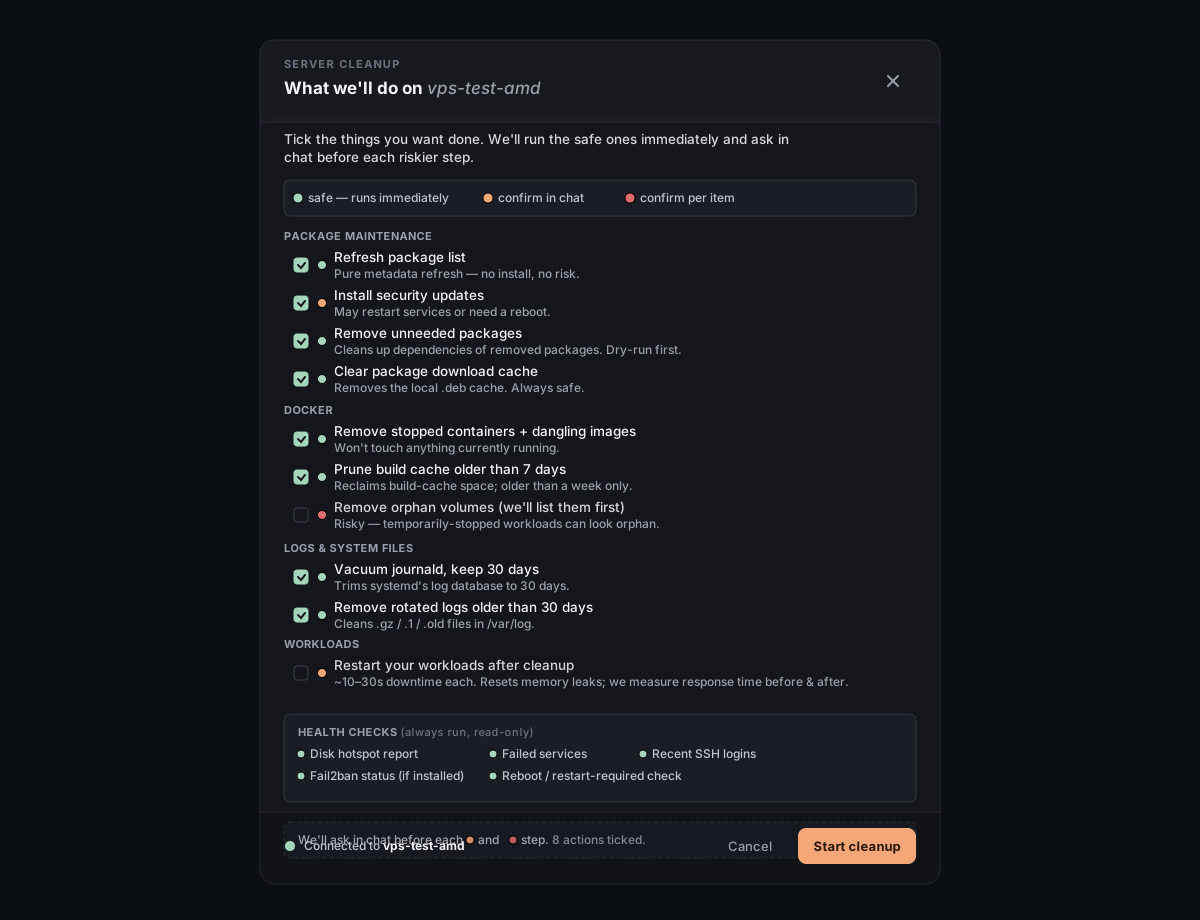
Read the dots — they're how you know what to expect:
- Sage (safe) — runs immediately. No chat prompt, no confirmation, just a one-line "did it" status afterward.
- Peach (confirm in chat) — pauses for a yes/no in the conversation before running. Used for things like installing updates that might restart services.
- Rose (confirm per item) — lists each candidate (e.g. each orphan Docker volume) and asks one-by-one. The "are you really sure about this specific one" tier.
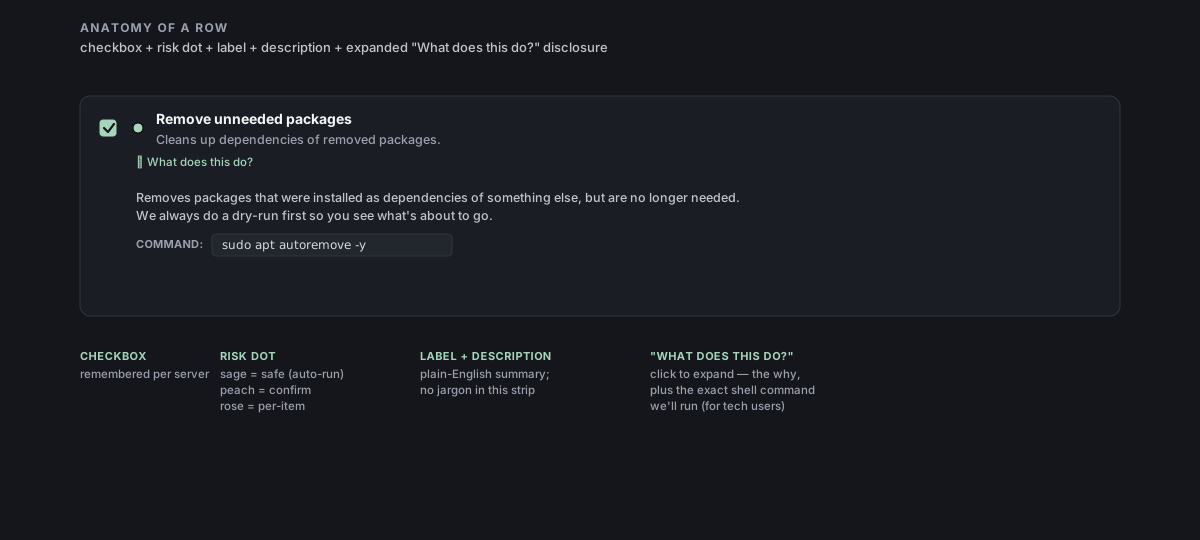
Each row also has a "What does this do?" disclosure with the exact shell command we'll run, so technical users can verify there's no surprise. Non-technical users can ignore it.
The Restart your workloads after cleanup toggle at the bottom of the modal is its own decision. It restarts every running website / database / worker one at a time with ~10–30 seconds downtime each, measures response time before and after, and tells you the delta. Leave it off if downtime now is worse than slightly-leaky-memory; flip it on if you're already doing maintenance.
Your ticks are remembered per server — next time you open the modal on the same server, the same boxes are already ticked. New actions added by future updates auto-appear as ticked-by-default for actions that are safe (and unticked for the rest).
What happens during the run
Click Start cleanup and the modal closes. From here, the conversation drives it:
- Snapshot — one fast batch of read-only commands captures the "before" picture (disk free, RAM, log size, pending updates, failed services, biggest directories, recent logins, Fail2ban). The chat just says "Snapshot taken, X GB free, N updates pending. Starting cleanup…" — you don't see the wall of raw output.
- Safe steps auto-run.
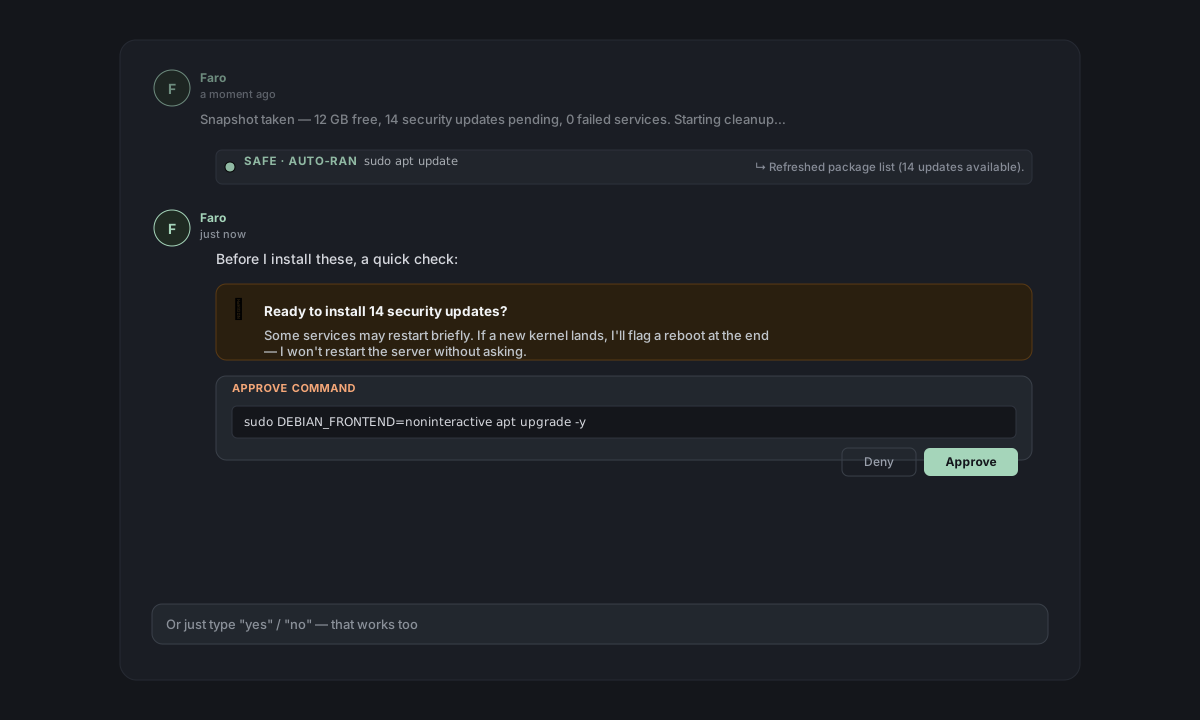
apt update,apt clean,journalctl --vacuum,docker system prune, the rotated-log delete — these run silently, each emits a one-line status. No approval prompts (the modal authorized them). - Caution steps ask. Anything peach-dotted (
apt upgrade,docker system prune -a, kernel removal, snap revisions) gets a one-line question in chat before running. You say yes, the action runs; you say no, it's skipped and the next action moves forward — the recipe doesn't halt on a single decline.
- Per-item steps ask once per candidate. If you ticked orphan-volume removal, Faro lists each dangling volume and asks one at a time, including a hint of which image used to mount it. "No to all" / "stop" / "skip the rest" short-circuits the remaining items.
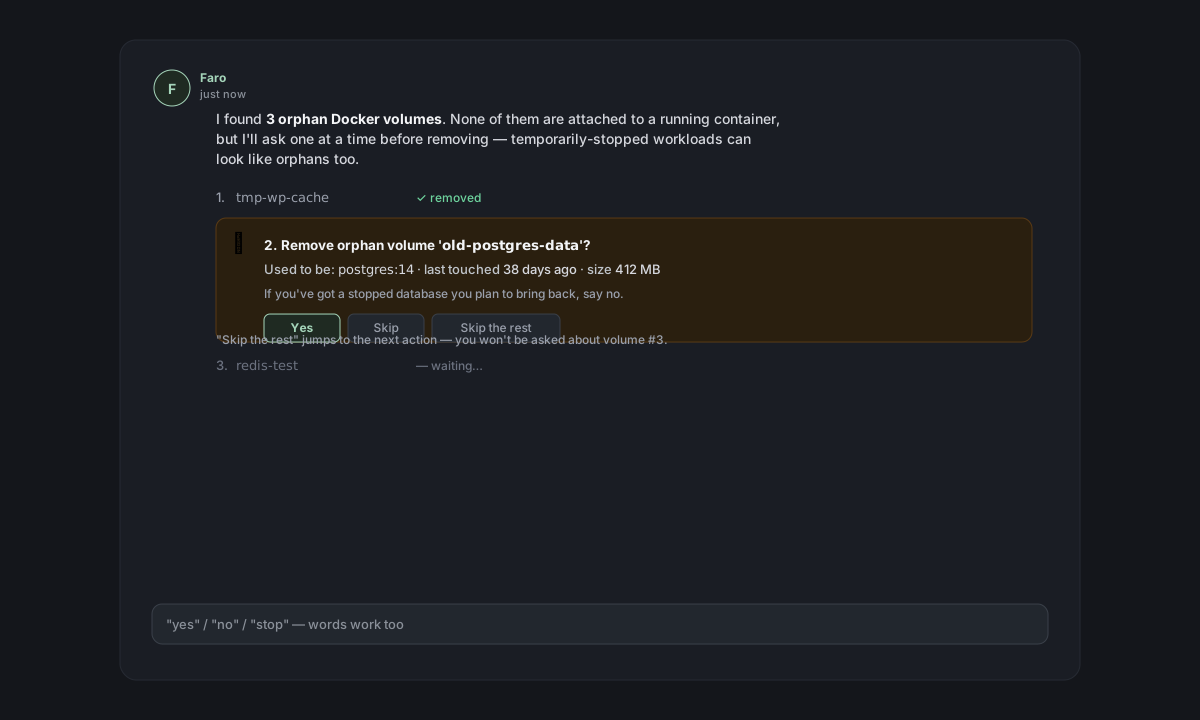
- Optional workload restarts. If you toggled it on, each running site/database gets restarted with response-time samples before and after.
If at any point the kernel updates and a reboot is needed to actually use the new kernel, the recipe does not auto-reboot. It surfaces a follow-up card you can act on later.
When a reboot does happen
Anything that drops the SSH connection — systemctl reboot, restart of sshd / dbus / networking — triggers a fixed amber banner pinned at the top of the chat. The chat halts itself with a synthetic "Reboot issued. Chat will go quiet for ~30–60s…" message; sending while the banner is up is disabled.
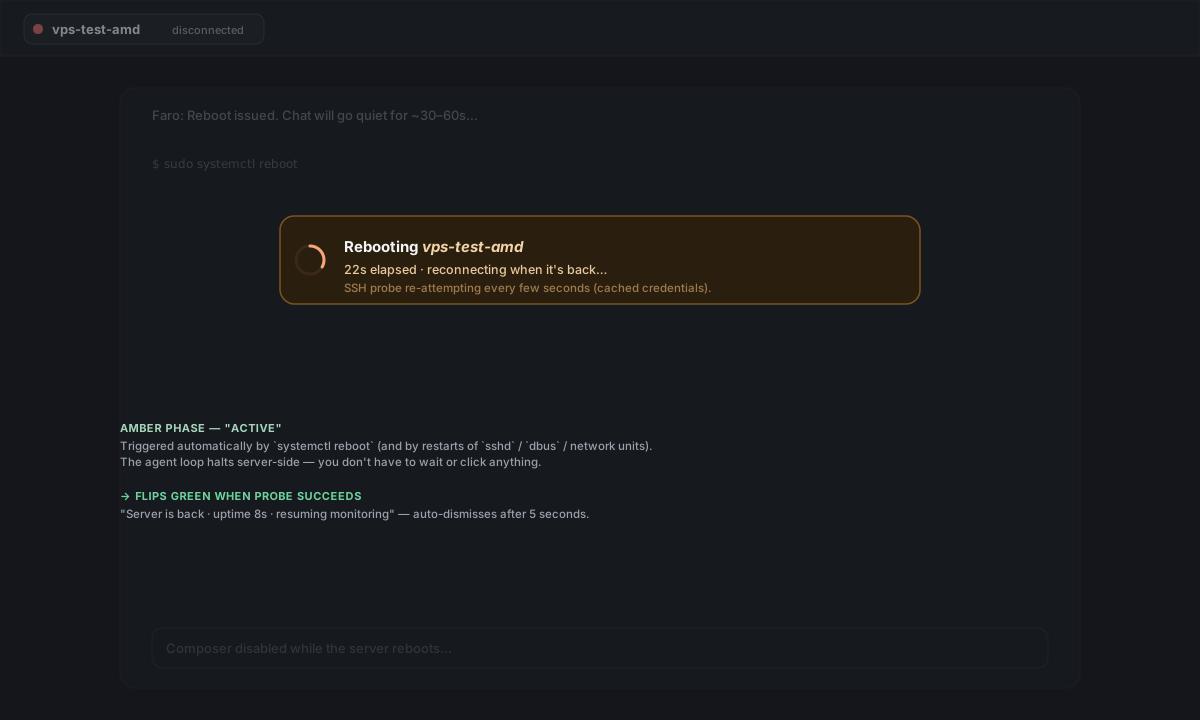
Behind the scenes a probe is re-attempting SSH every couple of seconds using the credentials Server Manager cached when you connected. When the server answers, the banner flips green ("Server is back · uptime 8s · resuming monitoring"), auto-dismisses after 5 seconds, and the composer re-enables. No browser refresh needed.
The summary and "What you need to do"
When the run finishes, Faro posts a closing message with the wins quantified up front and a table of changed metrics.
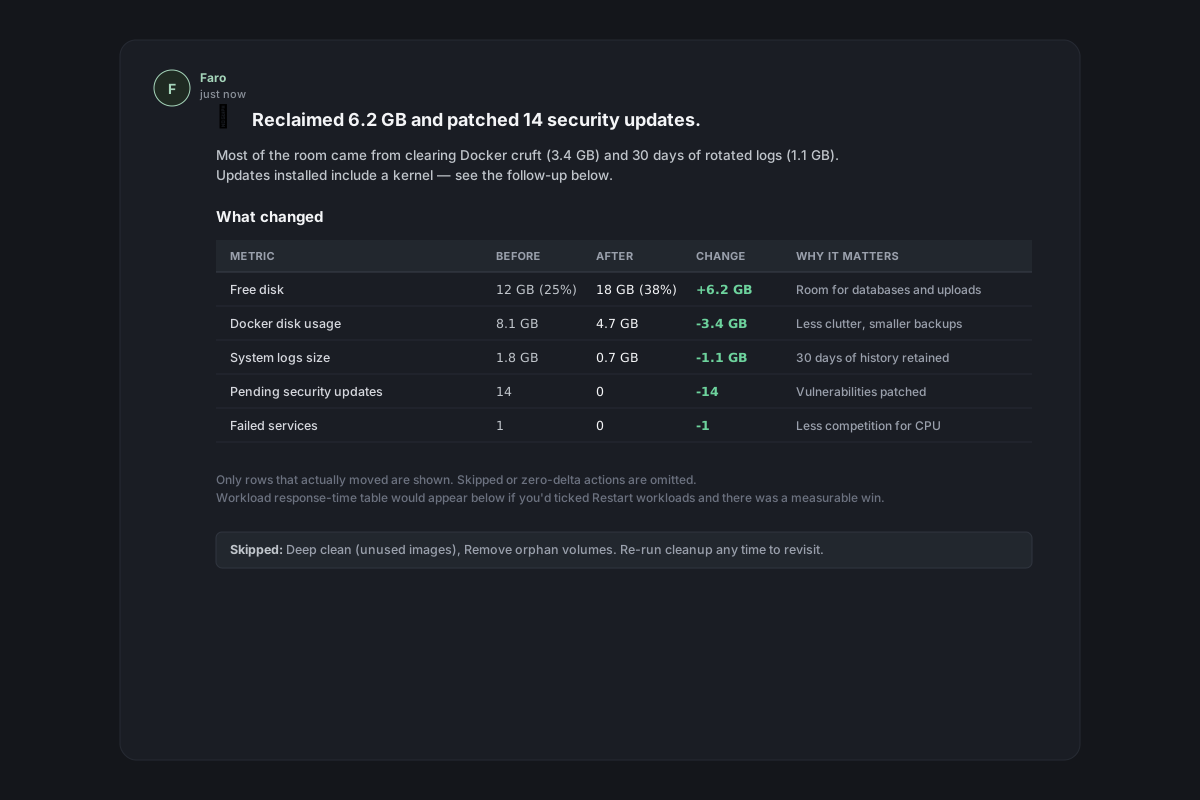
The table only includes rows where the underlying action actually ran AND the change is non-zero — so if you skipped Docker, you don't get a Docker row. The "Why it matters" column is plain English ("Room for databases and uploads", "Vulnerabilities patched", "Less competition for CPU"), not jargon.
If a workload restart produced a measurable improvement, you'll also see a per-workload Workload response time table — and only then. The recipe won't claim "your site is faster" on noise.
Follow-up action cards
Anything the cleanup couldn't finish on its own — a pending reboot, services running outdated library code, workloads you declined to restart, orphan volumes you said no to — renders as a What you need to do section with numbered cards. Each card offers two ways to handle it:
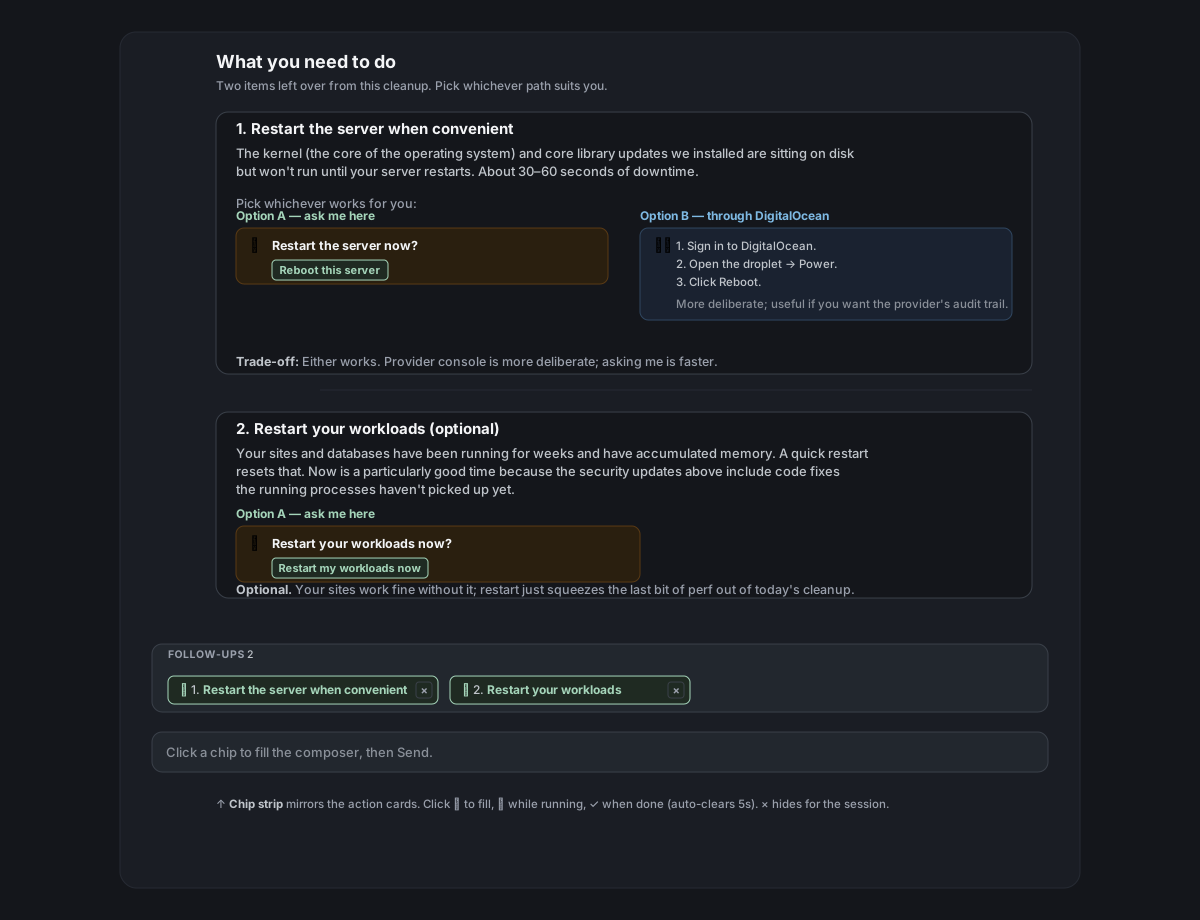
- Option A — ask me here — a one-click chat path. The callout's reply text shows up as a clickable chip above the composer so you don't have to scroll back up.
- Option B — through your provider console — provider-specific click-by-click steps for the same thing (e.g. "DigitalOcean → Droplet → Power → Reboot"). Useful if you'd rather do it deliberately yourself.
- Trade-off — one sentence per card explaining when each path makes more sense.
The chip strip pinned above the composer mirrors these cards as ☐ pending follow-ups. Click a chip → its reply text fills the composer → press Send. As Faro works on it, the chip flips ⏳ in-progress; when it's done, ✓ struck-through and auto-clears after 5 seconds. Each chip also has a small × dismiss button if you've decided to ignore that follow-up — that hide persists for the rest of the browser session.
Common edge cases
"No orphan volumes found" — the per-item action just says so and skips. Not an error; the list was empty.
Reboot-required was already set before the cleanup — common when someone else (or a previous run) installed updates without rebooting yet. The recipe checks /var/run/reboot-required both at snapshot time and after apt upgrade. If it was already there, the "Restart the server" follow-up card appears even when this cleanup didn't install anything new — it's still the right action.
My sites are behind Traefik / nginx / Apache — the recipe doesn't touch your web server's config. It restarts the underlying containers (or systemd units) for sites it can identify from the inventory; the proxy keeps running normally. If a workload's reverse-proxy is sitting in front of containers Server Manager doesn't know about (an unmanaged custom setup), it's silently skipped — no probe URL means no measurable restart.
Snap isn't installed on this server — the "Remove disabled snap revisions" step just says "Snap isn't installed — skipping." and continues. Ticking it on a non-snap server is harmless.
**apt autoremove would remove something I want to keep** — every autoremove step is preceded by a dry-run that prints "Would remove: pkg-a, pkg-b, …". If the list looks wrong, say no — the real run only happens after you confirm.
I said yes to a step and want to back out mid-stream — pressing Esc halts the agent. Commands already running aren't interrupted (they finish), but the loop exits. You can ask Faro to revisit anything skipped later.
The chat looks stuck during a service restart — anything restarting sshd, dbus, or the network stack triggers the same banner the reboot does (short-horizon variant). If the banner shows, the chat is intentionally paused; if it doesn't show and chat truly seems frozen, see Recover when SSH stops working.
The final report — what to look for
The summary message has a deliberately consistent shape so you can scan it fast:
- Headline — one bold line: "🧹 Reclaimed 6.2 GB and patched 14 security updates." That's the win. The number that wasn't moved isn't mentioned.
- One-line elaboration — the biggest specific improvement in plain English (most disk freed, security patched, fewer failing services — whichever was the biggest).
- "What changed" table — Before / After / Change / Why-it-matters, one row per metric that actually moved. Possible rows: free disk space (GB and %), free inodes (%), Docker disk usage, system-log size, pending security updates, failed services, available memory, background load.
- "Workload response time" table (only if you opted into restarts AND there was a measurable win) — per-workload before / after / change.
- "What you need to do" section (only if there are follow-ups) — the numbered cards covered above.
- "Skipped: …" footer (only if you declined steps) — the list of action labels so you can re-run later and revisit.
If the server was already tidy and nothing needed doing, Faro closes with "Your server's already tidy. Nothing to do." — no fabricated summary table, no padded report.
Reference
What gets pre-authorized vs what still asks
| Tier | Examples | Behavior |
|---|---|---|
| Safe | apt update, apt clean, docker system prune -f, journalctl --vacuum-time=30d, find /var/log … -delete | Pre-authorized by your modal ticks — auto-runs, one-line status |
| Caution | apt upgrade, docker system prune -a, kernel removal, snap revision removal | Pauses for chat yes/no |
| Per-item | Orphan volume removal | Asks one-by-one; "stop"/"skip the rest" short-circuits |
| Read-only health checks | df, free, last, fail2ban-client status, disk hotspots | Always run (regardless of ticks) |
Storage of your ticks — your selection (and the workload-restart toggle) is saved in your browser's localStorage keyed by server hostname. Clearing browser data resets the ticks back to the default selection.
How follow-ups + reboot bypass work — when the cleanup recipe is active, the recipe's read-only snapshot scripts and any of the safe-tier commands you ticked in the modal bypass the destructive-command classifier — that's what avoids the duplicate "Approve this command?" prompts. Caution + per-item tiers always re-ask. The bypass is content-aware (every command segment is validated against a read-only allow-list) and forbidden patterns like rm -rf / always block regardless.