Server Manager talks to your server only over SSH. If SSH stops working, Server Manager can't help — it has no other channel into the machine. But your server is fine, and you have other ways to get back in. This article triages the most common symptoms and walks the recovery paths.
Read this before panicking. None of the standard SSH-broken scenarios mean your data is gone. The server itself is still running; you just can't log into it from where you usually do. Worst case, you reinstall SSH access via your cloud provider's web console — same machine, same disks, same files.
Step 1 — Read the error in plain English
If you tried to connect through Server Manager and it failed, the Connect dialog already shows a plain-English diagnosis of what's likely wrong:
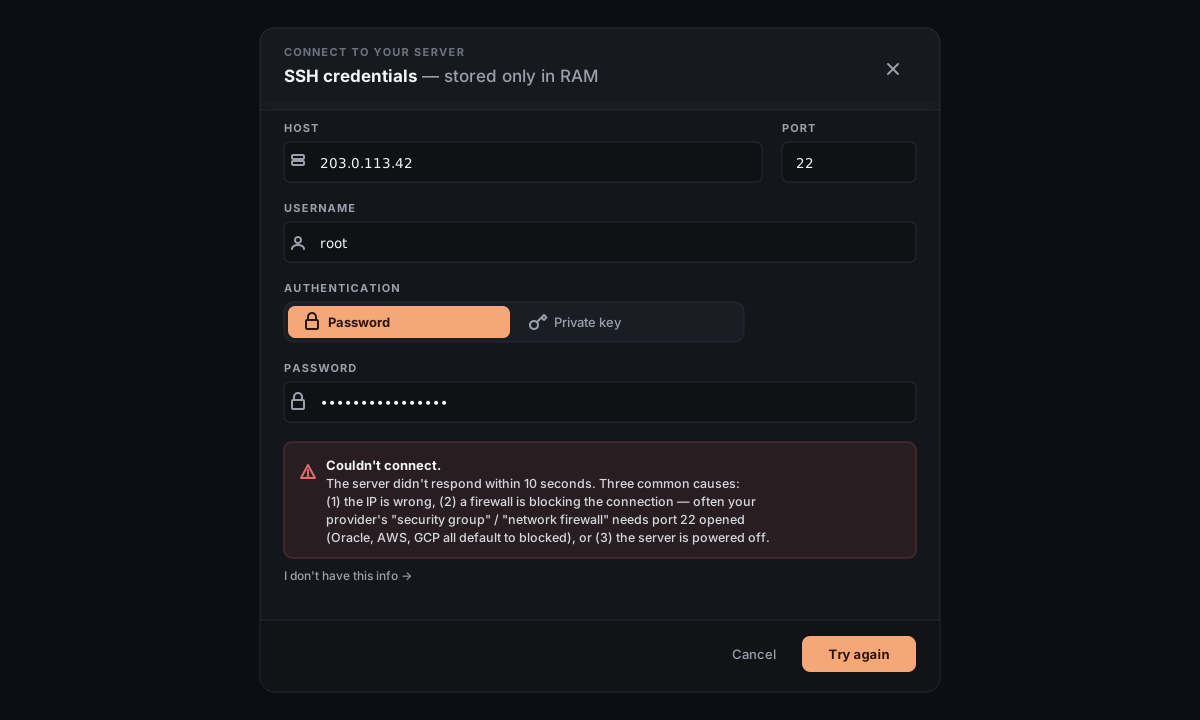
That message names the most likely cause. The table below maps the message Server Manager shows you to where to look next.
| If the error says… | Likely cause | What to try first |
|---|---|---|
| "The server didn't respond within 10 seconds" (timeout) | Cloud firewall blocking port 22, wrong IP, or server powered off | Open your cloud provider's web dashboard; check "Security List" / "Security Groups" / "Firewall Rules" for port 22; verify the IP matches |
| "The server is reachable but nothing is listening on port 22" (connection refused) | SSH daemon not running, or it's on a different port | Provider console; check that sshd is running; look for a non-standard port in your /etc/ssh/sshd_config |
| "The server refused the credentials" (permission denied) | Wrong username, wrong password, or the private key isn't authorized | Try a different username (root / ubuntu / debian / centos are common defaults); re-check the password from your provider's signup email; verify the key in ~/.ssh/authorized_keys |
| "The hostname couldn't be looked up" (DNS) | Typo in the host field, or the domain stopped pointing at the IP | Use the raw IP instead of the domain name; check the A record at your DNS provider |
| "No network route to that host" | Network outage, corporate VPN interference, or the server is gone | Try from a different network (mobile hotspot); verify the server still exists in your provider's dashboard |
| "SSH handshake failed" | Very old server with incompatible crypto, or unusual hardening | Server is reachable — needs a config fix on the server side; use the provider's web console to undo recent /etc/ssh/sshd_config changes |
| "Wrong encryption passphrase for this saved server" | You're using the wrong passphrase for a saved-server entry | This is the passphrase you set when you first saved the credentials, not your SSH key passphrase. Re-enter manually if you can't remember it |
Step 2 — Recover via your provider's web console
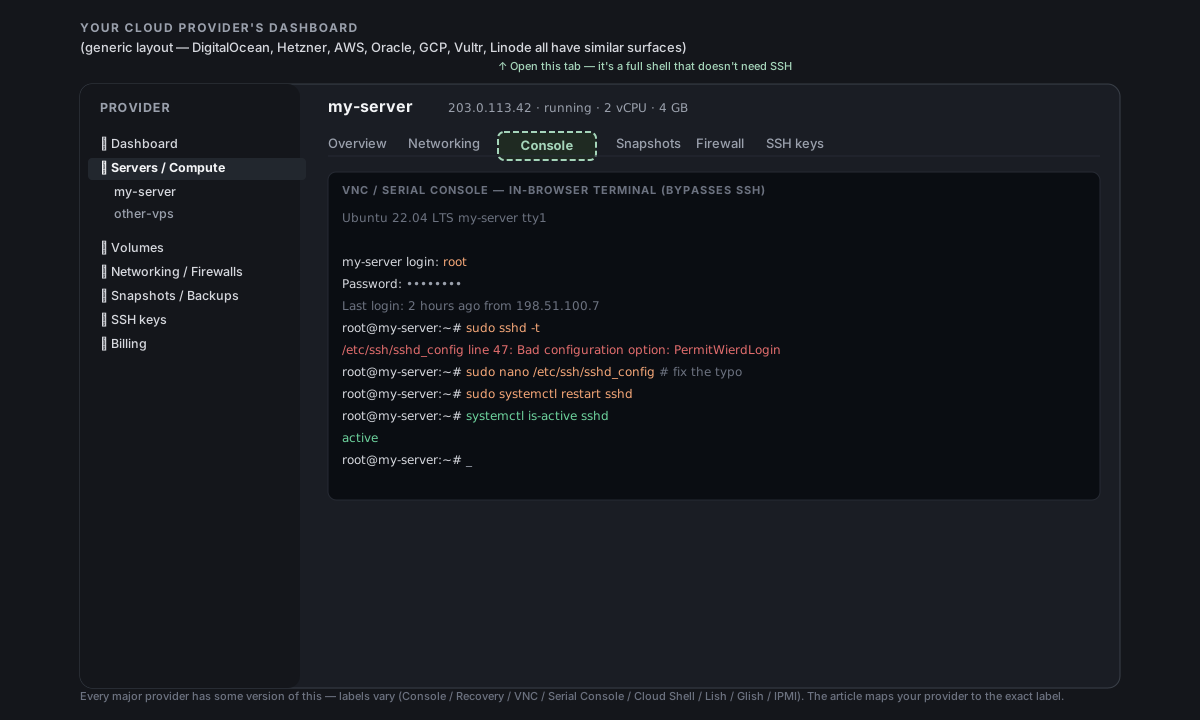
If the diagnosis above points at "something is broken on the server itself" (most of the rows in the table), the way back in is your cloud provider's web console — a browser-based terminal that bypasses SSH entirely. Every major provider has one, just with different names:
| Provider | Console name | Where to find it |
|---|---|---|
| DigitalOcean | Recovery Console / Web Console | Droplets list → your droplet → Recovery tab → Boot from Recovery ISO or Web Console |
| Hetzner Cloud | Console | Servers list → your server → Console tab (top right) |
| AWS EC2 | EC2 Serial Console | EC2 console → instance → Actions → Monitor and troubleshoot → EC2 Serial Console (or Session Manager if installed) |
| Oracle Cloud (OCI) | Cloud Shell / Console Connection | Instance details → Console connection → Launch Cloud Shell connection |
| Google Cloud (GCP) | Serial Console / SSH-in-browser | Compute Engine → instance → SSH dropdown → Open in browser window |
| Vultr / Linode | Web Console | Instance → Glish (Vultr) / Lish (Linode) console |
| Bare metal / homelab | IPMI / iLO / iDRAC | Whatever out-of-band management your hardware has — usually a web UI on a separate IP |
Once you're in via the web console, you have full shell access without going through SSH — so you can fix whatever's blocking SSH and then go back to Server Manager.
The web console asks for the server's local password. That's the OS-level password for your user on the server itself — usually the one your provider emailed you, or the password you set during initial setup. It's not your Server Manager passphrase or your cloud-provider account password. If you never set one and only used a key, run passwd <user> via your provider's metadata service (DigitalOcean has "Reset root password" → emails a new one; AWS has password reset via Systems Manager).Step 3 — Fix the most common causes
Once you're in via the web console, run through these:
"I edited sshd_config and locked myself out"
The classic. You changed something in /etc/ssh/sshd_config, restarted sshd, and now you can't get back in. Recovery:
bashsudo sshd -t                                  # syntax-check current config
sudo cp /etc/ssh/sshd_config /etc/ssh/sshd_config.broken
sudo nano /etc/ssh/sshd_config                # undo the offending change
sudo sshd -t                                  # syntax-check again
sudo systemctl restart sshd                   # restart cleanly
Common things that lock people out:
PermitRootLogin nowhile they're connecting as root → either re-allow root, or create a non-root sudo user firstPasswordAuthentication nobefore adding their key to~/.ssh/authorized_keysPort 2222(or other non-default) — the server is still up, just listening elsewhere; reconnect to the new portAllowUsers alicethat excludes the user you're actually logging in as
"fail2ban banned my IP"
If you typed the wrong password 3–5 times in a row, fail2ban (or sshguard) often blocks your IP for 10 minutes to an hour. To check + unban:
bashsudo fail2ban-client status sshd               # see banned IPs
sudo fail2ban-client unban <YOUR-IP>           # unban yours
Your current IP is what curl ifconfig.me shows from your home connection (not the server). To prevent next time, add yourself to /etc/fail2ban/jail.local under ignoreip = once you're back in.
"ufw / iptables locked me out"
You enabled the firewall without explicitly allowing port 22:
bashsudo ufw status                                # see current rules
sudo ufw allow 22/tcp                          # explicitly allow SSH
sudo ufw reload
For iptables directly:
bashsudo iptables -L INPUT -n -v                   # see what's blocking
sudo iptables -I INPUT -p tcp --dport 22 -j ACCEPT
sudo netfilter-persistent save                 # save (Debian/Ubuntu)
"I removed my own public key from authorized_keys"
If you accidentally cleaned out ~/.ssh/authorized_keys (or chmod'd it wrong), re-add via the web console:
bashmkdir -p ~/.ssh && chmod 700 ~/.ssh
nano ~/.ssh/authorized_keys                    # paste your public key, save
chmod 600 ~/.ssh/authorized_keys
The public key is the short one-line file usually at ~/.ssh/id_ed25519.pub (or id_rsa.pub) on your laptop. Paste the whole line including the ssh-ed25519 … prefix and your user@host suffix.
If you don't have the original public key anymore, generate a new key pair on your laptop:
bashssh-keygen -t ed25519 -C "you@laptop"          # creates ~/.ssh/id_ed25519 + .pub
cat ~/.ssh/id_ed25519.pub                       # paste this into authorized_keys
"My provider's firewall changed by itself"
It didn't change by itself, but providers do periodically tweak default policies. Open your provider's Security List / Network Security Group / Firewall Rules page and verify that port 22 (or whatever port your SSH listens on) is still allowed from the public internet (0.0.0.0/0) or from your specific IP range.
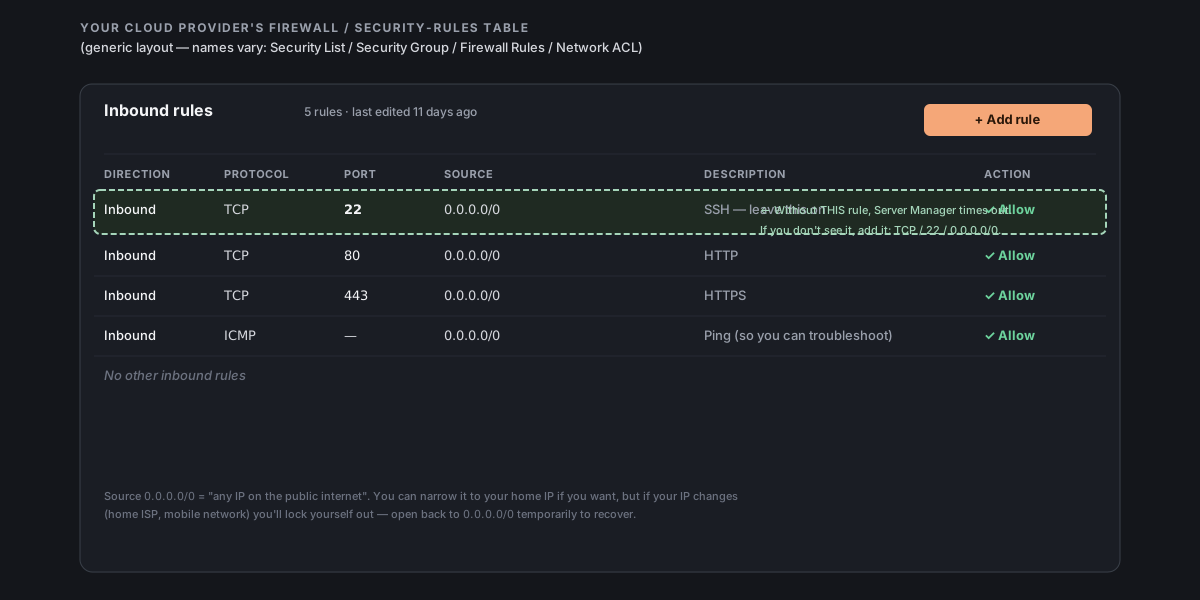
If your IP changed (home ISP, moved cities, switched to mobile), and you'd narrowed the firewall to your old IP, the new IP is blocked. Widen the rule back to 0.0.0.0/0 temporarily, get in, then re-narrow if you want to.
Step 4 — Reconnect from Server Manager
Once SSH works from your terminal (test with ssh -v <user>@<host>), come back to Server Manager and click Connect server. Re-enter the credentials and you're back where you were. The chat history from the previous session is gone (SSH sessions are RAM-only by design), but your sites and services on the server are untouched.
If you have the server saved (with a Server Manager encryption passphrase), pick it from the dropdown instead of re-entering.
Last-resort options
If you can't get in even via the provider's web console, you still have options:
- Snapshot rollback — if you took a snapshot before things went wrong (and most providers offer them, sometimes automatic), restore to that snapshot. You lose changes since then but you get a known-good system back.
- Rebuild from a backup — if you have a Server Manager
.tar.gzbundle (see Backups), spin up a fresh server, install Server Manager on it, and use the Restore from a backup wizard. Same site, new server. - Detach disk, mount on another VM — advanced, but works on most providers. Stop the broken VM, detach its boot disk, attach to a working VM as a secondary disk, mount, edit the files that were broken (sshd_config, authorized_keys), unmount, reattach to the original VM, restart. Your provider's docs have step-by-step.
Prevention — before you change anything SSH-related
A short before-you-edit-sshd_config checklist that's saved a lot of people a 2 AM panic:
- Open a second SSH session before editing — that way if you lock yourself out of the new session, the old one stays alive and you can roll back.
- **
sudo sshd -t** before restarting — catches most syntax errors. - Test the new config without making it permanent.
sudo /usr/sbin/sshd -D -p 2222 -f /etc/ssh/sshd_config.newruns a test sshd on port 2222 against a test config. SSH in via-p 2222to verify; if it works, then swap the config and restart for real. - Have your provider's web-console access ready before you start. Open the tab, log in, confirm the console works, then start editing.
- **Don't run
ufw enableover SSH** withoutsudo ufw allow 22/tcpfirst.
For changes Server Manager makes via the chat: Faro pauses for your approval on every command, and won't propose anything that would break SSH (no sshd_config edits, no ufw enable without an explicit allow rule). It's the manual nano /etc/ssh/sshd_config sessions that catch people out.
Common questions
Did I lose anything? No — your files, your sites, your databases are exactly as you left them. SSH is just the channel; the server itself is untouched.
Is the chat history gone? Yes. SSH sessions are RAM-only — when the session ends (your end or the server end), the chat resets. The work the chat did on the server stays, though: deployed sites, edited configs, installed services all persist normally.
Can I avoid this entirely? Mostly. The Server Manager–driven path is safer (every approval gate; no sshd_config edits). The risk comes from manual SSH sessions where you edit the config yourself. If you do everything through Server Manager, the lockout scenario almost never happens.
My server is on a provider not listed in the table above. The principle is universal: most providers have some form of out-of-band console (VNC, serial, web shell). Search your provider's docs for "console" or "rescue mode". If you have physical access (homelab), a monitor + keyboard does the same job.
Server Manager says "Connection refused" but I just used SSH from my terminal 5 minutes ago. Either sshd crashed (check via your provider's console: systemctl status sshd), or fail2ban banned the Server Manager VPS's IP (different from your home IP — Server Manager runs in its own datacenter and your server can see that IP as the source). Whitelist Server Manager's egress IP in fail2ban's ignoreip = , or relax the findtime/maxretry settings.
What's NOT in scope here
- Account-level recovery (forgot your Server Manager login, forgot your cloud provider account password) — those are out-of-band: provider's account-recovery flow + Server Manager's password reset on the sign-in page.
- Encrypted-disk rescue (LUKS-encrypted root that won't unlock) — provider-specific; check your provider's docs for "rescue mode" or "single-user boot".
- Permanently lost SSH key with no other access method — at that point a rebuild from backup is the practical path. See Restore from a backup and Backups for the full picture.