The Health view is the answer to one question: "What should I worry about right now?" It's a sibling to the home-screen Overview, accessed via the View menu at the top of the right-hand column. Findings are grouped into three urgency buckets, and each one has a one-click action that drops a remediation prompt into the chat.
Where it lives
Look at the right-hand column (the one with your workload cards). At the very top of that column there's a View: Overview button. Click it; the menu has two items: Overview (the default, with your workload cards) and Health.
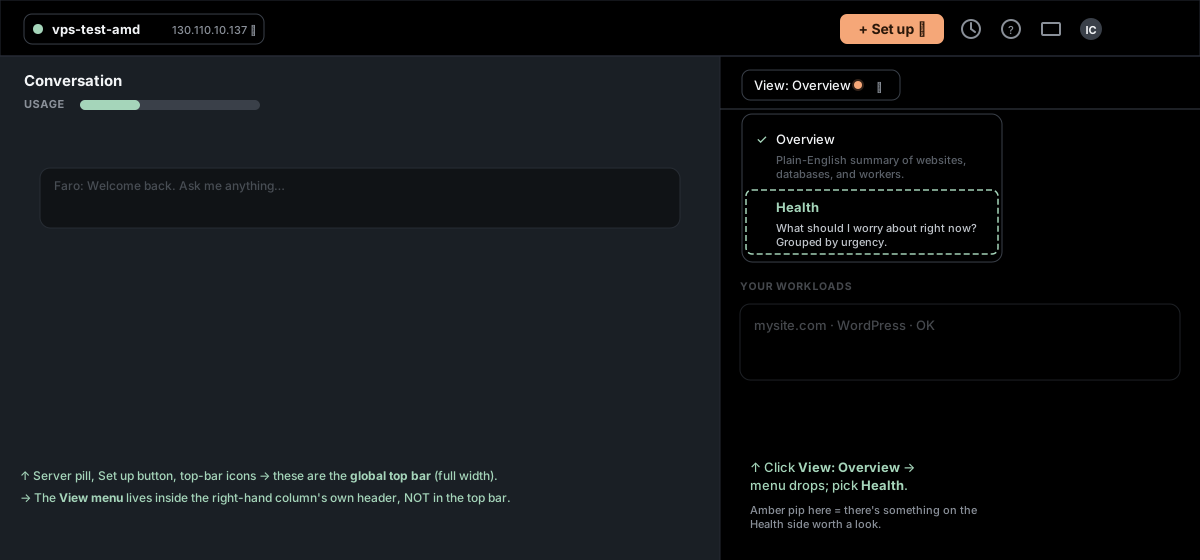
A small colored pip on the View button signals there's something to look at:
- Red pip — at least one Act now finding. Switch to Health to see what.
- Amber pip — only This week findings. Not urgent but worth a look soon.
- No pip — everything's green (or there's nothing to report yet).
The pip is suppressed while you're already on the Health view (would be self-evident there).
The three buckets
Once you're on the Health view, the top of the page shows three count pills:
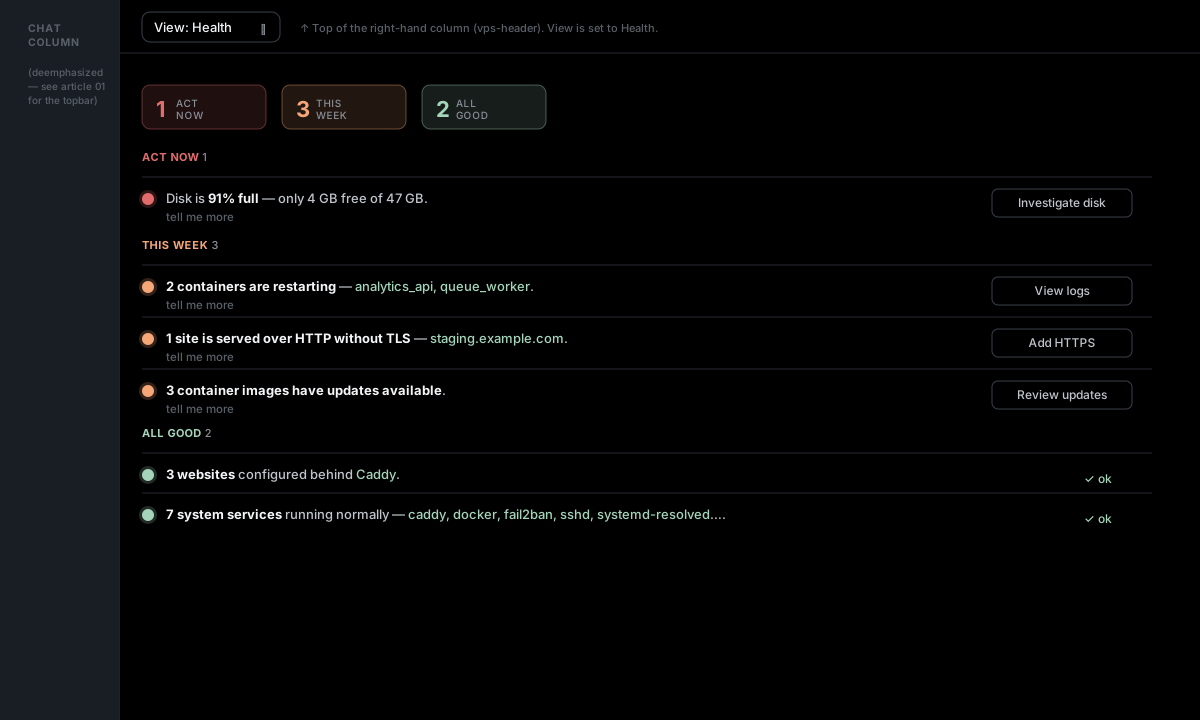
| Pill | Color | Meaning |
|---|---|---|
| Act now | Red | Something is broken or actively degrading. Address today. |
| This week | Amber | Not on fire, but ignoring it for a month or two will probably cause pain. |
| All good | Green | Positive confirmations — things that are correctly set up. Useful for sanity-checking after changes. |
Below the pills, the same findings list as a stream, grouped by bucket, ordered urgency-first.
What gets surfaced
The findings are derived from Server Manager's regular probes of your server (the inventory + metrics that drive the rest of the UI). Each check has a fixed threshold; you'll see one finding per actual condition. The current set:
Red — Act now
- Disk is N% full (≥ 90%) — when the disk fills up, services start failing. The action ("Investigate disk") asks Faro to find the biggest directories and any Docker waste, then propose a safe cleanup plan.
Amber — This week
- Disk is N% full (≥ 80%, < 90%) — not critical yet, but climbing. Same investigate action as the red variant.
- RAM is N% used (≥ 90%) — note that Linux uses free RAM for cache, so high usage isn't always a problem. The action surfaces top memory-consuming processes and any recent OOM kills so you can tell.
- N container(s) restarting — usually means crashing on startup. The action pulls the recent logs of the affected containers + asks Faro to explain.
- N container(s) stopped — silent stops (vs. running). The action checks exit codes + last logs.
- N site(s) served over HTTP without TLS — a Caddy/nginx block has a domain but no HTTPS. Almost always a config mistake since Let's Encrypt is free + automatic. The action ("Add HTTPS") asks Faro to update the proxy config and verify the cert issues.
- N container image(s) have updates available — aggregated across all images (so you don't get N findings). Image updates often include security patches; the action ("Review updates" / "Update image") asks Faro to check changelogs and pull the new image with your approval.
Green — All good
- N website(s) configured behind Caddy/Nginx — positive confirmation that your proxy + sites are wired up.
- N system service(s) running normally — positive confirmation that the underlying systemd-managed processes are alive.
A finding row, in detail
Each row in a section looks like this:
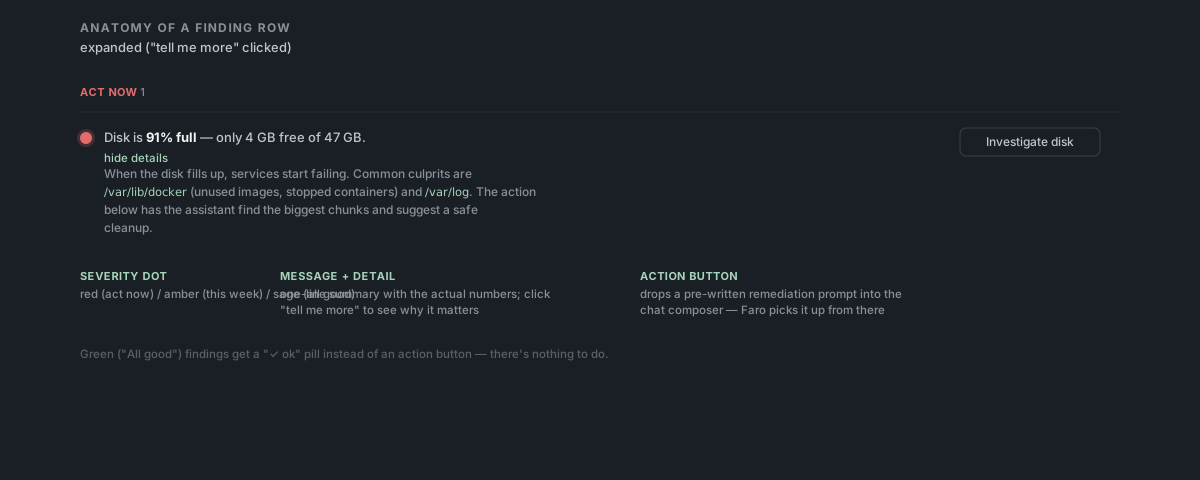
Parts:
- Severity dot on the left — matches the bucket color.
- Message — one short sentence naming the problem with the specific numbers (e.g. "Disk is 91% full — only 4 GB free of 47 GB").
- "Tell me more" — expands an explanation of what the finding actually means and why it matters. Click again to collapse.
- Action button on the right — drops a pre-written prompt into the chat, ready to send. Faro takes over from there (with the usual approval gates on anything destructive).
- "✓ ok" instead of a button — for green findings, there's nothing to do. The pill is the affordance.
Example: clicking the action
The action button doesn't immediately run anything — it composes a prompt and puts it in the chat composer, so you can read what's about to be asked, edit it if you want, and hit Send. Then Faro picks it up.
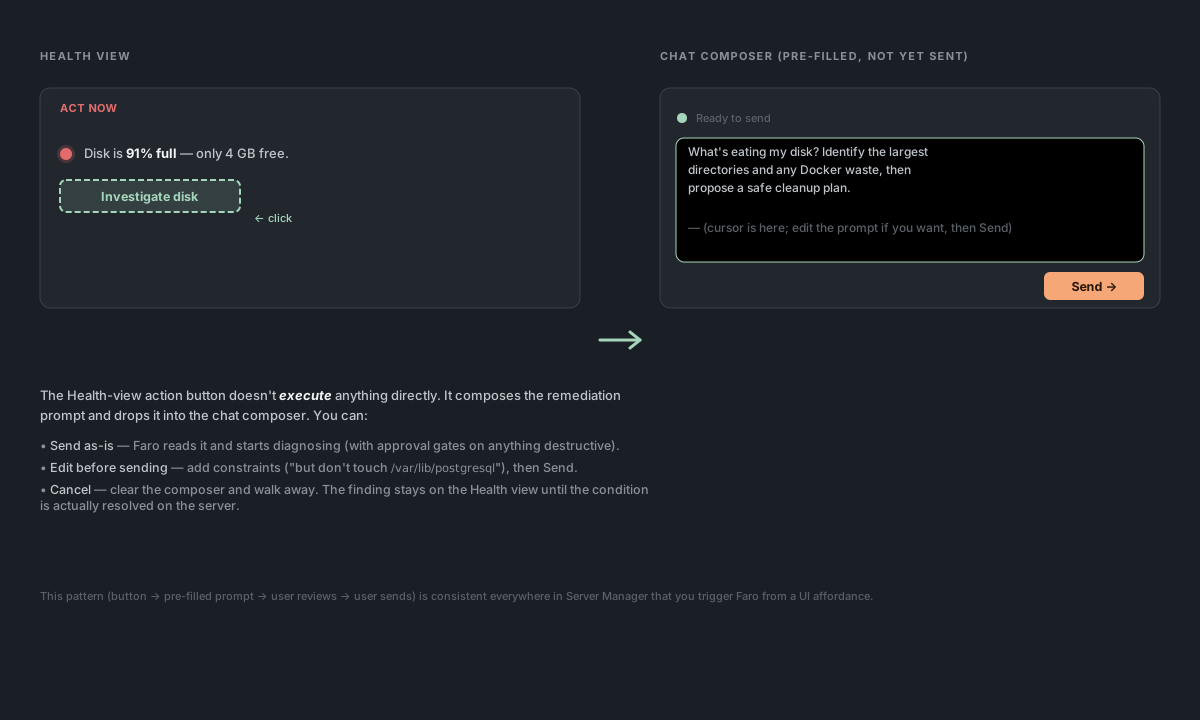
For destructive remediations (cleanup, container recreate, etc.), Faro still pauses for explicit approval on every command. The Health-view action button is a shortcut to starting the conversation, not a one-click execute.
When the Health view says "nothing to report yet"
You'll see this if you just connected and the first metrics + inventory polls haven't returned yet (the first inventory poll runs immediately on session start; subsequent polls are every 15 s). Until the data lands, the view is empty.
If you've been connected for a while and still see "nothing to report yet", a poll likely failed silently. Refresh the page; if the issue persists, disconnect and reconnect to reset the polling loop.
What the Health view DOESN'T cover
Important to know what's outside the scope:
- App-level health inside a container. "Is my WordPress responding to login attempts?" "Is my database query slow?" Those are inside the application — the Health view sees the container is running but doesn't know whether the app inside is happy. For app-level signals, use the workload's service-panel Logs tab or ask Faro directly.
- Outbound connectivity / external dependencies. "Is Stripe's API up?" "Is my third-party SMTP working?" Server Manager doesn't probe external endpoints from your server.
- DNS reachability of your domains. The view checks whether sites have TLS, not whether they actually resolve to this server. If you set up a new domain and DNS hasn't propagated, the Health view won't notice — it just sees the proxy config locally.
- Security posture. No CVE scanning, no log anomaly detection, no fail2ban status. Things like image updates (a security signal) are surfaced, but a full security view is a separate project. (See Will Server Manager break my server? for what's covered in terms of security defaults.)
Common questions
Should I always have zero red + zero amber findings? Not necessarily. Some amber findings (like 1–2 stopped containers) might be intentional (a paused dev environment, a docker-compose down you did on purpose). The view shows you the state — you decide whether it warrants action. The pill colors are heuristics, not orders.
Can I dismiss / snooze a finding? Not today — the view only reflects current state. If a finding is wrong or you've decided to live with it, ignore it; it'll keep showing up until the underlying condition changes.
Why is my disk 92% full but the "Act now" pill says 0? Probably the probe hasn't run since the disk filled up. The Health view recomputes whenever metrics or inventory refresh — metrics polls every 3 seconds, inventory every 15 seconds. If the displayed number is stale, the corresponding finding will be too — give it a few seconds.
The action button does nothing when I click it. It should always at least fill the chat composer with the remediation prompt. If it visibly doesn't (composer stays empty), refresh the page and try again.
Image updates are listed as one finding but I have 8 containers. That's intentional — listing each individually would dominate the view. The action prompt lists all the affected image refs by name so Faro can review them together.
What happens if my server is unreachable? No probes run, no findings update. The Health view shows whatever state it last saw, and the top bar's server-pill switches to disconnected (red). See Recover when SSH stops working for the path back.
Reference
Threshold values (current defaults — these may shift as the heuristics get tuned):
| Check | Threshold |
|---|---|
| Disk full (red) | metrics.diskPercent ≥ 90 |
| Disk warn (amber) | metrics.diskPercent ≥ 80 && < 90 |
| RAM high (amber) | (ramUsedMB / ramTotalMB) ≥ 90% (cache included in ramUsedMB) |
| Container restarting | Docker status string matches /restart/i (e.g. "Restarting (1) 5 seconds ago") |
| Container stopped | Status is not empty AND does not start with Up AND not restarting |
| Site without TLS | A site has domain set but tls is false in the inventory |
Refresh cadence — metrics polls every 3 seconds, inventory every 15 seconds. Findings recompute on every refresh of either.
Where the data comes from — the same live metrics and inventory probe that drives the rest of the app (CPU/RAM/disk, running services, Docker containers), with per-image update detection layered on top. Findings are recomputed from that snapshot on every refresh; nothing is stored between refreshes.