The Server Manager browser extension puts your servers' health right in your browser toolbar — even when the app is closed. At a glance you can see whether each server is healthy, whether updates are waiting, and whether a site has gone down — and one click takes you straight into Server Manager to fix it.
It's free, read-only, and entirely optional. You don't need it to use Server Manager — it's just a faster way to keep an eye on things between visits.
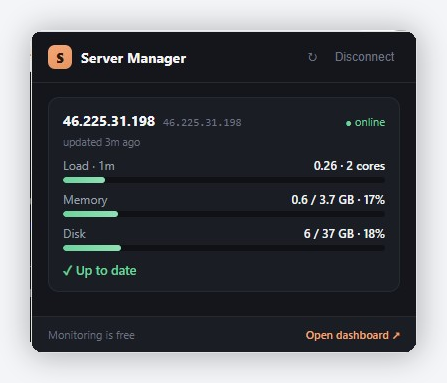
What it shows
For each server you've turned monitoring on, the popup shows a card with:
- Load (1-minute average), Memory, and Disk — the key "is this server under strain?" numbers, with a small bar that turns amber/red as things fill up.
- "updated Xs ago" — how fresh the reading is (the server reports in every ~5 minutes).
- Pending updates — e.g. "3 updates available · 2 security".
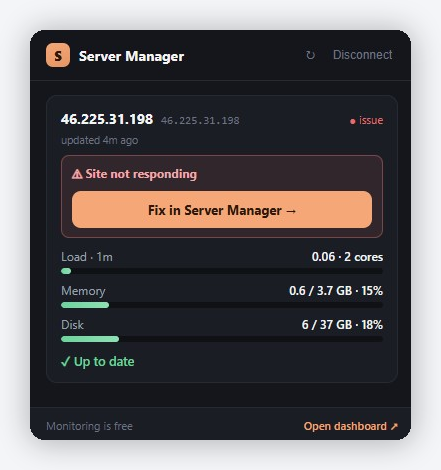
- A "Site not responding" alert — if a site that was serving stops responding.
- A Fix in Server Manager → button on anything that needs action, which opens the app already pointed at the right server.
There's also a small badge on the toolbar icon: it shows how many of your servers need attention, coloured by severity — red when something's down or critical, amber for pending updates, nothing when all's well. So you get a nudge without even opening the popup.
How it works (the short version)
When you turn on monitoring for a server, Server Manager installs a small read-only agent on it (a script that runs on a schedule as a locked-down, no-login system user). Every ~5 minutes it reads the server's own metrics and update counts and sends them to your account over HTTPS. The extension reads that status and draws the popup.
The agent cannot change anything, run commands, or read your files, and it stores no SSH keys. See How your SSH credentials are handled for the security model.
Step 1 — Install the extension
Install it from the Chrome Web Store. It works in Chrome and Chromium-based browsers (Edge, Brave, and similar).
After installing, you'll see the Server Manager S icon in your toolbar. (If it's hidden, click the puzzle-piece "Extensions" button and pin it.)
Step 2 — Connect it to your account
The extension needs to be linked to your Server Manager account once:
- Click the S icon, then click Connect.
- A new tab opens on servermanager.dev showing a short code. If you're not already signed in, sign in.
- Confirm the code matches, then Approve.
That's it — the popup now follows your account. You can link more than one browser or device; each one connects the same way.
Step 3 — Turn on monitoring for a server
The extension only shows servers you've explicitly turned monitoring on for.
- In Server Manager, connect to the server, open Server details, and go to the Updates tab.
- Find the Watch this server from your browser card and click Enable monitoring.
- Confirm — Server Manager installs the read-only agent over your existing connection (a few seconds). Nothing else on your server changes.
Repeat for each server you want to watch. The server appears in the extension popup within a few minutes — or open the popup and click ↻ to refresh it right away.
In Server Manager: Server details → Updates tab → Watch this server from your browser → Enable monitoring.
Notifications
If you allow notifications, the extension sends a desktop alert the moment something changes — for example a site stops responding or new security updates appear. It only fires on a change of state, never repeatedly for the same thing, so it won't nag you. Clicking the notification opens Server Manager pointed at that server.
You can turn notifications off for the extension at any time in your browser's settings.
Managing monitoring
- Update the agent. When a newer agent is available, the Updates card shows Monitoring agent update available → Update agent. One click re-installs the latest version over your connection — same permissions, just newer metrics and checks.
- Turn monitoring off for a server: open its Updates tab and click Turn off monitoring. Server Manager removes the agent from that server. (Reversible — just enable it again later.)
- Disconnect a browser: go to Account → Connected extensions and click Revoke next to the device. That browser stops seeing your servers immediately; your servers aren't affected.
Is it safe?
Yes — this is the most-asked question, so to be explicit:
| ✅ Reads each server's status, metrics, and pending updates | ❌ Can't change anything or run commands |
| ✅ Sends that status to your own account only | ❌ Stores no SSH keys — your credentials stay encrypted, as always |
| ✅ Talks only to servermanager.dev | ❌ No tracking, no ads, not shared with anyone |
It's covered in our Privacy Policy (the "Browser extension & server monitoring" section), and the monitoring is free — it uses none of your usage allowance, because the agent runs on your server, not ours.
Troubleshooting
The server shows "No recent status yet" / looks stale. If you just turned on monitoring, give it about 5 minutes and reopen the popup — the agent reports in on that schedule. If it keeps showing after that, the server may genuinely be offline or unreachable.
The badge looks out of date. The popup refreshes its numbers each time you open it; reopen it to get the latest. The toolbar badge refreshes on its own roughly every 5 minutes.
I don't see a server I enabled. Make sure the extension is connected to the same account you enabled monitoring under (check Account → Connected extensions), and that you clicked Enable monitoring on that server's Updates tab.
Common questions
Does it cost anything? No. The extension and the monitoring are free.
Which browsers does it work in? Chrome and Chromium-based browsers (Edge, Brave, etc.).
Will it slow down my server? No meaningfully — the agent is a tiny read-only script that runs briefly every ~5 minutes and sends a small status update.
Can the extension or the agent change my server? No. Both are read-only. Anything that changes your server still happens only inside Server Manager, through Faro, with you approving each step.
Can I watch several servers, or use several browsers? Yes — enable monitoring per server, and connect the extension on each browser/device you use.
How do I stop everything? Turn off monitoring per server (Updates tab → Turn off monitoring) to remove the agents, and/or revoke the browser under Account → Connected extensions.
Something looks wrong and I'm not sure what to do. Open Server Manager and ask Faro in the chat — describe what you see (or paste a screenshot) and it'll help you sort it out.