Email at your domain is two separate concerns. Server Manager has a wizard for each.
| Goal | Wizard | What it does |
|---|---|---|
Apps on this server send mail like noreply@yourdomain.com (password resets, welcome emails…) | Send email from your domain | Configures Resend + writes SPF / DKIM / DMARC DNS records |
Mail addressed me@yourdomain.com lands somewhere you can read it | Receive email at your domain | Either forwards to your Gmail/Outlook (free), or routes to a paid mailbox provider |
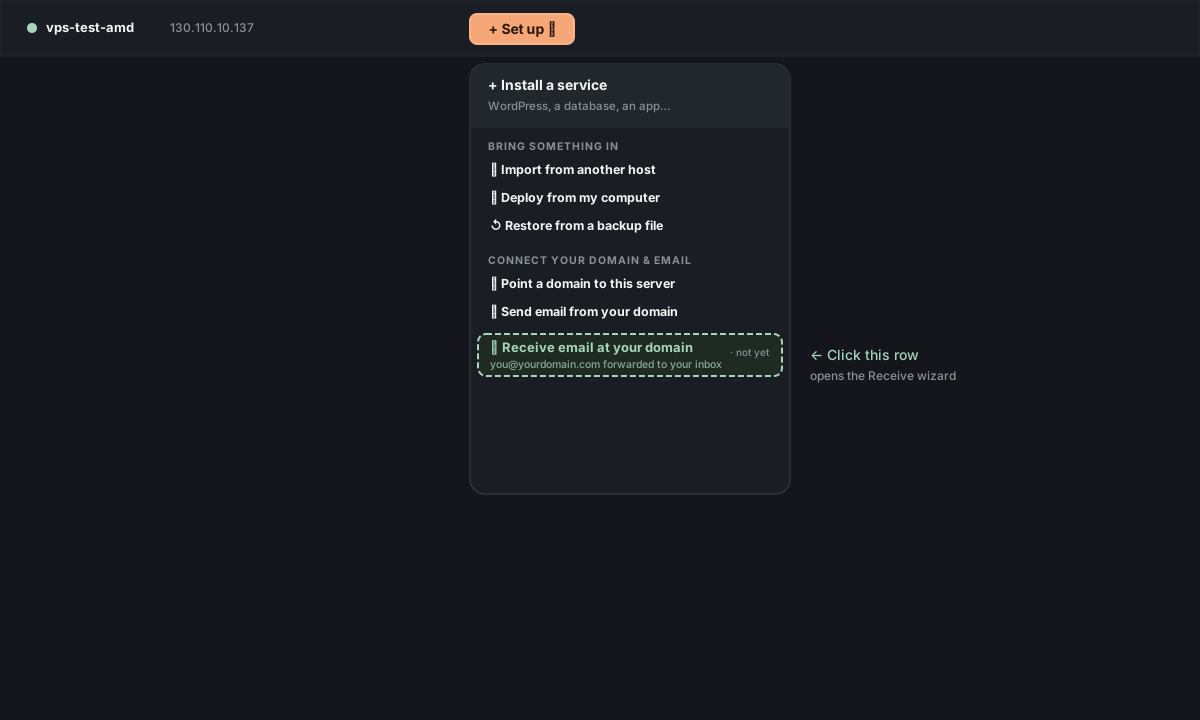
You can run one, the other, or both. They don't depend on each other. Both wizards live under the top bar's menu — click that term to see exactly where it is.
Prerequisite for both: DNS for your domain must already be at Cloudflare or Porkbun. If it isn't, run Connect a domain first — that wizard's Cloudflare-switch path is the standard route here too.
Why not just use a mail hosting service?
A reasonable question — and the answer is: you can, and these wizards still help. Mail hosting services and Server Manager's email wizards solve overlapping but different problems. Quick map:
| Mail hosting service | Send wizard | Receive wizard | |
|---|---|---|---|
| Examples | Google Workspace, Microsoft 365, Fastmail, Zoho, Migadu | Resend (only adapter today) | Cloudflare Email Routing (Branch A); your mailbox host (Branch B) |
| What it is | A paid product running a full mailbox + (usually) calendar, docs, drive | A short wizard that wires up Resend to send mail from your domain | A short wizard that routes mail addressed to your domain |
| What it does | Webmail, mobile sync, sending and receiving as a human, calendar / files | Lets apps on your server send email like noreply@yourdomain.com (password resets, receipts) | Forwards mail to your existing Gmail/Outlook (free, Branch A) OR points DNS at any mailbox host you signed up for (Branch B) |
| Cost | $3–12 / user / month | Free up to ~3000 emails / month at Resend | Free (Branch A) or $1–6 / mailbox / month at the provider (Branch B) |
| Where mail lives | At the mail host | Resend just sends — no inbox of its own | Wherever you forwarded it / signed up |
| Best when | You want one paid suite for email + calendar + docs across a team | An app on your server needs to email humans | You want mail at your domain to be readable without paying for a whole productivity suite |
Common combos:
- Just transactional mail — your app sends order receipts; nobody emails you back. Run only the Send wizard.
- Hobby / solo — you want
you@yourdomain.comto feel professional, but you already live in Gmail. Run Send + Receive Branch A (free, forwards into your existing Gmail). - Small business, no Workspace — multiple people need real mailboxes at the domain. Pick a paid mailbox provider, run Send + Receive Branch B (DNS paste).
- Already on Workspace / M365 — you don't need the Receive wizard at all (Workspace handles mailboxes). You may still want the Send wizard so apps don't have to go through Workspace's SMTP relay, which has tight rate limits and isn't designed for app-sent mail.
Part 1 — Send email from your domain (outbound)
This is what you want when an app or website running on your server needs to send email. Password reset emails, "your order shipped" notifications, contact-form submissions, welcome mails.
Server Manager uses Resend as the delivery provider. Resend has a generous free tier (100 emails/day, 3000/month) and a clean API. Your app calls Resend's /emails endpoint with a from: noreply@yourdomain.com header; Resend handles delivery, bounce tracking, and the SPF/DKIM signing that keeps you out of spam.
Top bar → Actions → Send email from your domain.
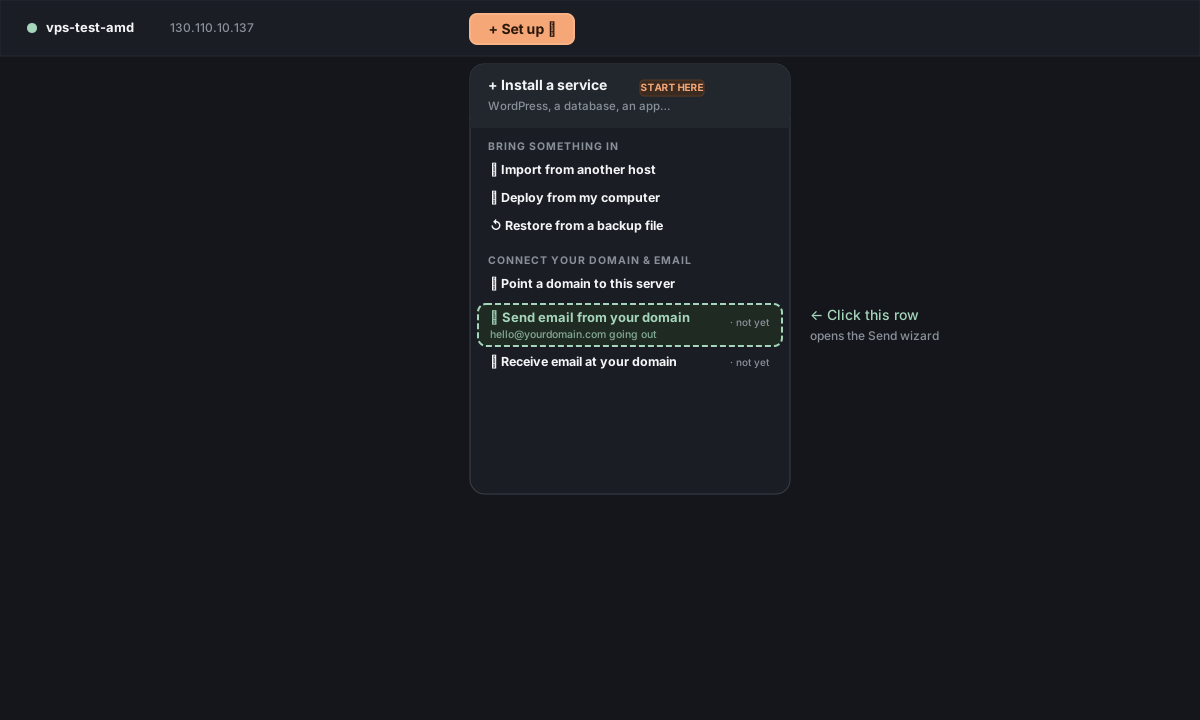
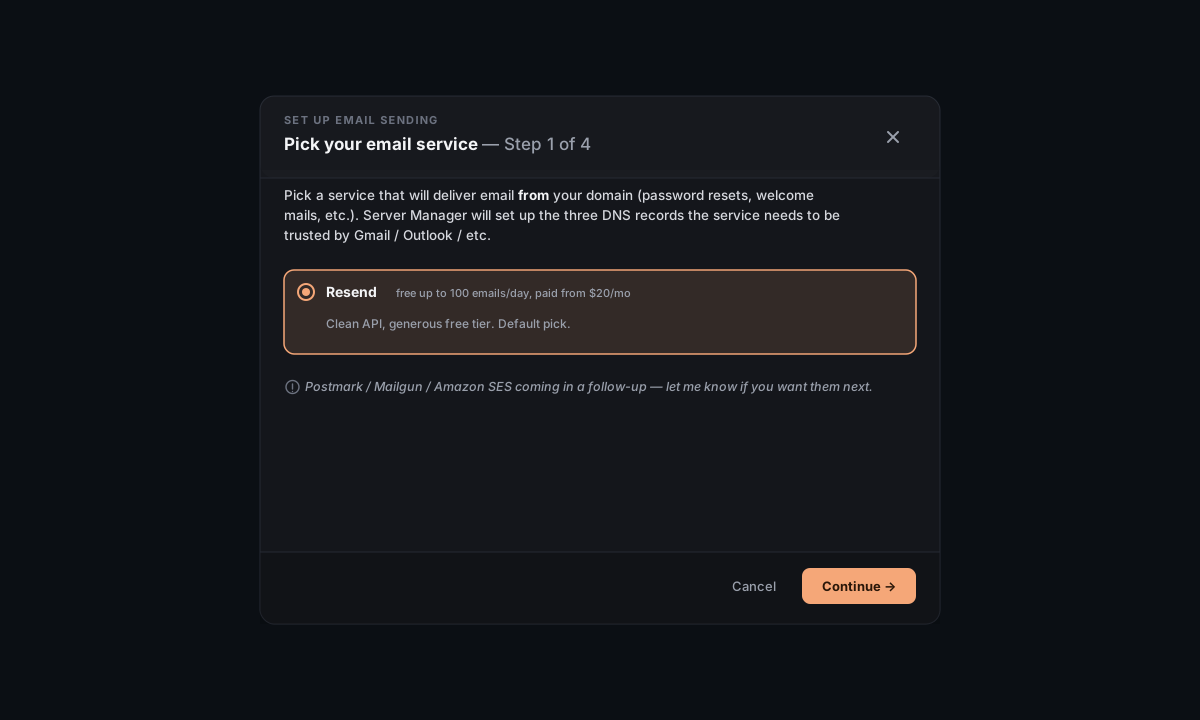
Resend is selected by default — leave it. (Postmark / Mailgun / SES are planned; for now Resend is the only adapter.)
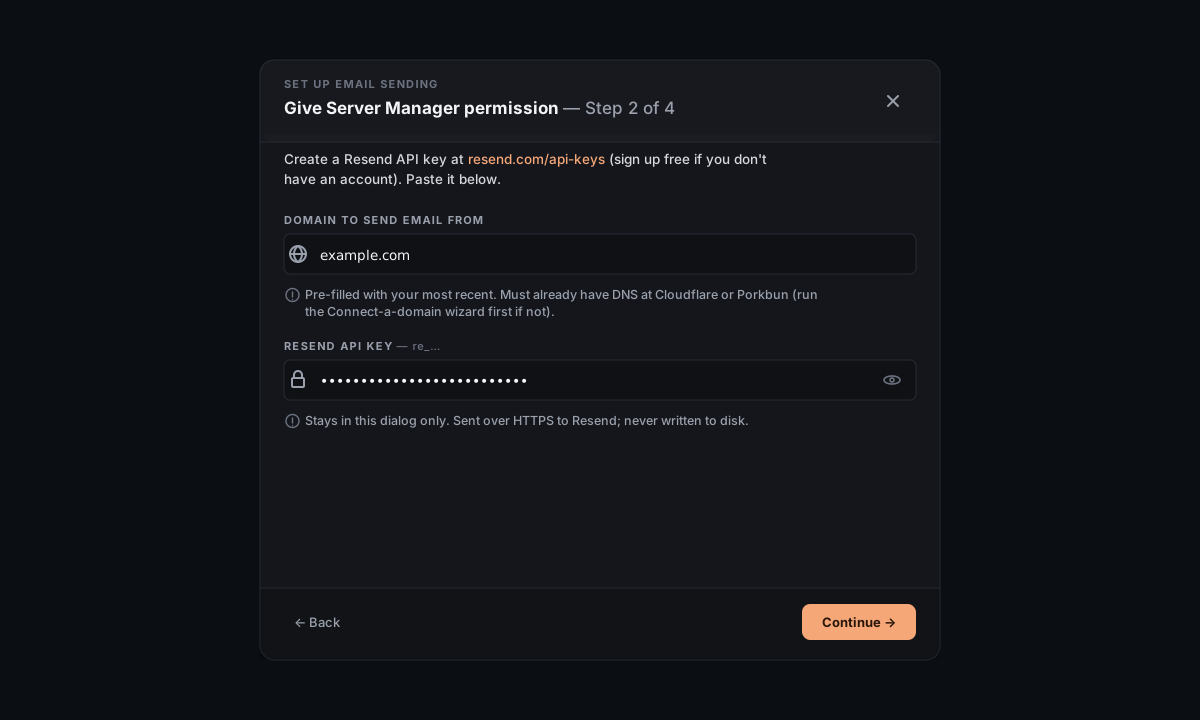
Open resend.com/api-keys (sign up free if you don't have an account) and create a new API key. Copy it.
In the wizard, type the domain you want to send FROM (e.g. yourdomain.com), paste the key, hit Continue.
Resend issues three records — an SPF TXT, a DKIM TXT, and a DMARC TXT. The wizard writes them at your DNS provider (Cloudflare or Porkbun) using the token from Connect-a-domain (or asks for one if it doesn't have it yet).
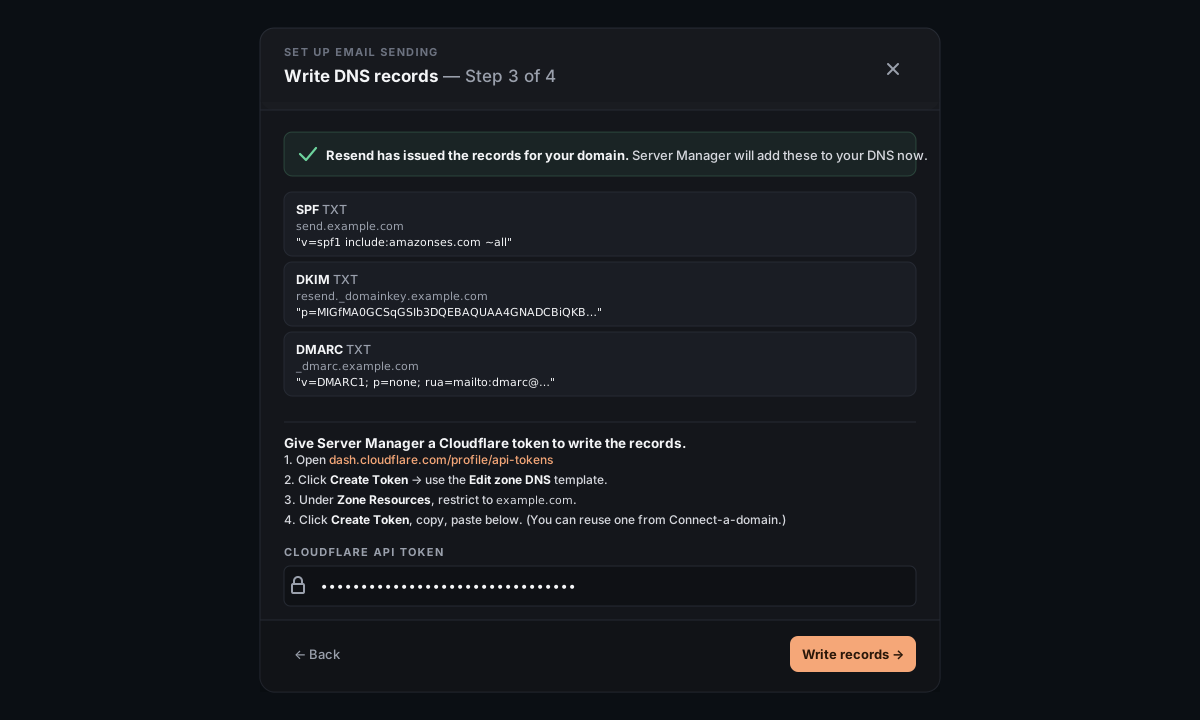
What are SPF / DKIM / DMARC? Three TXT records that prove to receiving mail servers (Gmail, Outlook, …) that mail claiming to be from your domain actually was sent by Resend on your behalf. Without them, your mail lands in spam — Gmail in particular is strict. You don't need to understand the protocols; Server Manager just needs to write them where Resend told it to.
DNS usually propagates in 1–5 minutes. Resend re-checks on a schedule; the Check now button nudges them to look right away.
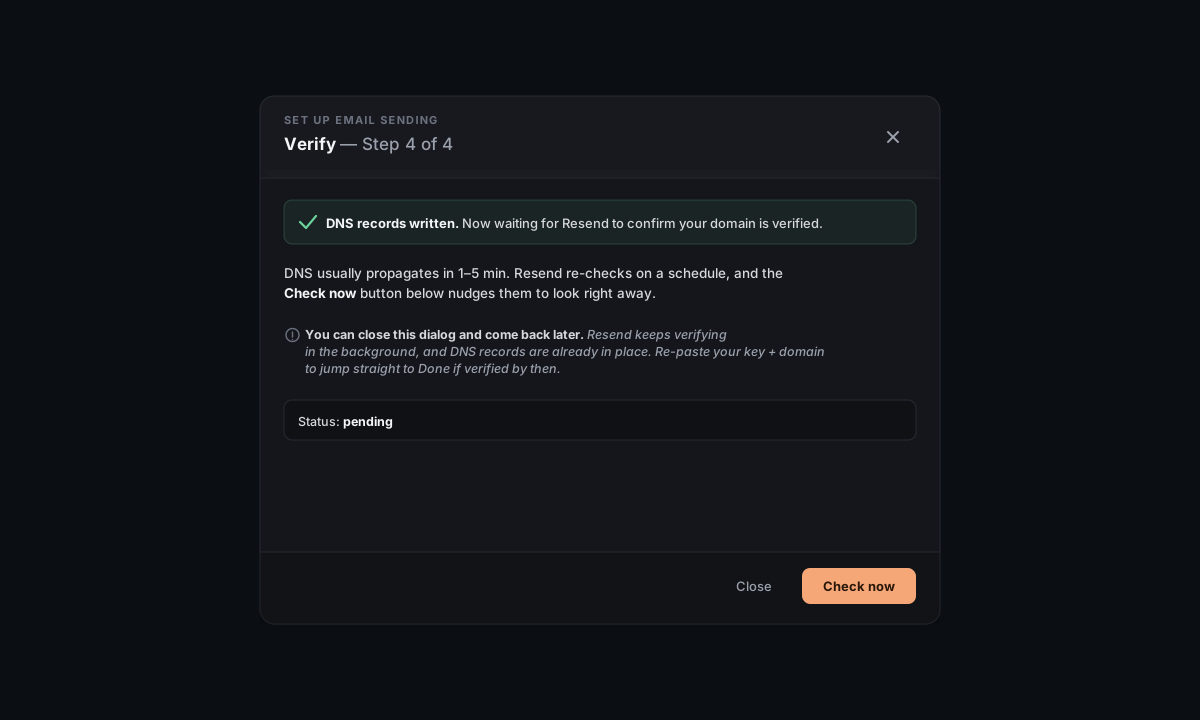
You can close the wizard and come back later — the records are already in place; verification continues in Resend's background. When you reopen the wizard with the same domain + key, it jumps straight to Done if Resend has caught up.
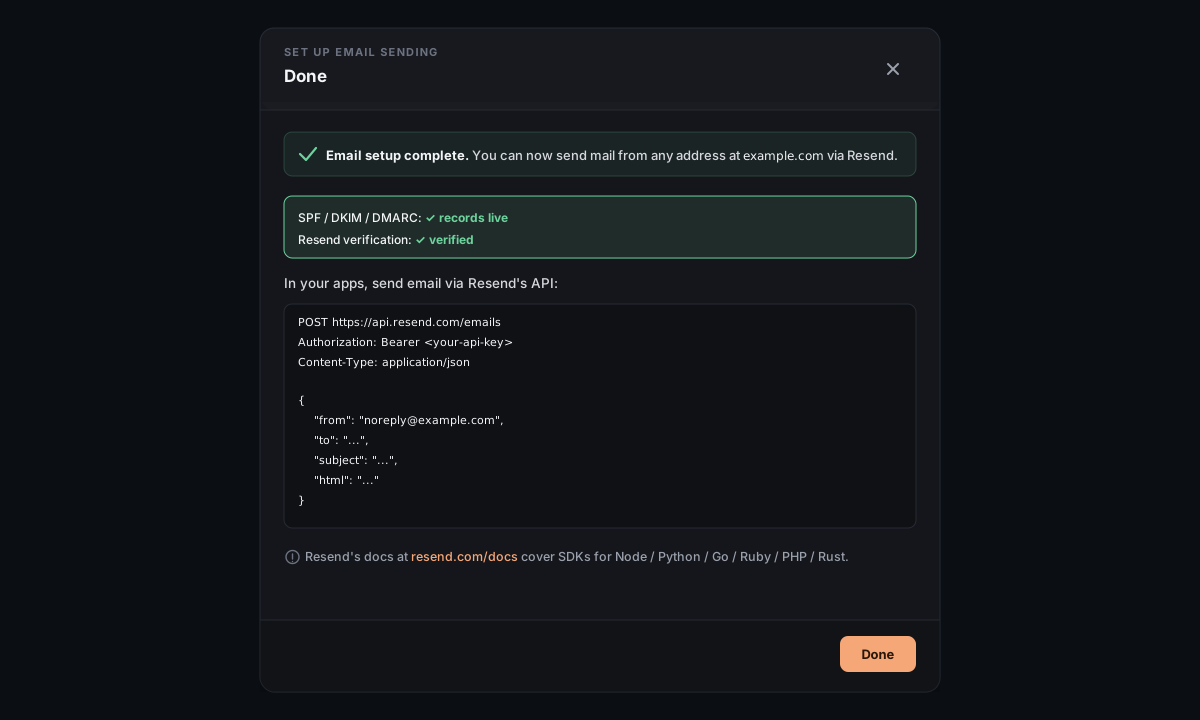
The success screen shows you the exact API call to use:
POST https://api.resend.com/emails
Authorization: Bearer <your-api-key>
Content-Type: application/json

{
  "from": "noreply@yourdomain.com",
  "to": "user@example.com",
  "subject": "...",
  "html": "..."
}
Plug that into your app's code (the Resend Node/Python/PHP SDKs wrap this). Keep the API key in an environment variable, not in source code.
Part 2 — Receive email at your domain (inbound)
This is what you want when **someone sends an email to you@yourdomain.com and you want it to land somewhere readable**. Two real ways to do it; pick at the start.
Top bar → Actions → Receive email at your domain.
After you type the domain, the wizard offers two cards:
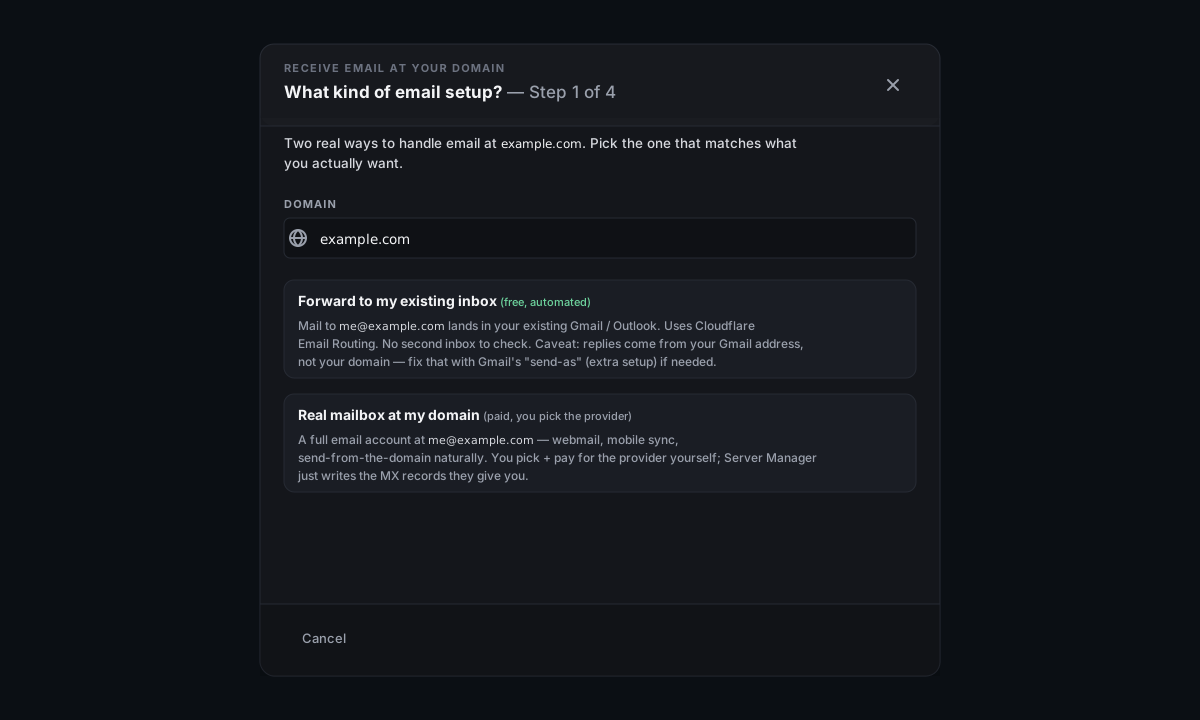
Forward to my existing inbox (free, automated) — mail to me@yourdomain.com lands in your existing Gmail/Outlook/Yahoo/iCloud/etc. Powered by Cloudflare Email Routing. End-to-end automated; the wizard does everything except clicking a verification link.
Real mailbox at my domain (paid, you pick the provider) — a full email account at me@yourdomain.com. Webmail, mobile sync, calendar, send-from-the-domain natively. You sign up + pay at an email-hosting provider (1–6 $/month/mailbox); Server Manager helps with the MX record paste.
Quick comparison
| Forward to Gmail | Real mailbox | |
|---|---|---|
| Cost | Free | $1–6 / month / mailbox |
| Where mail lives | Your existing inbox | At the new provider |
| Replies come from | Your existing address (Gmail "send-as" can fix this — extra setup) | Your domain, natively |
| Setup time | ~5 min | ~10–15 min |
| What you need | A Cloudflare API token | An account at any email-hosting provider |
If you mainly want emails to your domain to be readable, Forward is the right call. If you want clients to see replies coming from your domain naturally (and you don't mind paying), Mailbox.
Branch A — Forward to my existing inbox
A1. One-time enable at Cloudflare
Before pasting the token, the wizard tells you to enable Email Routing in Cloudflare's dashboard once:
- Open dash.cloudflare.com → Compute → Email Service → Email Routing in the left sidebar.
- Click Onboard Domain and pick your domain.
- Cloudflare shows the DNS records it will add — an MX set plus SPF and DKIM TXT records. Confirm (it may ask to replace existing MX records), then Done.
- Wait ~5–15 minutes until Email Routing shows as enabled for your domain.
This one-time onboarding has to happen in CF's UI; their API rejects the enable call until it's done. Cloudflare retired the old Get Started screen in mid-2026 — if your account still shows it, a Use the old UI banner toggle exists, but the Onboard Domain flow above is what most accounts now see.
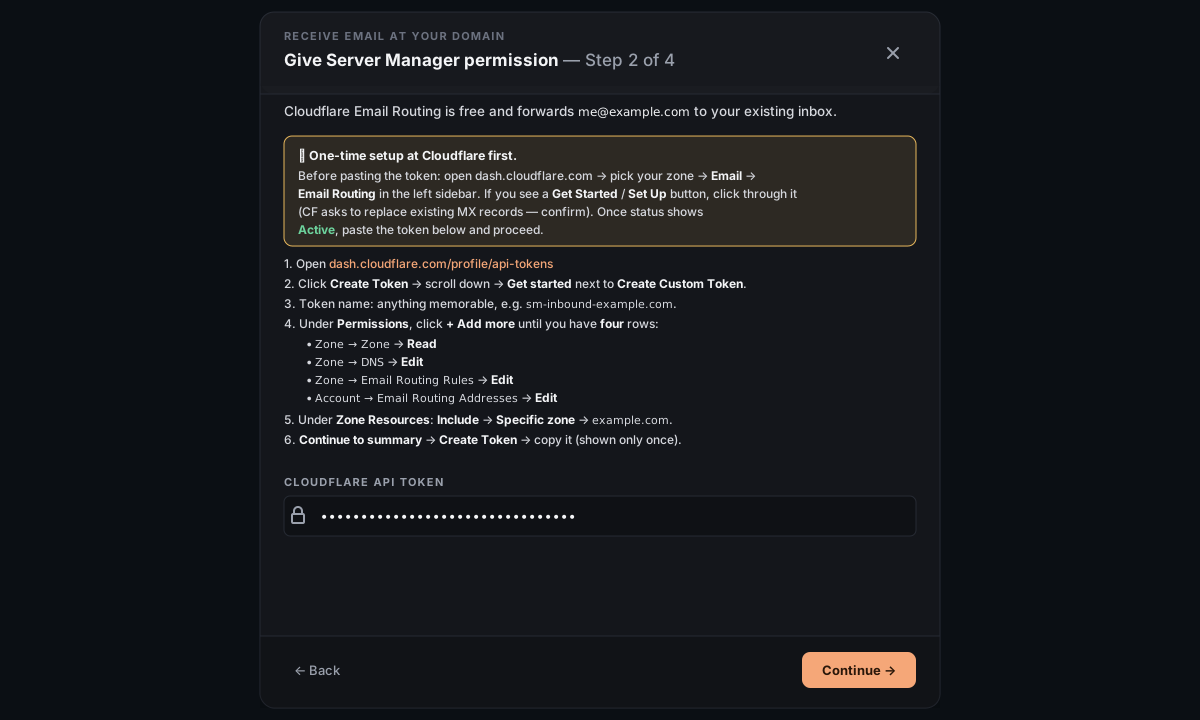
A2. Create a Cloudflare API token
The wizard shows you the exact token setup, but here's the gist:
- Open dash.cloudflare.com/profile/api-tokens → Create Token → Create Custom Token.
- Add four permissions:
Zone:Read,Zone:DNS:Edit,Zone:Email Routing Rules:Edit,Account:Email Routing Addresses:Edit. - Under Zone Resources, restrict to your domain.
- Create the token; copy it before navigating away (CF only shows it once).
Paste it in the wizard.
A3. Configure the forward
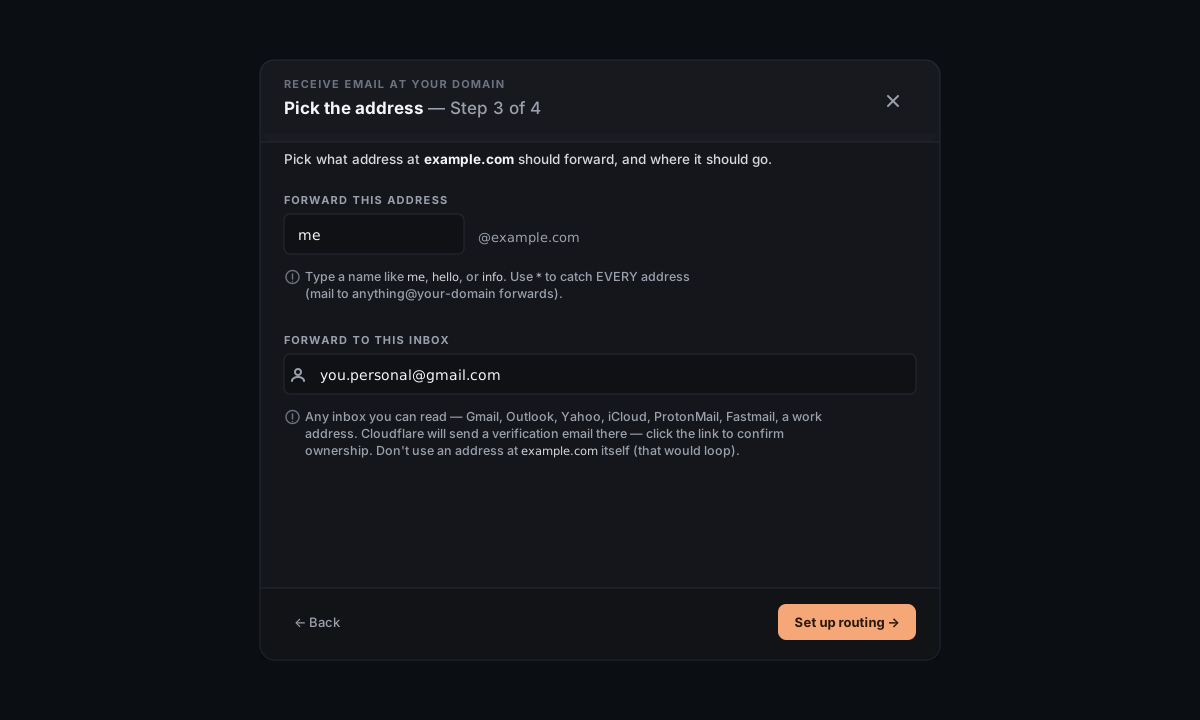
The wizard loads your Cloudflare zones and asks two things:
- Forward this address — type a name like
me,hello, orinfo. Use*to catch every address at your domain (mail to anything@yourdomain.com forwards). - Forward to this inbox — any email you can read: Gmail, Outlook, Yahoo, iCloud, ProtonMail, Fastmail, a work address. Doesn't have to be Gmail. Don't use an address at the same domain — that loops.
A4. Verify the destination inbox
Cloudflare sends a verification email to the destination. Open that inbox, find the message from Cloudflare ("Verify your email address"), click the link, come back, click Check now.
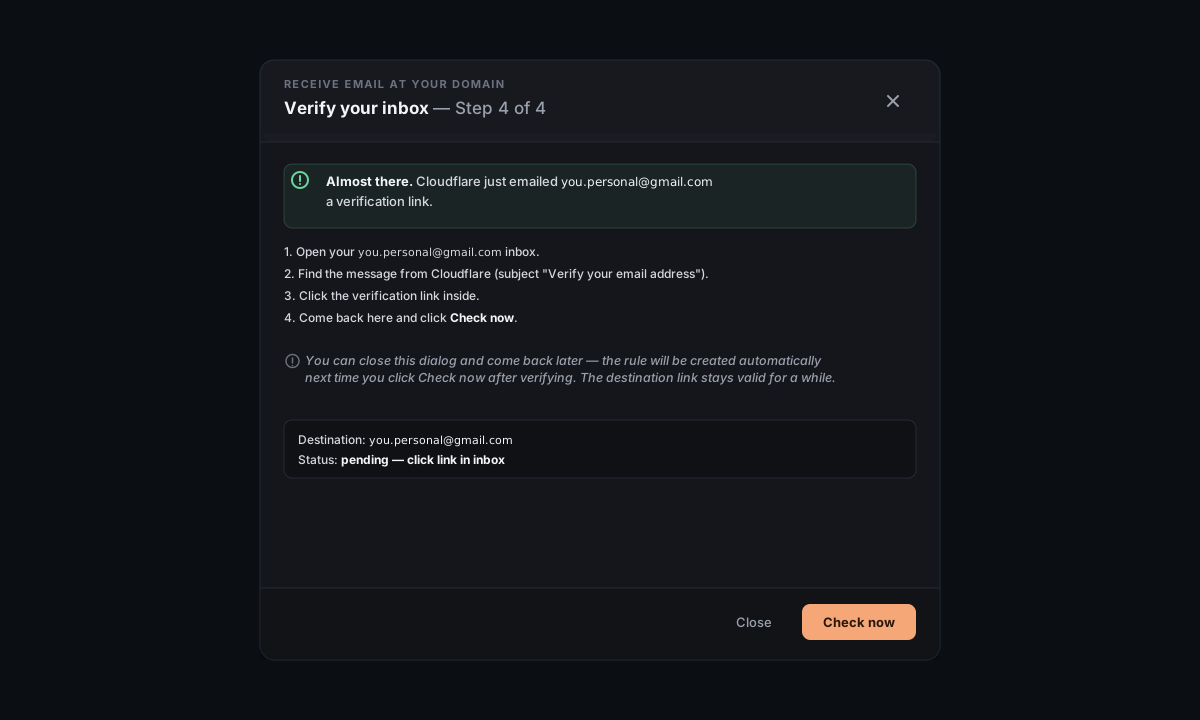
If the destination is the same address as your Cloudflare account's own email, it's auto-verified and this step is skipped.
You can close the wizard mid-verify and come back later — Cloudflare keeps the verification link valid for a while; the rule gets created automatically when you click Check now after verifying.
A5. Done
Send a test mail from any other inbox to me@yourdomain.com — it should arrive in your destination inbox within ~1 minute. (Check Spam — first deliveries from a new domain sometimes land there until the receiving provider sees a clean pattern.)
What if Cloudflare's API rejects the token with "Authentication error"? Their Email Routing API occasionally fails the enable / rule-create call even when the token is correct — three known gotchas. The wizard surfaces a Stuck? disclosure with manual fallback steps you can follow in Cloudflare's dashboard. Same end result.
Branch B — Real mailbox at my domain
B1. Sign up at a provider
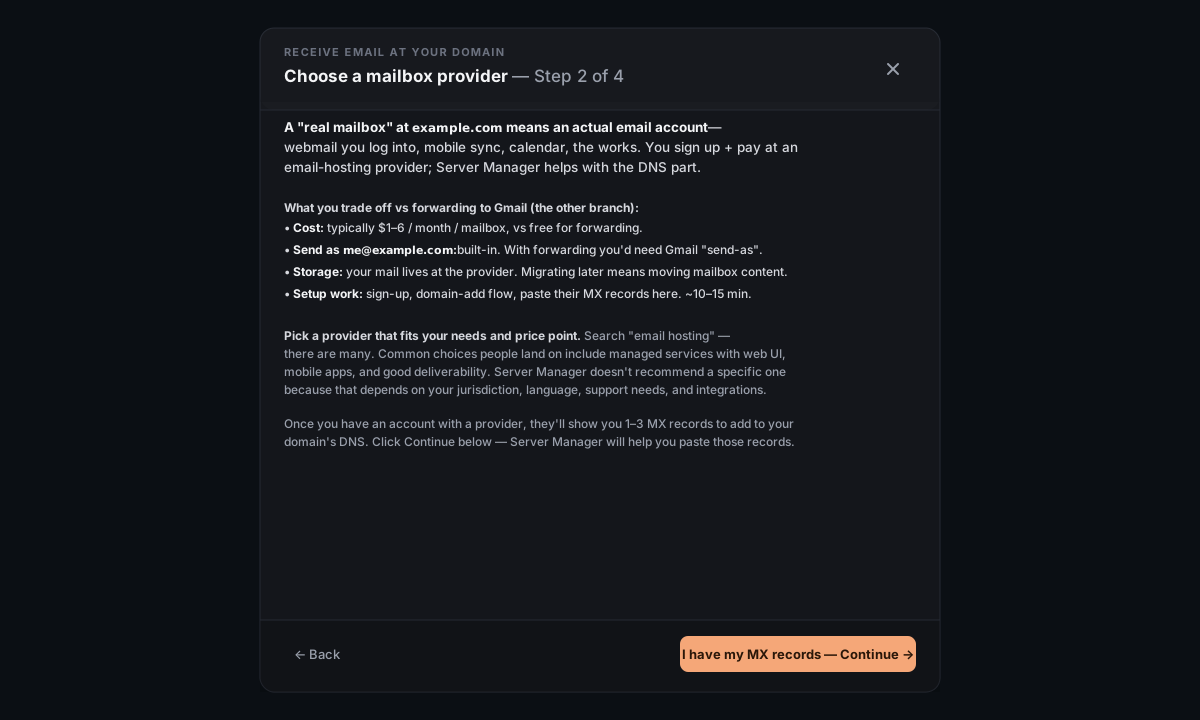
Pick an email-hosting provider that fits your needs and price point. Search "email hosting" — there are many. Common picks people land on offer webmail, mobile sync, IMAP/SMTP, and good deliverability. Server Manager doesn't recommend a specific one because the right choice depends on your jurisdiction, language, support needs, and integrations.
Once you have an account, the provider's onboarding will ask you to add your domain. After you do, they'll show you 1–3 MX records that need to be added to your DNS. Copy them.
B2. Paste the MX records
In the wizard, paste each MX record's priority (usually 10, 20) and server hostname (e.g. mx.provider.com). Most providers list 1 or 2; some list 3. Use + Add another MX record for more rows.
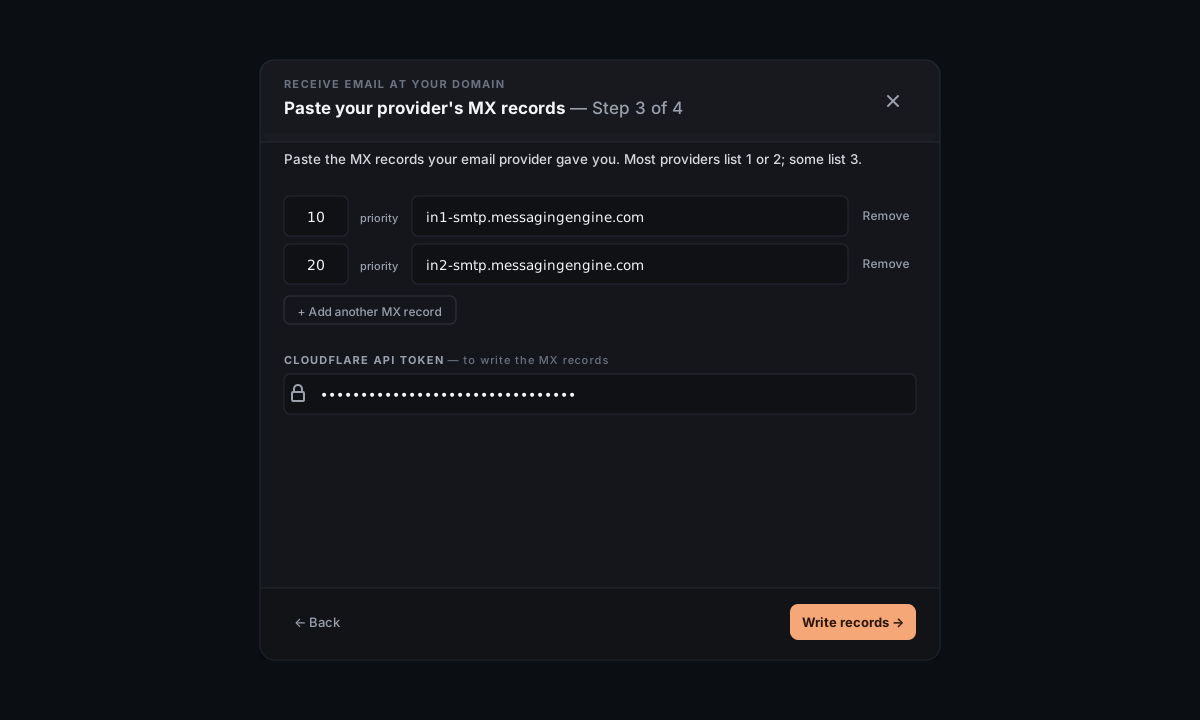
Below the rows, the wizard auto-detects your DNS provider (Cloudflare or Porkbun) and asks for the matching API token. The token + key flow is identical to Connect a domain — same provider, same kind of token.
Click Write MX records. Each row shows ✓ or ✗ as it gets written.
B3. Verify at the provider
The wizard's done — the MX records are live. Final step happens at your provider: they may take a few minutes to detect the MX change and mark your domain as verified. Log into their dashboard and check the domain's verification status. Once verified, create mailboxes (like me@yourdomain.com) at the provider and start receiving mail.
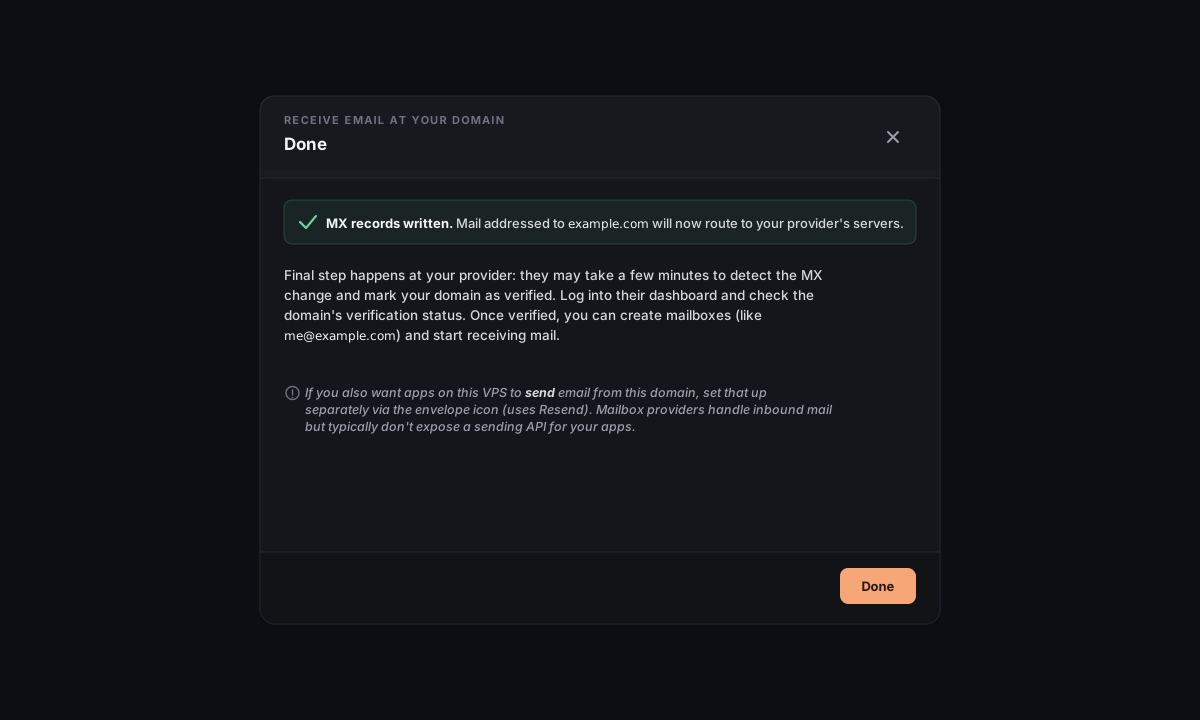
Mailbox providers don't typically expose a sending API for your apps. If you also want apps on this server to send email from this domain, run Part 1 (Send email from your domain) separately — the two coexist fine. The mail server (provider) handles inbound; Resend handles outbound from your apps.
Common questions
Can I use Gmail Workspace / Microsoft 365 instead? Yes — they're standard mailbox providers. Sign up there, get the MX records they give you, paste them in Branch B. Server Manager doesn't have a special integration for either, but the generic mailbox flow works.
Can I keep using my old email setup and just send from the domain? Yes — Part 1 (outbound) and Part 2 (inbound) are independent. Set up outbound only; leave inbound MX records pointing wherever they already do.
What happens to existing MX records if I run Branch A? Cloudflare Email Routing replaces them (the dashboard onboarding asks you to confirm this). If you currently receive mail somewhere else and want to keep it, choose Branch B and add the existing provider's MX records.
Will mail land in spam? First mail from a fresh domain often does, especially if the receiving provider is Gmail. The SPF/DKIM/DMARC records that Part 1 writes are exactly what's needed to graduate out of spam — once you've sent a small volume of real-looking mail (not transactional-looking-but-bulk), Gmail starts trusting the domain.
Can I revoke a token after setup? Yes. The Cloudflare/Porkbun/Resend tokens are only needed during the wizard; once records are written and your domain is verified, you can delete the tokens at the provider's dashboard. Server Manager never stored them.
Reference
DNS records written by each wizard:
- Send email (Part 1) — 3 TXT records: SPF, DKIM, DMARC (provider-issued)
- Receive — Forward (Branch A) — 3 MX records (Cloudflare Email Routing's), plus the routing rule (in CF, not DNS)
- Receive — Mailbox (Branch B) — 1–3 MX records (provider-issued)
Tokens / keys used (none are persisted by Server Manager):
- Resend API key (
re_…) — for the Send wizard - Cloudflare API token — for both Send (DNS write) and Receive Branch A (Email Routing)
- Porkbun API key + secret (
pk1_…/sk1_…) — for DNS write when domain is on Porkbun
Status is per-host, in your browser. Whether email is "set up" for a domain is tracked by markers each wizard writes to browser localStorage on success — a UX hint, not source of truth. Resend / your DNS provider are authoritative.