You set up a website, an app, a database, and from your laptop you can't reach it. The browser hangs. curl times out. You stare at the server and everything inside looks fine — the process is running, the logs say "listening on port 8080" — but from outside the world it's like the server isn't there.
This is one of the most common things people get stuck on. And the reason it's frustrating is that three completely different problems all look identical from outside. Until you know which one you're hitting, you can't fix it.
This article walks through the three layers, in the order you should check them, and shows how Server Manager finds + fixes each one.
The three layers, in order
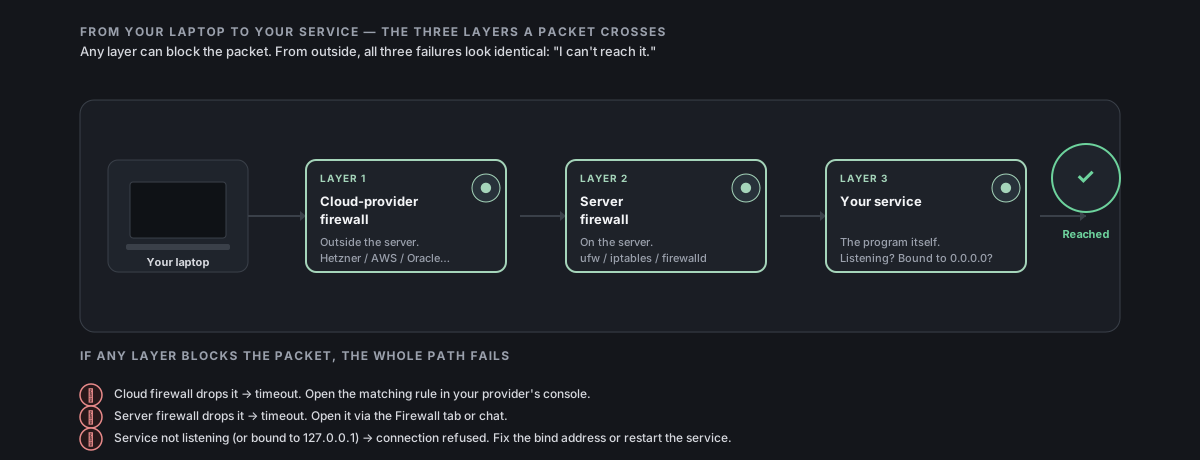
Between your browser and the program running on your server, there are three places where traffic can be blocked. From the outside, all three look the same — "I can't reach it." Inside, they're very different problems with very different fixes.
The three layers:
- Cloud-provider firewall — runs outside your server, at your provider (Hetzner, Oracle, AWS, etc.). Drops packets before they reach the server at all.
- Server firewall — runs on your server. Drops packets when they arrive, before any service sees them.
- Your service — the program itself (Caddy, your app, your database). Either not running, or only listening locally.
Think of it like a building with three security checkpoints. The packet has to pass all three to reach you. If any one of them blocks it, you can't be reached — and from outside, you can't tell which checkpoint stopped it.
Layer 3 — Is your service actually listening?
The cheapest and most common cause. Before worrying about firewalls, check that there's a program on the server actively listening on the port you expect.
The two ways this goes wrong:
- Nothing listening. The container crashed. The systemd service failed to start. The app exited at boot. From outside this looks identical to a firewall block — the packet arrives, but nobody's home to answer.
- Listening on localhost only. This one is sneaky. Many programs default to "loopback only" (
127.0.0.1), which means the program is happily running and accepting connections — but only from the server itself. Outside connections can't reach it even if every firewall is wide open. Common culprits: PostgreSQL out of the box, MySQL/MariaDB, Redis, Jupyter notebooks, dev servers, anything that says "for security, we only bind to localhost by default."
How Server Manager helps:
- The Server details → Firewall tab can answer "is my server-firewall blocking it?" but Layer 3 is something the chat is better at — ask Faro: "Is anything actually listening on port 8080?" and it'll run
ss -tlnpand tell you. - If you click Diagnose unreachable in the Firewall tab, the diagnostic checks all three layers — including this one — and tells you which is the cause.
Layer 2 — The server firewall (on the server)
The next layer to check is the firewall running on the server itself. On Ubuntu/Debian it's usually ufw; on Fedora/Rocky it's firewalld; behind both is raw iptables. Whatever the front-end, the job is the same: drop incoming packets that aren't explicitly allowed.
Three things to know about this layer:
- Most fresh servers are "default-allow" — every port is reachable through the server firewall, because the firewall either isn't installed or isn't enforcing anything. Server Manager shows this clearly: the Firewall tab displays a yellow "Default-allow" banner when this is the case.
- A "hardened" server is "default-deny" — incoming traffic is blocked by default; only explicitly allowed ports get through. SSH (port 22) is always kept open, plus whatever you confirmed during setup.
- Most hosting providers don't enable a server firewall for you. You either get a default-allow server (every port open at this layer) or you set one up yourself.
How Server Manager helps:
- Server details → Firewall tab shows you the current state at a glance: backend (
ufw/iptables/firewalld/none), active or default-allow, and the list of explicitly allowed ports with plain-English labels. - Open a port lets you allow a single port through the server firewall with one click (the Port input + protocol picker at the top of the tab). The chat walks you through the safe + persistent way to do it.
- Harden this server's firewall flips a default-allow server to default-deny safely. A modal lists every service currently listening and lets you pick which should stay public. SSH is always kept (the safeguard refuses to lock you out). Docker is detected automatically and a Docker-compatible mode is used so containers keep working.
- Diagnose unreachable checks this layer (and the others) and reports which one is blocking your port.
Important: enabling a server firewall + Docker is tricky. Plainufw enableon a Docker host can break container networking — Docker manages its own firewall rules through a separate chain (DOCKER-USER), andufwdoesn't know about it. If you let Server Manager handle the harden, it detects Docker and uses a Docker-safe path automatically. Doing it by hand without that integration is a common way to lose connectivity to your containers.
Layer 1 — The cloud-provider firewall (off the server)
The trickiest layer. Your hosting provider runs a firewall in front of your server — packets are filtered before they ever reach your VM. Server Manager can't see into this firewall directly because it's not on your server; only your provider's web console can change it.
Names and behaviors vary wildly:
| Provider | What it's called | Default behavior |
|---|---|---|
| Hetzner Cloud | Firewalls (optional, attachable per-server) | If no firewall is attached, all ports are open; if one is attached, only its rules are allowed |
| Oracle Cloud (OCI) | Security Lists (subnet) + Network Security Groups (per-VNIC) | Default Security List opens 22/tcp, may block everything else depending on the shape |
| AWS EC2 | Security Groups | Default group blocks everything except 22/tcp from anywhere |
| Google Cloud (GCP) | VPC Firewall Rules | Default rules block most inbound traffic |
| DigitalOcean | Cloud Firewalls (optional) | If you don't create one, no filtering at this layer |
| Vultr / Linode | Firewall (optional, attachable) | If none attached, no filtering at this layer |
The thing to internalize: the server firewall and the cloud firewall are two separate firewalls. Both can block. Both can let through. You can open a port on the server side and still be blocked by the cloud side (very common). You can have nothing on the server side but be blocked by the cloud side (also common).
How Server Manager helps:
- Server Manager can't change cloud-firewall rules directly (it would need API keys to every provider), but Faro knows the click-by-click steps for every major provider and walks you through it. After opening a port on the server side, Faro asks "do you want me to walk you through opening it on the cloud side too?" and gives you exact instructions for your provider's web console.
- When you run Diagnose unreachable in the Firewall tab, the diagnostic identifies whether the cloud firewall is the blocker and emits the per-provider walkthrough automatically.
- When you Harden this server's firewall, Faro reminds you to also narrow the cloud-side firewall to match (otherwise you have an asymmetric setup — tight on the server, loose at the cloud).
How Server Manager checks all three layers for you
The chat path: open Faro and say "why can't I reach port 8080?" The agent probes all three layers in order — service listening, server firewall, cloud firewall — and tells you which one is the cause. Then offers to fix it.
The UI path: Server details → Firewall tab → Diagnose unreachable. Type the port, click the button. Same three-layer probe, same diagnosis, same offer to fix.
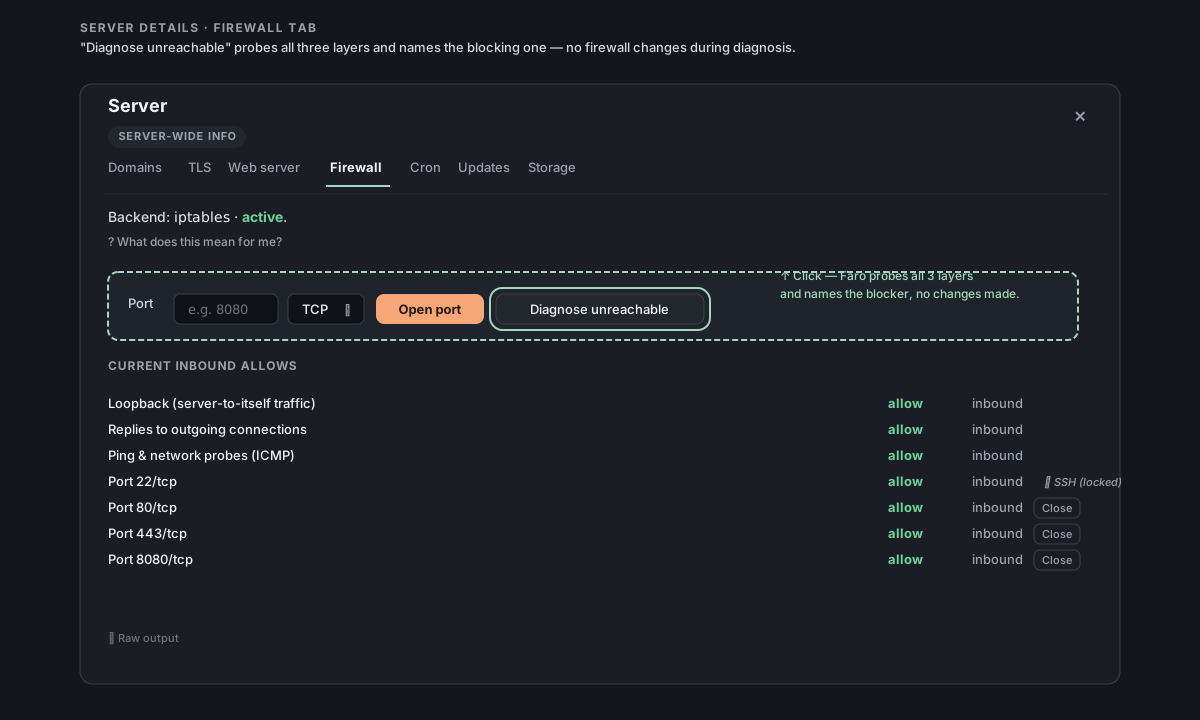
The result is always one specific layer named as the cause, plus a single proposed fix as a yes/no question. No multi-page generic checklists.
Common scenarios
"I deployed a database and can't connect from my laptop"
Almost certainly Layer 3 — the database is **listening on 127.0.0.1** only. PostgreSQL, MySQL, MariaDB, Redis all default to localhost. They're running fine, you just can't reach them from outside.
The fix depends on what you want:
- For app→database on the same server (the normal case) — that's how it should be. Connect your app to
localhost:5432(or whatever the port is) and you're done. No firewall changes needed. In Server Manager: nothing to do — Faro deploys databases this way by default. - For "my laptop → database" remote admin — open a tunnel:
ssh -L 5432:localhost:5432 user@serverfrom your laptop, then connect your DB client tolocalhost:5432locally. Safer than exposing the DB to the internet. In Server Manager: ask Faro for the exact tunnel command — it knows your server's user and host. - For "I really do want this database publicly reachable" — change the bind address in the DB config to
0.0.0.0, restart the DB, then open the port in both the server firewall AND the cloud firewall. Make absolutely sure you've set a strong password first; exposing a DB to the public internet without strong auth is a common way to get compromised. In Server Manager: ask Faro to do all three steps (rebind the DB, open the server-firewall port via the Firewall tab, walk through the cloud-provider rule). Have Faro generate a strong password first if you haven't set one.
"I opened the port in ufw and still can't reach it"
Layer 1 — the cloud-provider firewall hasn't been told. Server-side ufw allow 8080/tcp opens Layer 2; the packet still has to clear Layer 1 before it reaches your server. Open the matching rule in your cloud-provider console.
In Server Manager: ask Faro to walk you through the cloud-side rule for your provider — it'll give you click-by-click steps for Hetzner / AWS / Oracle / etc. without you having to look up the dashboard layout.
"It worked yesterday, doesn't today"
A handful of common causes:
- Your IP changed — if your cloud firewall is narrowed to "my IP only" and your home internet got a new IP overnight (very common with most consumer ISPs), the new IP is now blocked. Widen to
0.0.0.0/0temporarily, get in, then re-narrow. - The service crashed — Layer 3 problem in disguise. Check
systemctl status <service>ordocker ps. - The server was hardened recently — if someone enabled the server firewall without including the port you care about, that port is now blocked at Layer 2. Open the Firewall tab to see the current ruleset.
In Server Manager: type the affected port into the Firewall tab and click Diagnose unreachable — Faro probes all three layers and tells you which one regressed. Faster than guessing.
"I can curl it from the server, not from outside"
That's the diagnostic dividing line: it tells you the service is fine and Layer 3 isn't the problem. Now it's either Layer 2 (server firewall) or Layer 1 (cloud firewall). Use Diagnose unreachable to narrow it down further.
In Server Manager: the Diagnose unreachable button on the Firewall tab is the right tool for exactly this case — it skips Layer 3 (since you've already proven it works) and tells you which of the two firewall layers is dropping the packet.
Common questions
Do I need a server firewall if my cloud provider has one?
Yes-and-no, depending on your threat model. A cloud firewall covers the common case. A server firewall is useful when:
- You run Docker — containers can punch their own holes that bypass the cloud firewall in some setups. A server firewall catches container egress.
- You forget to remove temporary cloud-firewall rules — server firewall is the safety net.
- You want to filter outbound traffic — cloud firewalls usually focus on inbound; server firewalls can do both.
If none of those apply, a single well-configured cloud firewall is enough for most setups.
Does Server Manager work without a server firewall?
Yes. Server Manager doesn't require any firewall configuration to function. The Firewall tab is for your safety, not for connecting to Server Manager itself (Server Manager only needs SSH, port 22).
Why is the Firewall tab telling me "Default-allow" when I've never set anything up?
Because that's the actual state. Most fresh servers have no server firewall configured — every port is reachable at that layer. Whether anything actually reaches your service depends on Layer 1 (cloud firewall) and Layer 3 (whether the service is listening). The yellow banner is a heads-up that you might want to harden it.
Is "Open port 22 / SSH" something I should ever close?
No. Server Manager talks to your server only over SSH. Closing port 22 disconnects Server Manager and you'd need provider-console recovery (see Recover when SSH stops working). The Firewall tab refuses to offer a Close button on the SSH row for this reason, and the harden modal locks the SSH row to "always keep open."
What's NOT in scope here
- Outbound traffic problems (your server can't reach the internet) — that's a different setup: usually NAT, DNS, or the provider's outbound network. Ask Faro to diagnose.
- HTTPS / TLS errors — those are reachability succeeded, but the encryption handshake failed. Different problem space; check the domains-https-email section.
- DNS problems ("my domain doesn't resolve to the server") — covered in Point a domain here. The packet hasn't even gotten to the question of firewalls yet — it doesn't know where the server is.
- Specific app config (which environment variable to set so your app listens on
0.0.0.0instead of127.0.0.1) — varies by app. Ask Faro: it knows the common ones.